
ActivityTimeline v8.x.x and earlier are compatible with Java 8.
ActivityTimeline v9.x.x are compatible with both Java 8 and Java 11.
ActivityTimeline v10.x.x, v11.x.x, v12.x.x are compatible with Java 8, Java 11 and Java 17.
ActivityTimeline v12.x.x-jira11 are compatible with Java 17 and Java 21.
The previous versions of ActivityTimeline application (before v9.0.0) for Jira Server/Data Center supports Jira Server/DC versions that run on Java 8 only (including the latest Java 8 security fixes).
The easiest way to get the old ActivityTimeline app running is to switch Jira to Java 8.
If Jira Server/DC must run on Java 11 then additional configuration of ActivityTimeline was required to work properly.
Configuration Steps
-
Install Java 8 on the server where Jira is running.
-
Open <JIRA_HOME>/plugins/activitytimeline/config/at.properties file for editing. <JIRA_HOME> is usually /var/atlassian/application-data/jira on Linux servers.
-
Add the following line into that file:
at.java_home.path=JAVA8_EXECUTABLE_PATHwhere JAVA8_EXECUTABLE_PATH is full path to installed Java 8 executable file. Examples:
-
/usr/lib/jvm/jre-1.8.0-openjdk.x86_64/bin/java
-
/usr/lib/jvm/jre-1.8.0/bin/java
-
C:\\Program Files\\Java\\jre8\bin\\java.exe
-
Please note that each back-slash should be doubled for Windows OS based server.
-
-
-
Save at.properties file.
-
Open a troubleshooting page at the following link and click Restart (or Start) service button: https://<JIRA_HOME_URL>/plugins/servlet/activitytimelineconfig/configuration
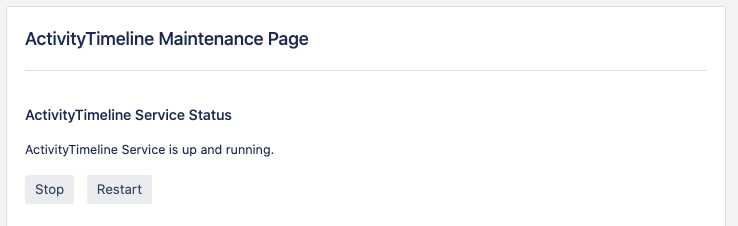
This should tell ActivityTimeline to use a different version of Java that for Jira.
In this case, Jira will stay on Java 11 while ActivityTimeline will utilize Java 8.
In case you are not sure about the reasons, please make sure to contact our Support Team