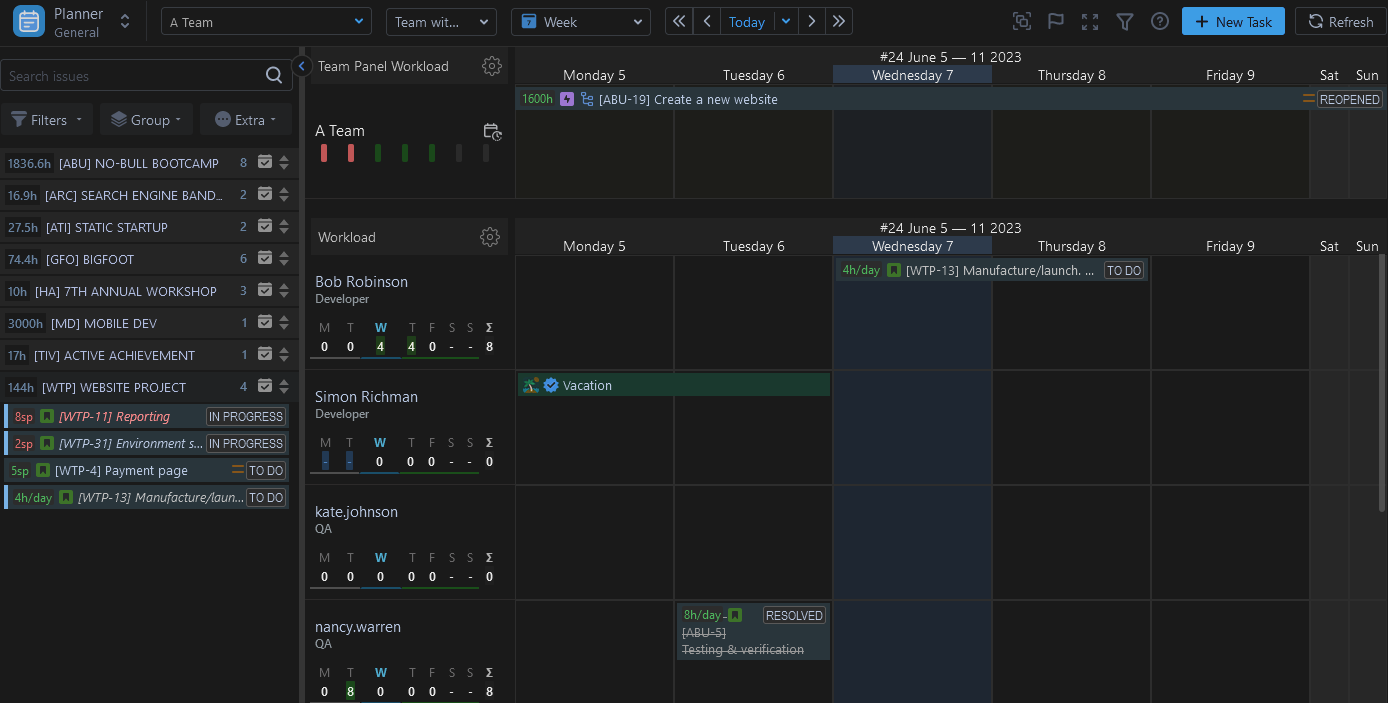
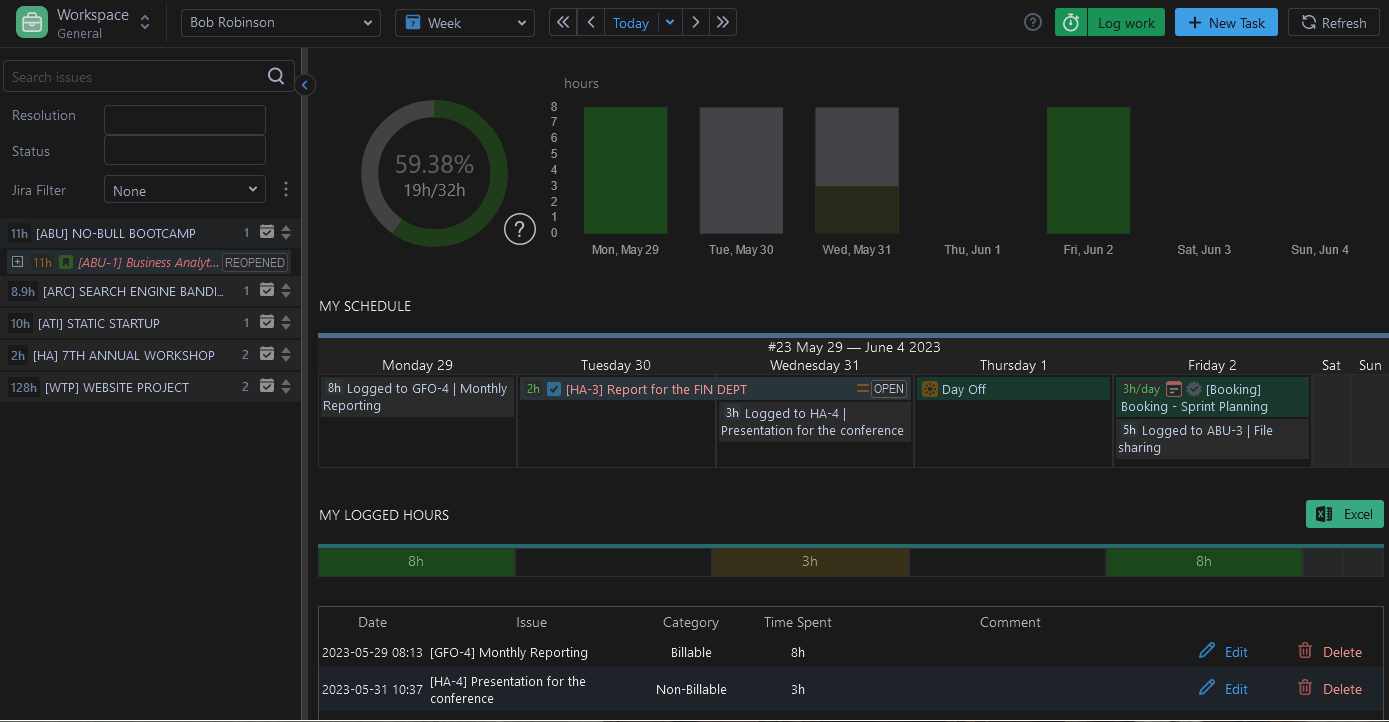
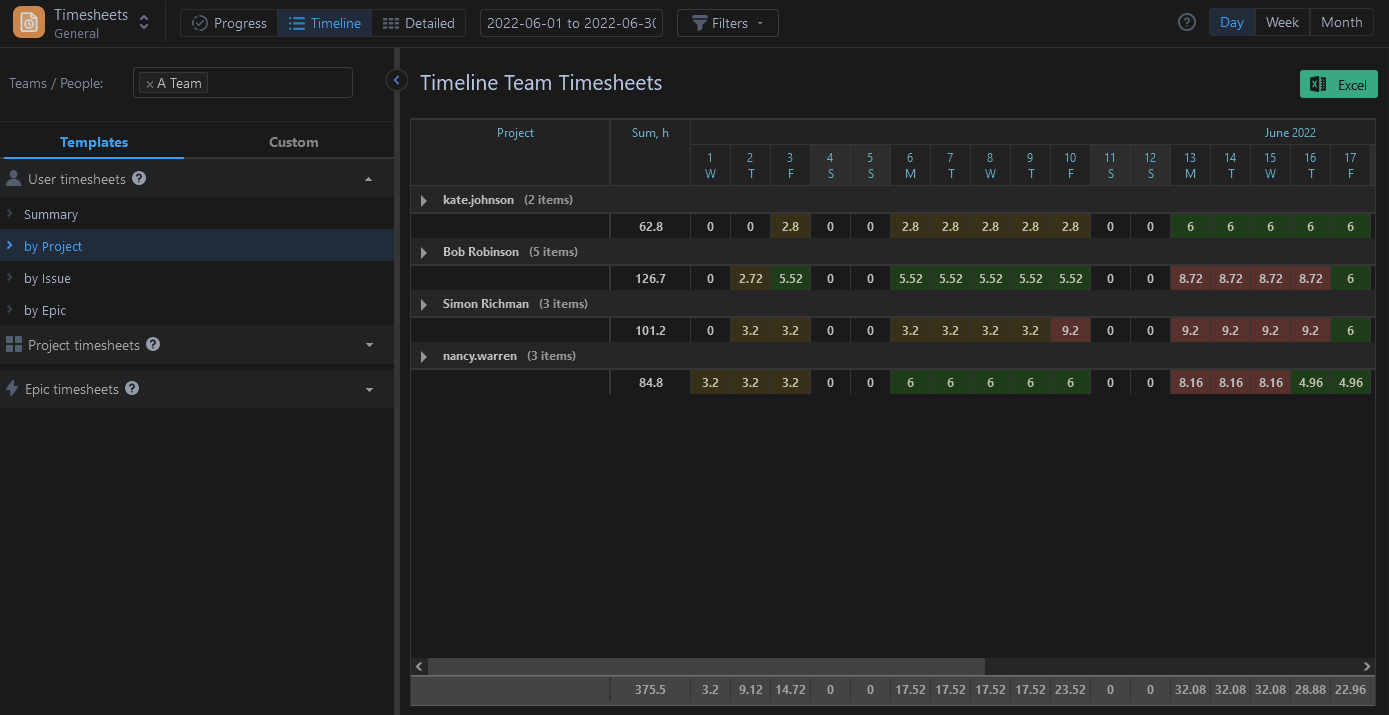
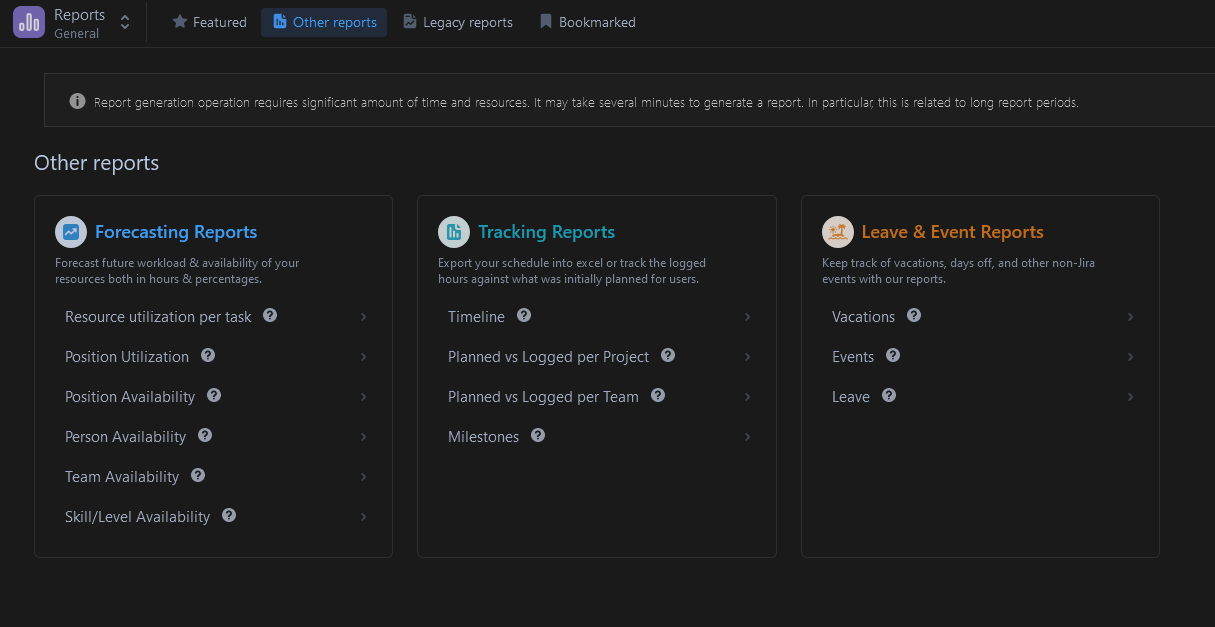
ActivityTimeline supports Dark Mode for users who prefer a darker interface.
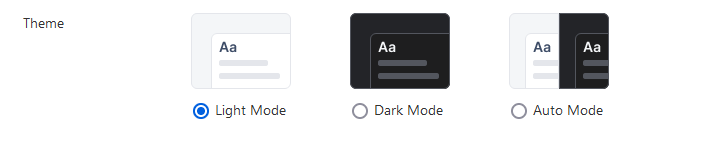
Users can switch between Light, Dark, and Auto modes from the My Account page.
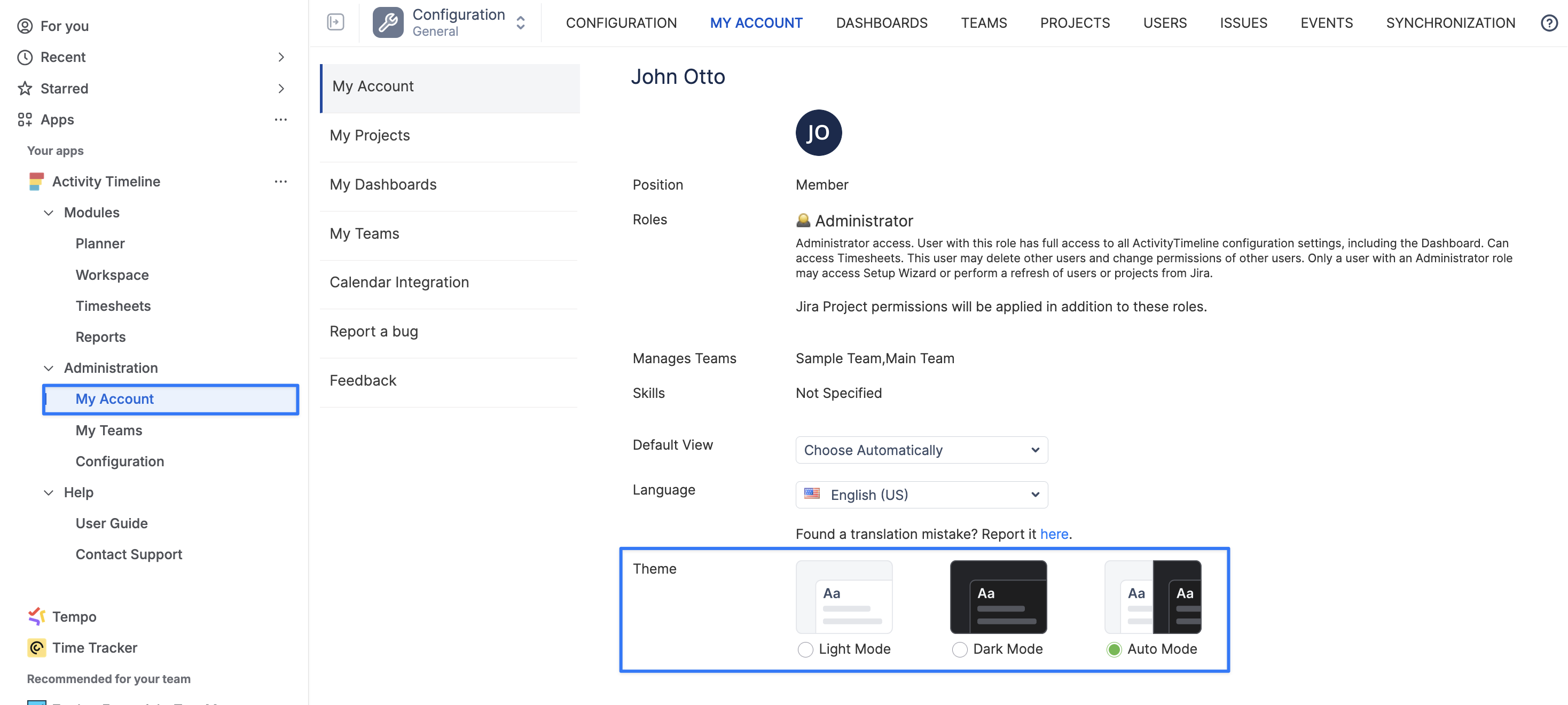
Available Theme Options
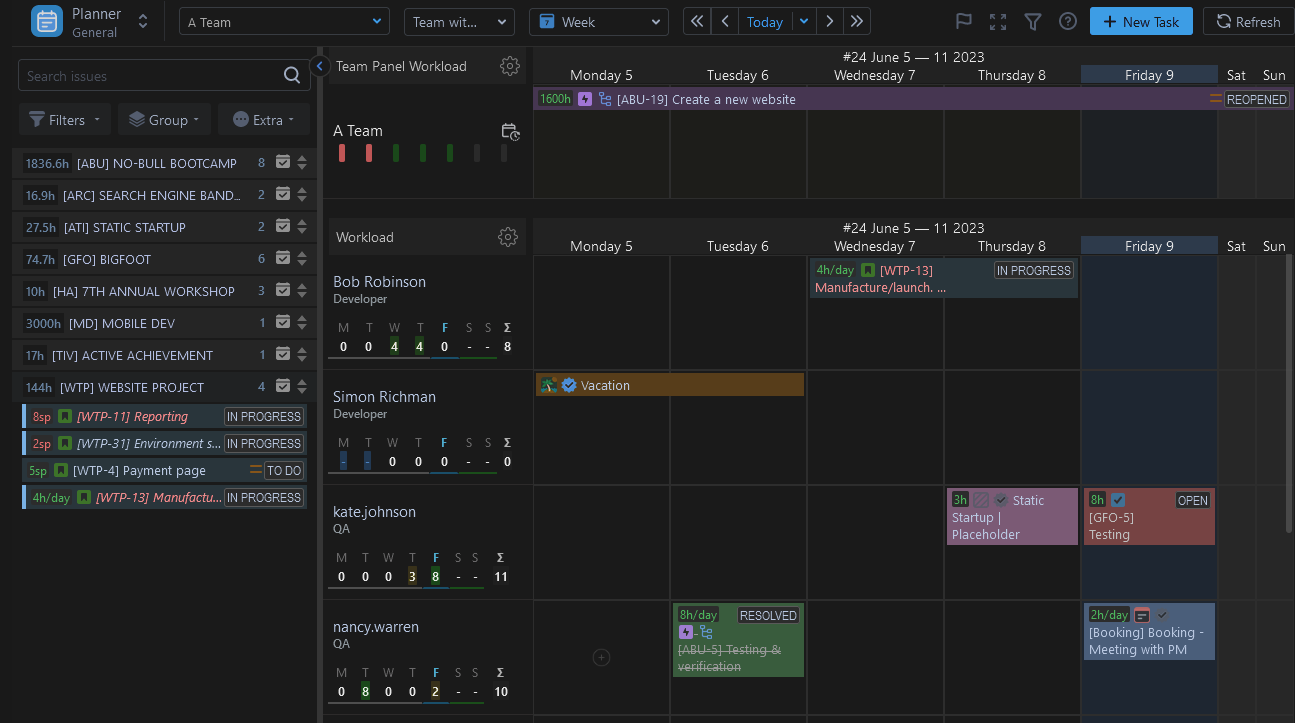
Light (Default) Mode
Uses the default light ActivityTimeline interface.
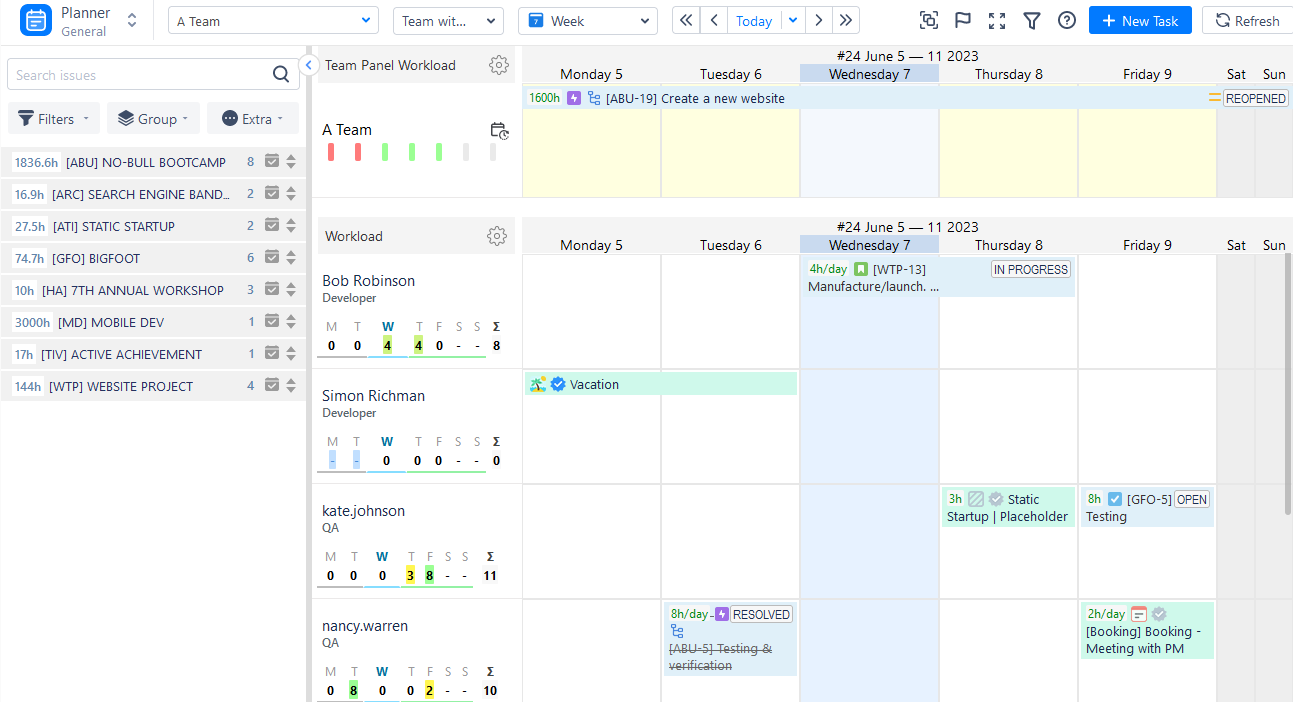
Dark Mode
Applies a darker interface across ActivityTimeline.
Auto Mode
Automatically switches between Light and Dark Mode based on your Jira Cloud mode.
Auto Mode is available for Jira Cloud only. Jira Data Center/Server users can manually choose either Light or Dark mode in ActivityTimeline Configuration → My Account Menu.
How to Enable Dark Mode
To enable Dark Mode:
-
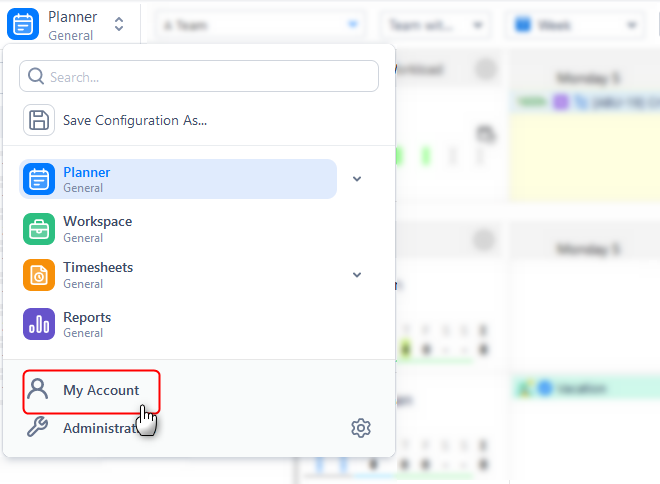
Open the drop-down menu in the upper-left corner of ActivityTimeline.
-
Click My Account.
-
On the My Account page, select Dark Mode.
-
The new mode will be applied immediately.
Dark Mode is applied across all main ActivityTimeline modules.
You can find examples of Dark Mode views for the following modules below: