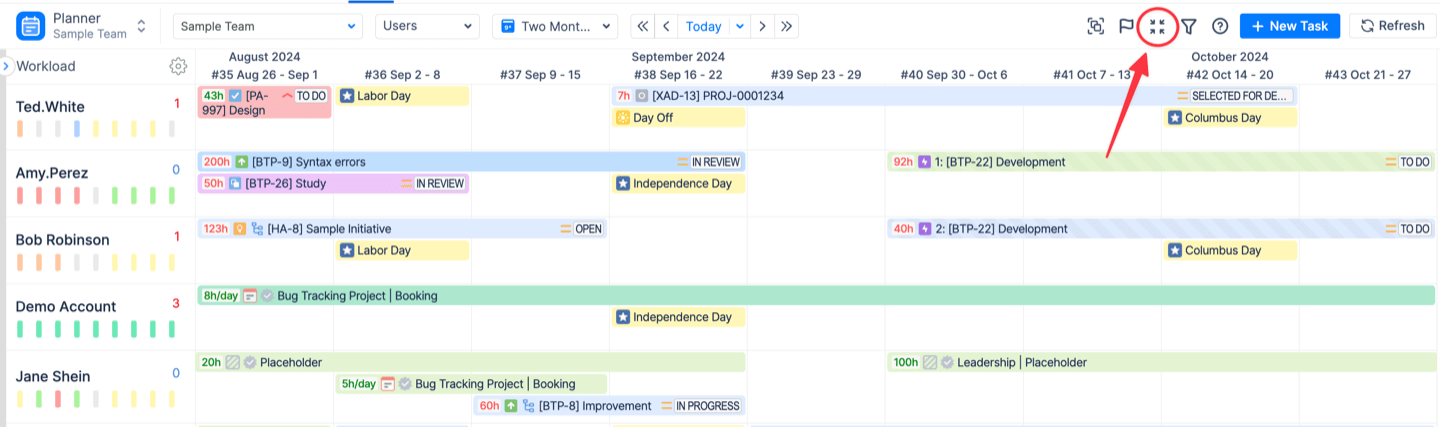
ActivityTimeline allows you to quickly move through user timelines and switch between different planning periods. This helps you review short-term schedules, long-term workload, and future availability without leaving the Planner view
Navigating the Timeline
You can navigate through the timeline using the controls at the top of the Planner.
Navigation Arrows
Use the navigation arrows to move backward or forward through the selected planning period.
The navigation behavior depends on the currently selected scope. For example, if the Week scope is selected, the arrows move the timeline to the previous or next week.
Available navigation options include:
Previous / Next
Moves the timeline backward or forward by one selected planning unit.

For example, in the Week scope, it moves to the previous or next week.
Fast Previous / Fast Next
Moves faster through the timeline, depending on the selected scope.

This is useful when you need to quickly move across longer planning periods.
Today
Returns the timeline to the current day, week, month, or period, depending on the selected scope.

Date Picker
Click the arrow next to Today to open the calendar date picker.
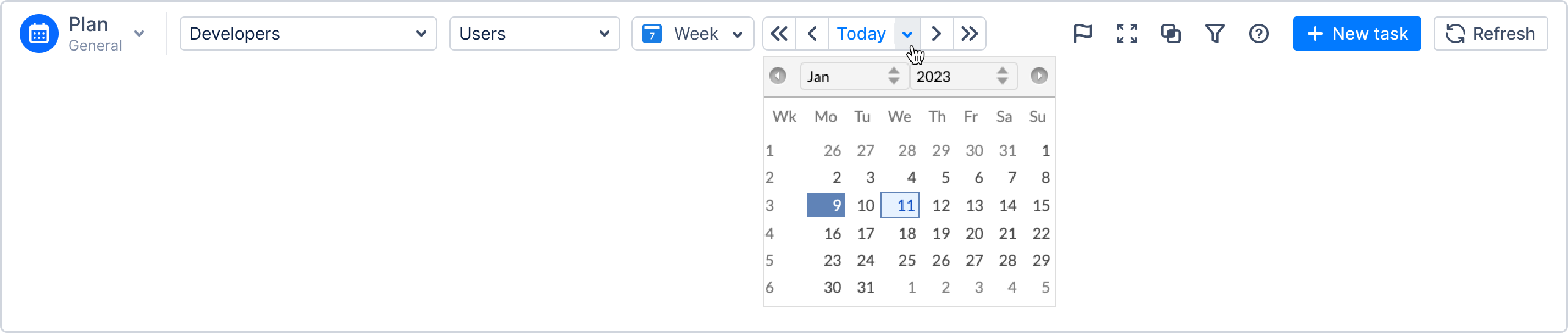
From the date picker, you can select a specific date, week, month, or year and jump directly to the required planning period.
This is useful when you need to review historical plans or schedule future work.
Scope Selector
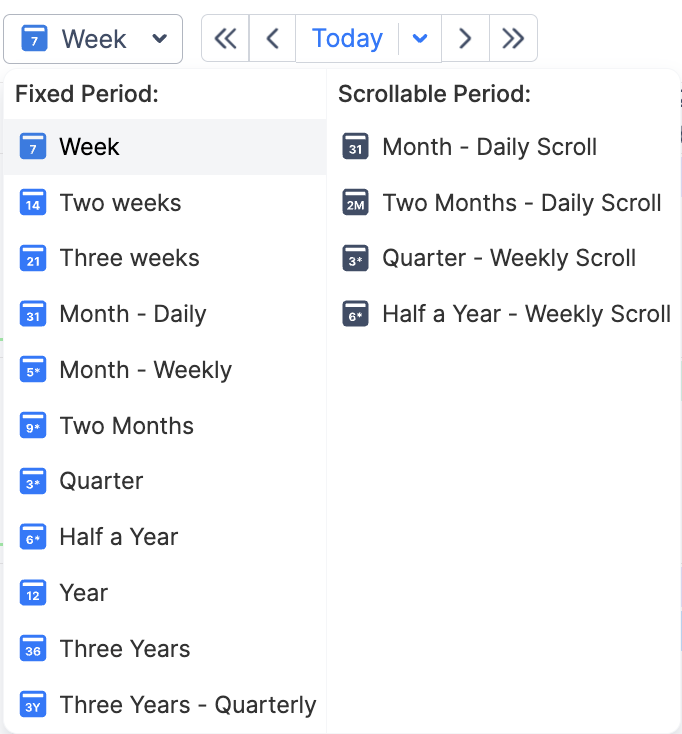
Use the Scope Selector to choose how much time should be displayed on the timeline.
The available scopes are divided into two groups:
Fixed Period
Displays the full selected period in one view.
Scrollable Period
Displays the selected period with wider timeline cells and allows horizontal scrolling.
Fixed Period Scopes
|
Scope type |
Available scopes |
How the timeline is displayed |
|---|---|---|
|
Daily view |
Week, Two Weeks, Three Weeks, Month - Daily |
Each column represents one day. Shorter periods have wider cells, while Month - Daily uses thinner cells to fit the full month on screen. |
|
Weekly view |
Month - Weekly, Two Months, Quarter |
Each column represents one week. Workload indicators show totals for each week and for the full selected period. |
|
Monthly view |
Half a Year, Year, Three Years |
Each column represents one month. This view is useful for long-term workload and capacity planning. |
|
Quarterly view |
Three Years - Quarterly |
Each column represents one quarter. This view is useful for strategic, high-level planning. |
Scrollable Period Scopes
|
Scope type |
Available scopes |
How the timeline is displayed |
|---|---|---|
|
Daily scroll |
Month - Daily Scroll, Two Months - Daily Scroll |
Each working day remains wide enough for easier planning. Use the horizontal scrollbar to move through the full period. |
|
Weekly scroll |
Quarter - Weekly Scroll, Half a Year - Weekly Scroll |
Each column represents one week. Use the horizontal scrollbar to review the full period while keeping weekly details visible. |
Expanded (Compact) View
When Expanded / Compact View is enabled, the timeline becomes more compact, allowing more information to fit on the screen.
In this mode:
-
timeline rows become thinner;
-
the workload indicator is displayed in compact mode;
-
the selected calendar scope remains unchanged.