
Timesheet Approval Settings in ActivityTimeline provide a structured way to manage worklog approvals and control whether users can add or update worklogs for closed reporting periods.
These settings are useful when your organization needs a formal review process for logged time or wants to lock past periods after timesheets are finalized.
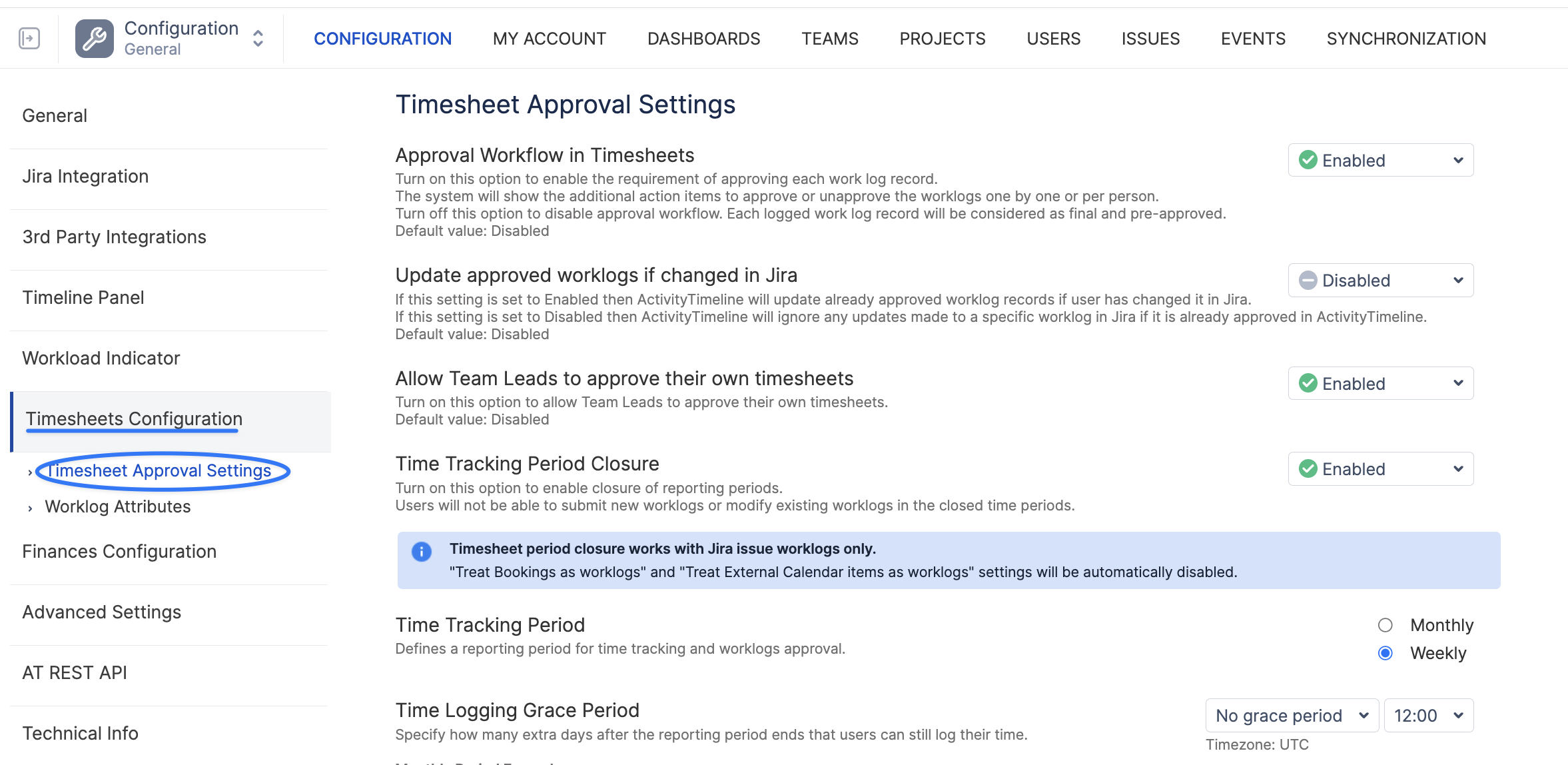
Approval Workflow in Timesheets
This setting controls whether each work log record must go through an approval process.

-
Enabled: When this option is enabled, each logged work will have the option to be approved by people with required permissions (Administrator, Manager, Power Team Lead, Team Lead). This provides an additional layer of control, ensuring the accuracy and validity of the recorded time.
-
Disabled (Default): When disabled, all work log records are considered final with no additional approval steps required.
Update approved worklogs if changed in Jira
This setting manages how changes made in Jira affect approved worklogs within ActivityTimeline.

-
Enabled: If a user changes an already approved worklog in Jira, ActivityTimeline will automatically update the approved worklog record to reflect these changes.
-
Disabled (Default): When disabled, changes made in Jira to an already approved worklog will not affect the approved record in ActivityTimeline. This setting is useful when maintaining a "locked" state for approved records.
Time Tracking Period Closure
This setting controls whether reporting periods can be closed to prevent any further modifications.

-
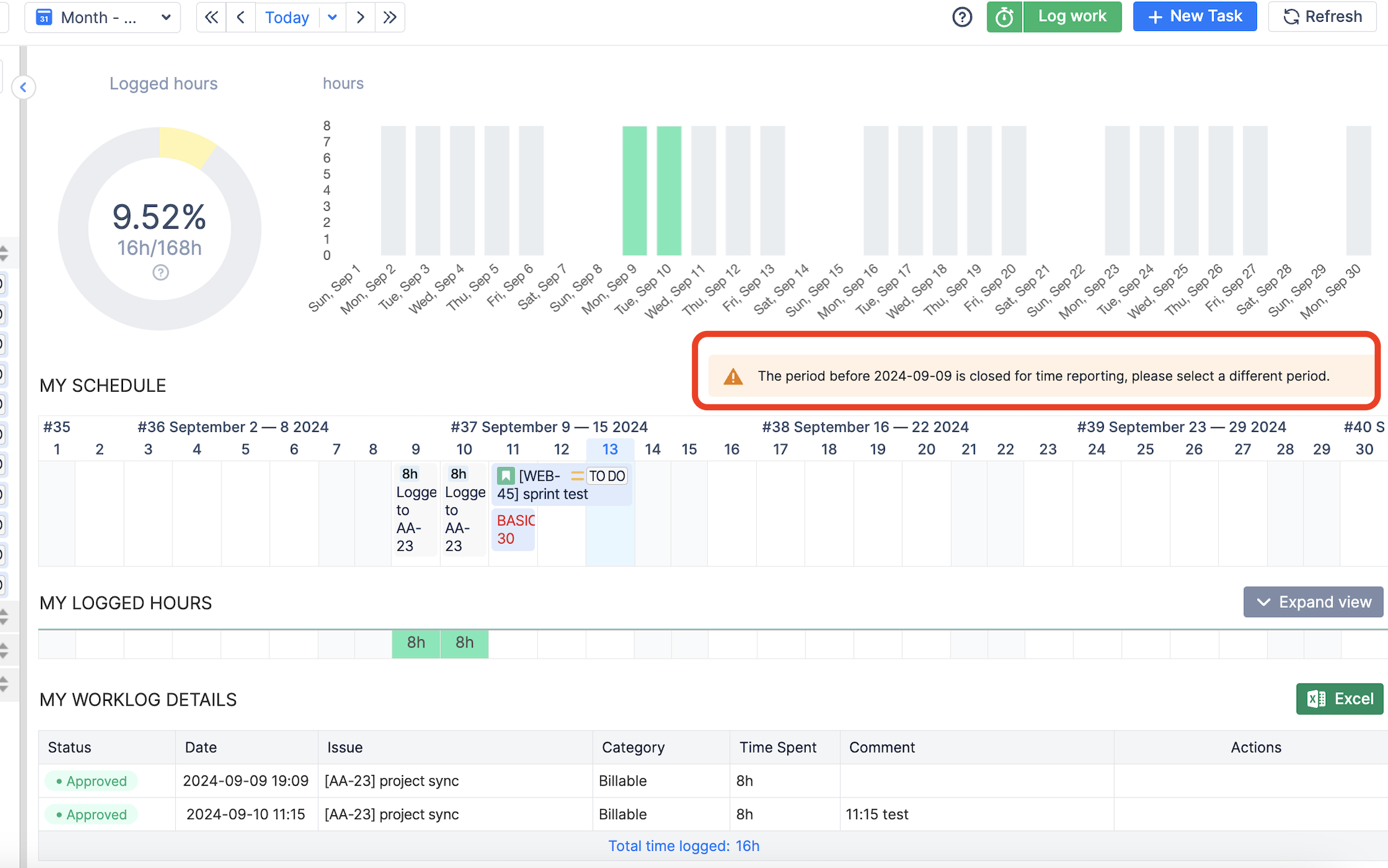
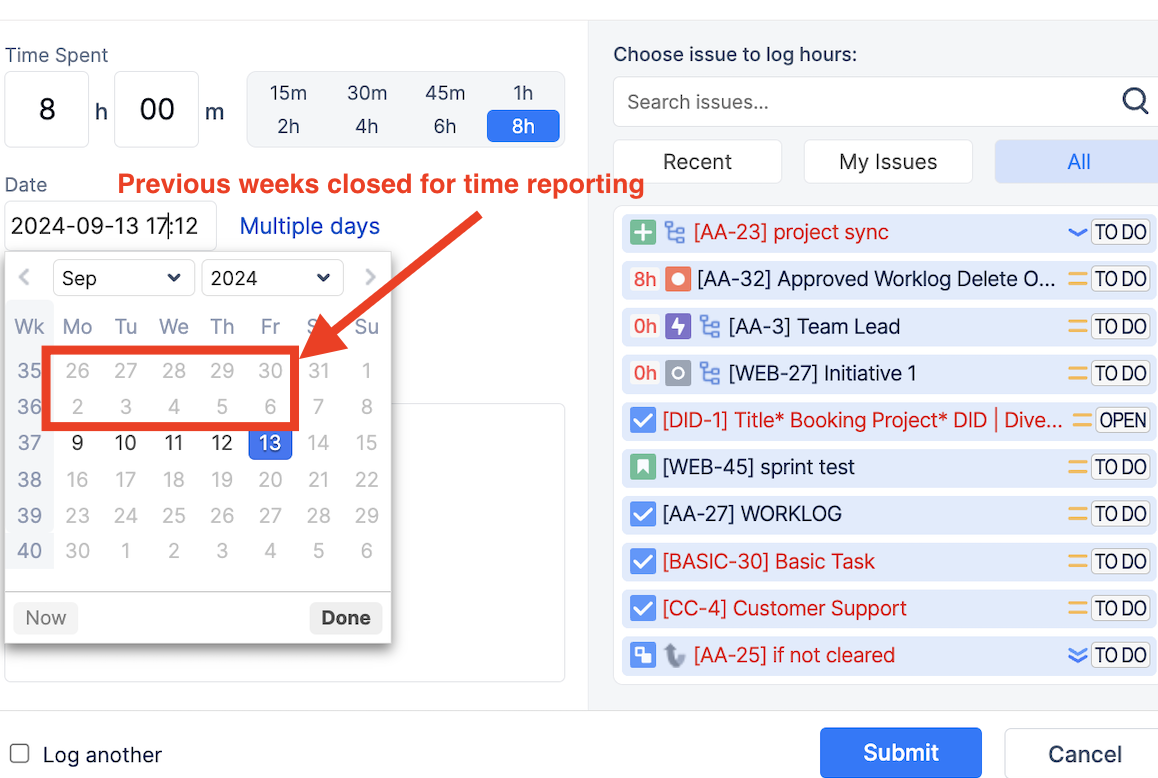
Enabled: When enabled, users cannot add new worklogs or modify existing ones in closed reporting periods. This is essential for ensuring the integrity of time records after a period is completed.
-
Disabled: When disabled, reporting periods remain open, allowing users to modify worklogs at any time.
Timesheet period closure works only with Jira issue worklogs. When this setting is enabled, settings such as Treat Bookings as worklogs or Treat External Calendar items as worklogs will be automatically disabled.
Time Tracking Period
This setting defines the reporting period used for timesheet approvals and period closure.

Available options:
-
Monthly: When the monthly period is selected, timesheets are managed by calendar month. A new reporting period starts at the beginning of each month.
-
Weekly: When the weekly period is selected, timesheets are managed by week. A new reporting period starts at the beginning of each week.
By setting the appropriate time tracking period, you ensure that users can only log time in the most recent, open period, according to the rules defined.
Time Logging Grace Period
The Time Logging Grace Period defines how long users can still log time after the reporting period has ended. This provides flexibility for late submissions without keeping old periods open indefinitely.

-
The grace period can be configured to allow from
No grace periodup to+30 daysafter the reporting period ends. -
You can specify the exact cutoff point for logging time by selecting a combination of days and a specific time (e.g.,
+3 days, 12:00).
Examples
-
Monthly Period Examples
-
If today is the 3rd of February and the Grace Period is set to at least +3 days, users will still be able to log time into January's timesheet.
-
If today is the 10th of February and the Grace Period is set to less than +10 days, users will not be able to log time into January's timesheet.
-
-
Weekly Period Examples
-
If today is Tuesday and the Grace Period is set to at least +2 days, users will still be able to log time into the previous week's timesheet.
-
If today is Wednesday and the Grace Period is set to less than +3 days, users will NOT be able to log time into the previous week's timesheet.
-
Understanding Worklog Statuses
In ActivityTimeline, each worklog can have a status based on two factors:
-
Whether the worklog has been approved.
-
Whether the related reporting period is still open or already closed.
These statuses help managers understand where each worklog stands in the time tracking and approval process.
|
Status |
Description |
Approval State |
Period State |
|---|---|---|---|

|
The worklog has been logged but has not yet been approved. Users can still edit or delete it if their permissions allow. |
Not Approved |
Open |
|

|
The worklog has been logged and approved while the reporting period is still open. Users can still submit new worklogs for the period. People with approval permissions can still unapprove the worklog if changes are required. Users can also submit new worklogs while the period remain open, but no more changes are allowed to approved worklogs. |
Approved |
Open |

|
The worklog was approved before the reporting period was closed. No further changes can be made to this worklog. |
Approved |
Closed |

|
The worklog was submitted but not approved before the reporting period was closed. The worklog is now locked and cannot be changed. |
Not Approved |
Closed |
Best Practice
We recommend enabling approval workflow and period closure if timesheet data is used for billing, payroll, financial reporting, or formal internal reporting.
For teams that use timesheets mainly for lightweight tracking, keeping approval workflow disabled may be simpler.
Before enabling period closure, make sure your team understands the selected reporting period and grace period, as users will not be able to update worklogs after the allowed time window closes.