
ActivityTimeline allows you to automatically schedule Jira issues on users’ timelines based on their availability.
The system can review Jira issues that are already assigned to users but have not yet been scheduled in ActivityTimeline. It then places these issues on the Planner according to each user’s available capacity, existing workload, and non-working events such as vacations, days off, or holidays.
This helps managers quickly create a realistic plan without manually dragging each issue to the timeline.
Before You Start
Auto Schedule works with Jira issues that are:
-
assigned to users from the currently selected team;
-
not yet scheduled on the timeline, unless you are rescheduling overdue issues;
-
estimated with a Remaining Estimate.
Issues without a Remaining Estimate will not be scheduled automatically, because ActivityTimeline needs an estimate to calculate how much capacity is required.
For better scheduling results, make sure that user availability, vacations, days off, issue priorities, and due dates are up to date.
Run Auto Schedule
To automatically schedule Jira issues:
-
Open the Planner module.
-
Select the required team.
-
Open the Issue Panel.
-
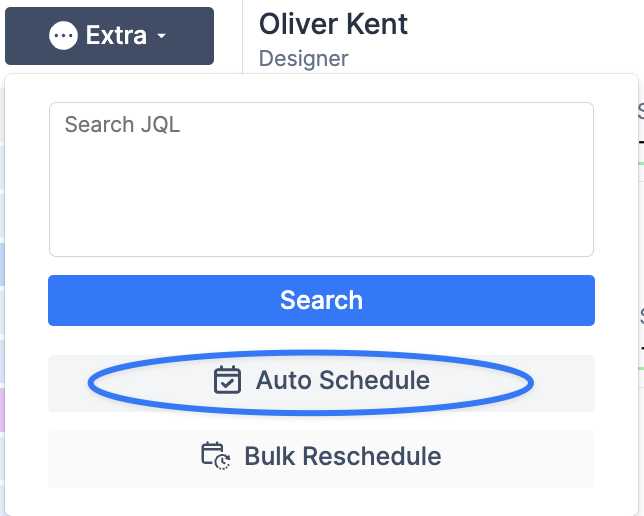
Click Extra.
-
Select Auto Schedule.
-
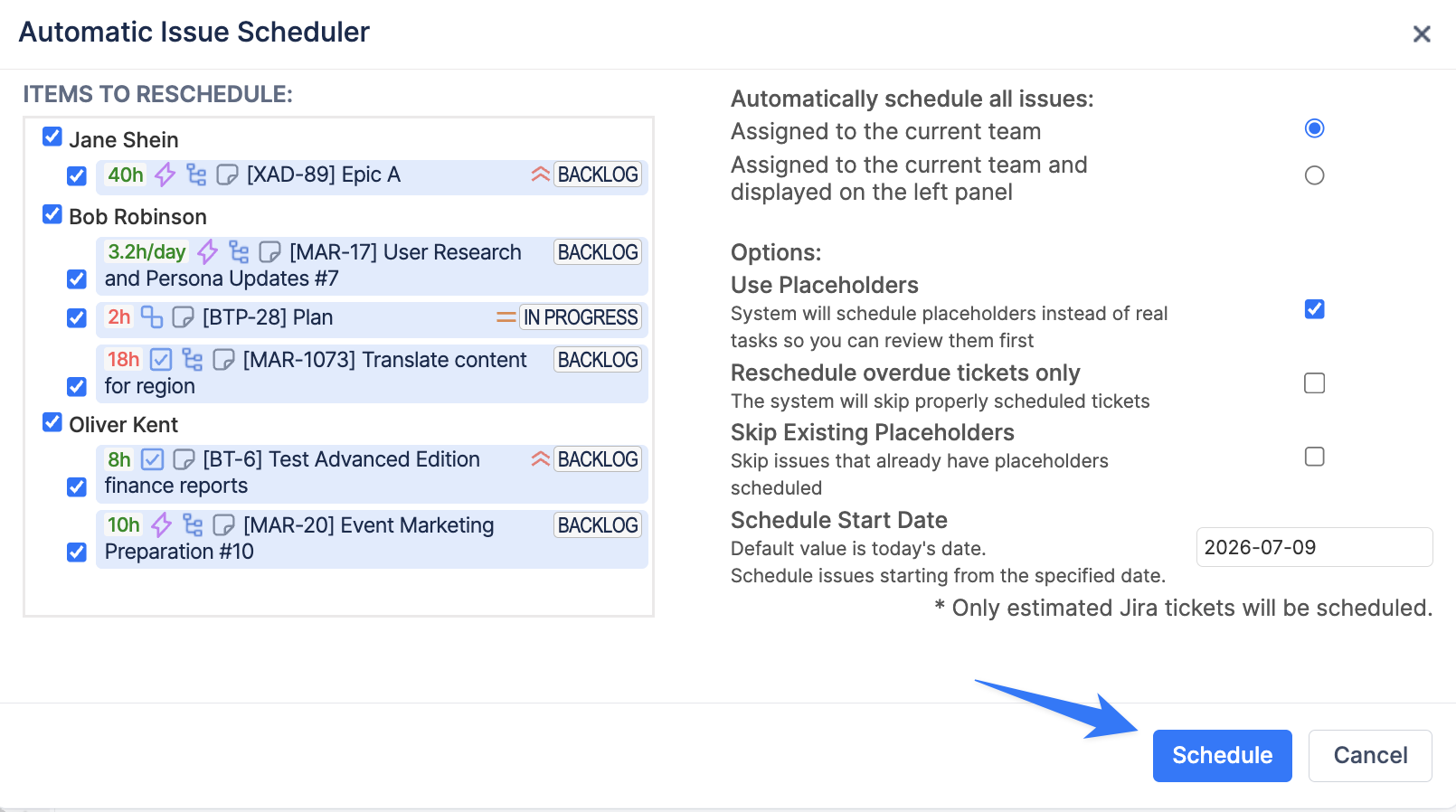
Choose which issues should be included.
|
Option |
Description |
|---|---|
|
Automatically schedule all issues assigned to the current team |
Schedules unscheduled issues assigned to users in the selected team. |
|
Automatically schedule all issues assigned to the current team and displayed on the left panel |
Schedules only issues assigned to the current team that are currently visible in the Issue Panel. This is useful when filters are applied and you want to schedule only the filtered list of issues. |
-
Select additional scheduling options if needed.
|
Option |
Description |
|---|---|
|
Use Placeholders |
Creates placeholders instead of scheduling actual Jira issues. This allows managers to review the proposed schedule before applying it to real Jira tasks. |
|
Reschedule overdue tickets only |
Reschedules only overdue issues that were planned in the past but have not been completed. |
|
Skip Existing Placeholders |
Skips issues that already have placeholders scheduled on the timeline. |
|
Schedule Start Date |
Defines the date from which ActivityTimeline should start placing issues on the timeline. |
-
Set the Schedule Start Date.
-
Run the scheduler.
ActivityTimeline will review the selected issues and schedule them on the timelines of the assigned users.
Using Placeholders for Auto Scheduling
Enable Use Placeholders when you want to review the automatically generated schedule before scheduling real Jira issues.
In this mode, ActivityTimeline creates placeholders for the selected issues. Managers can review the proposed plan and then approve the placeholders to replace them with actual Jira tasks.
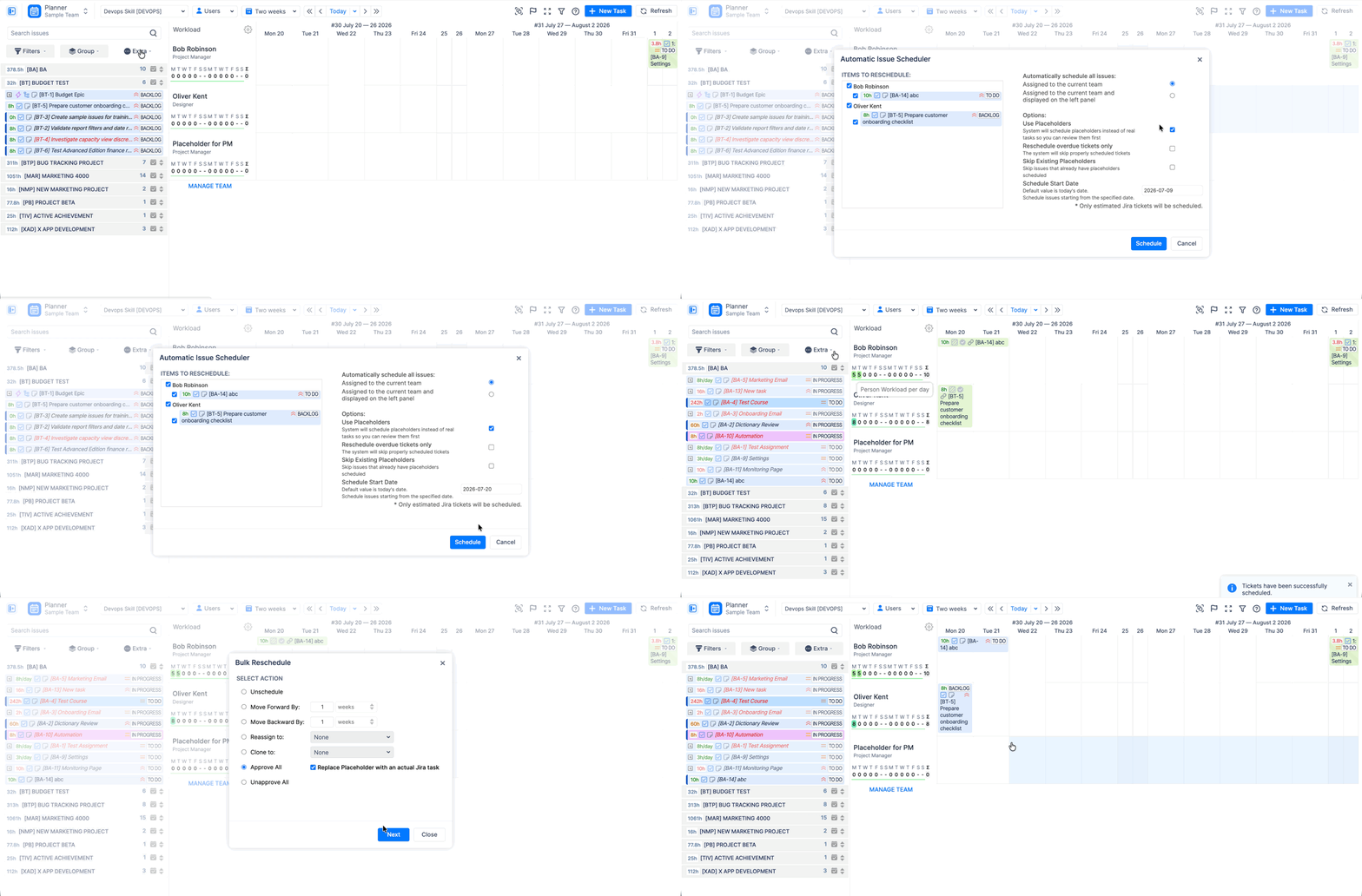
This is useful when you want to validate the schedule first, especially for larger teams or project plans.
How ActivityTimeline Schedules Issues
When Auto Schedule runs, ActivityTimeline checks the selected issues and places them on the assigned users’ timelines based on available capacity.
The system considers:
-
the issue assignee;
-
Remaining Estimate;
-
user availability;
-
existing scheduled work;
-
vacations, days off, and other non-working events;
-
issue priority and due dates, depending on configuration.
The scheduler tries to place work on available days and avoid overload where possible.
For example, if a user has vacation scheduled for two days, ActivityTimeline will avoid those days and place work on available working days instead.
If one issue has a higher priority or earlier due date, it may be scheduled before lower-priority work.
Example
A user has two unscheduled Jira issues assigned:
|
Issue |
Remaining Estimate |
Priority |
|---|---|---|
|
Issue A |
8 hours |
Major |
|
Issue B |
1 hour |
Normal |
ActivityTimeline reviews the user’s availability, current workload, priorities, and due dates.
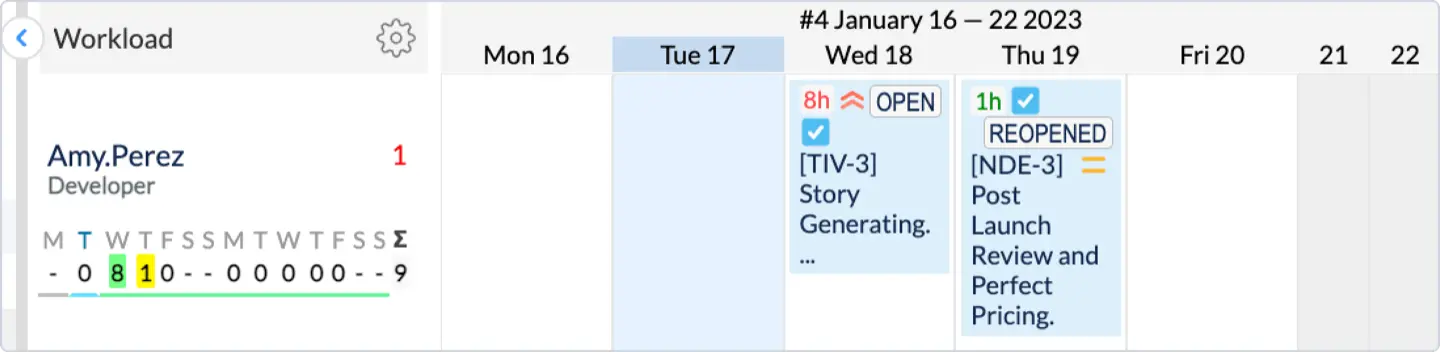
The 8-hour issue is scheduled on a day with enough available capacity. The 1-hour issue is scheduled on another available slot if adding it to the same day would overload the user.
Important Notes
Auto Schedule works only with issues that have a Remaining Estimate.
Issues without estimates are not scheduled automatically.
The scheduling result may depend on issue priority, due dates, user availability, existing workload, and ActivityTimeline configuration.
Please ensure that priorities are configured correctly under Configurations → Issues → Issue Settings for the Auto Scheduler to function as expected with priority-based settings