
What is a Booking?
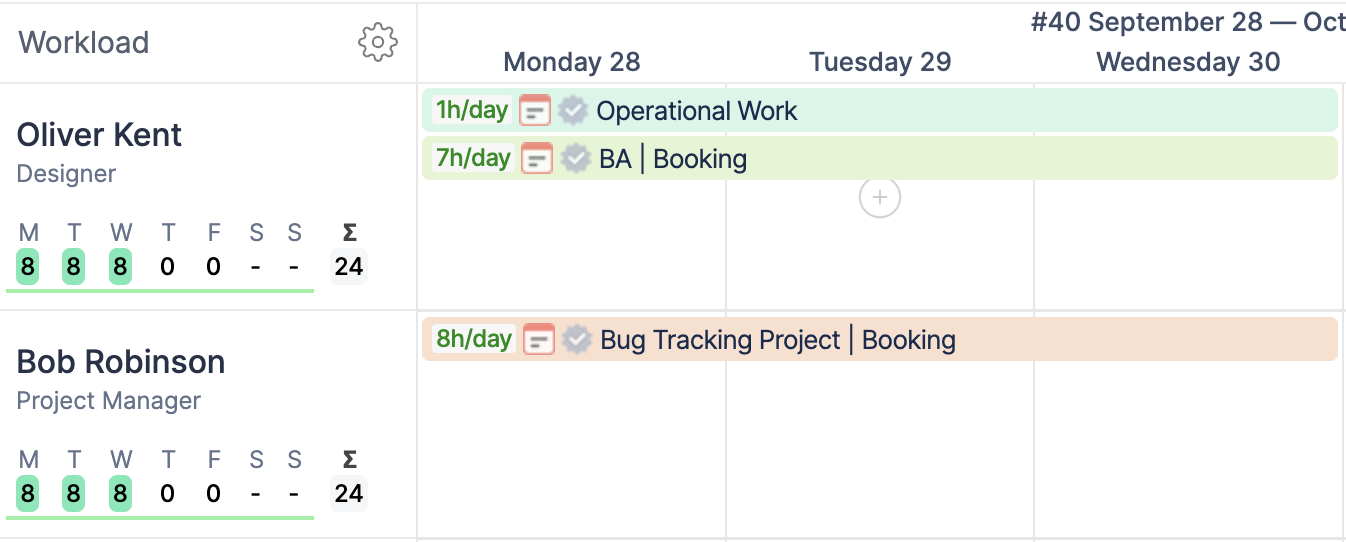
A Booking is a custom event type in ActivityTimeline used to reserve a person’s capacity for a specific number of hours per day.
Bookings allow managers to allocate time for a project or activity without scheduling a specific Jira issue.
What are Bookings used for?
Bookings are useful when you need to reserve capacity.
Common use cases include:
-
reserving time for future work;
-
allocating a person to a project;
-
planning work when Jira issues are not created yet;
-
blocking capacity for internal activities;
-
preventing overbooking and scheduling conflicts.
Bookings help managers keep a clear overview of resource availability and planned workload.
Creating a Booking
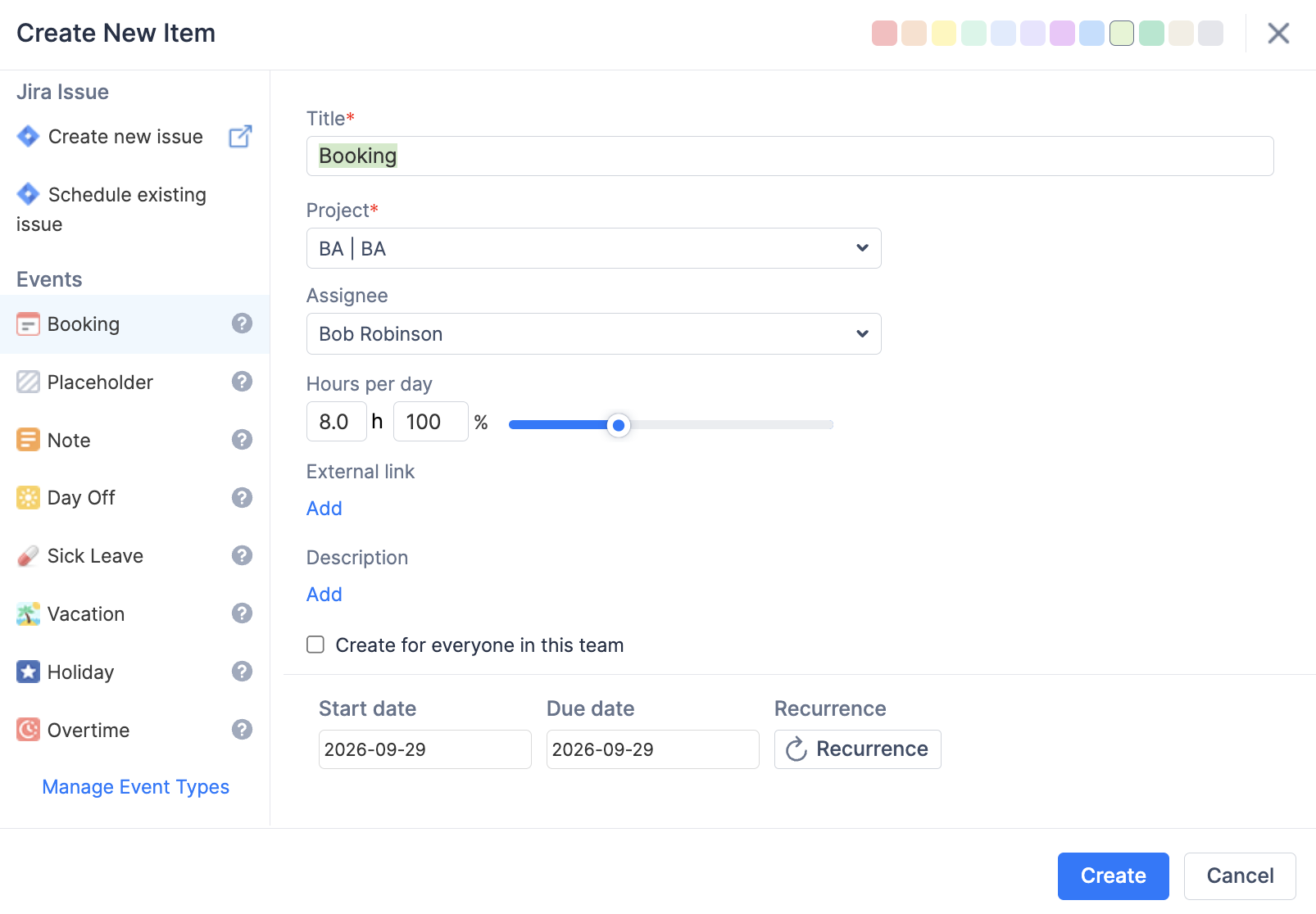
To create a Booking:
-
Click an empty cell on the user’s timeline.
-
Select Booking in the Create New Item dialog.
-
Enter the Booking title.
-
Select a project, if needed. If no specific project is selected, the Booking can be created under General.
-
Set the number of Hours per Day.
-
Optionally, add an External Link and Description.
-
You can also select Create for everyone in this team to add the Booking to each team member’s timeline for the selected period.
-
If needed, configure Recurrence (There is a limit of 100 events per recurring series).
-
Click Create.
Booking Approval
Users with the required permissions, such as Administrators, Managers, or Team Leads, can approve Bookings.
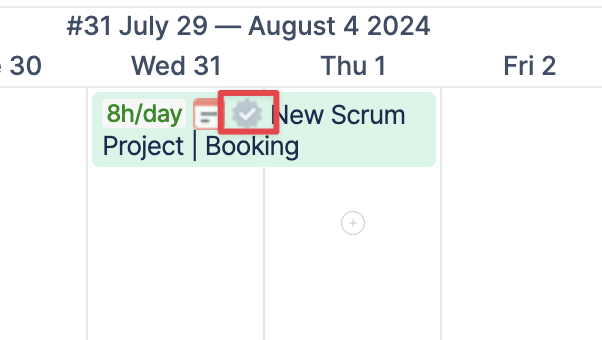
Once approved, the approval icon changes color, and the Booking becomes locked. Employees and users with lower-level permissions will not be able to modify the Booking unless it is unapproved by an authorized user.
To unapprove a Booking, click the same approval icon again.
How Bookings Affect Workload
Bookings are included in workload calculations.
For example, if a user has an 8-hour Booking on a specific day, ActivityTimeline shows 8 hours of planned work in the workload indicator, even though no Jira issue is scheduled.

This helps managers understand how much capacity is already reserved and avoid overbooking.
FAQ
Q: How can I update a Booking?
A: Click the Booking once and select Open. Make the required changes and click Update.
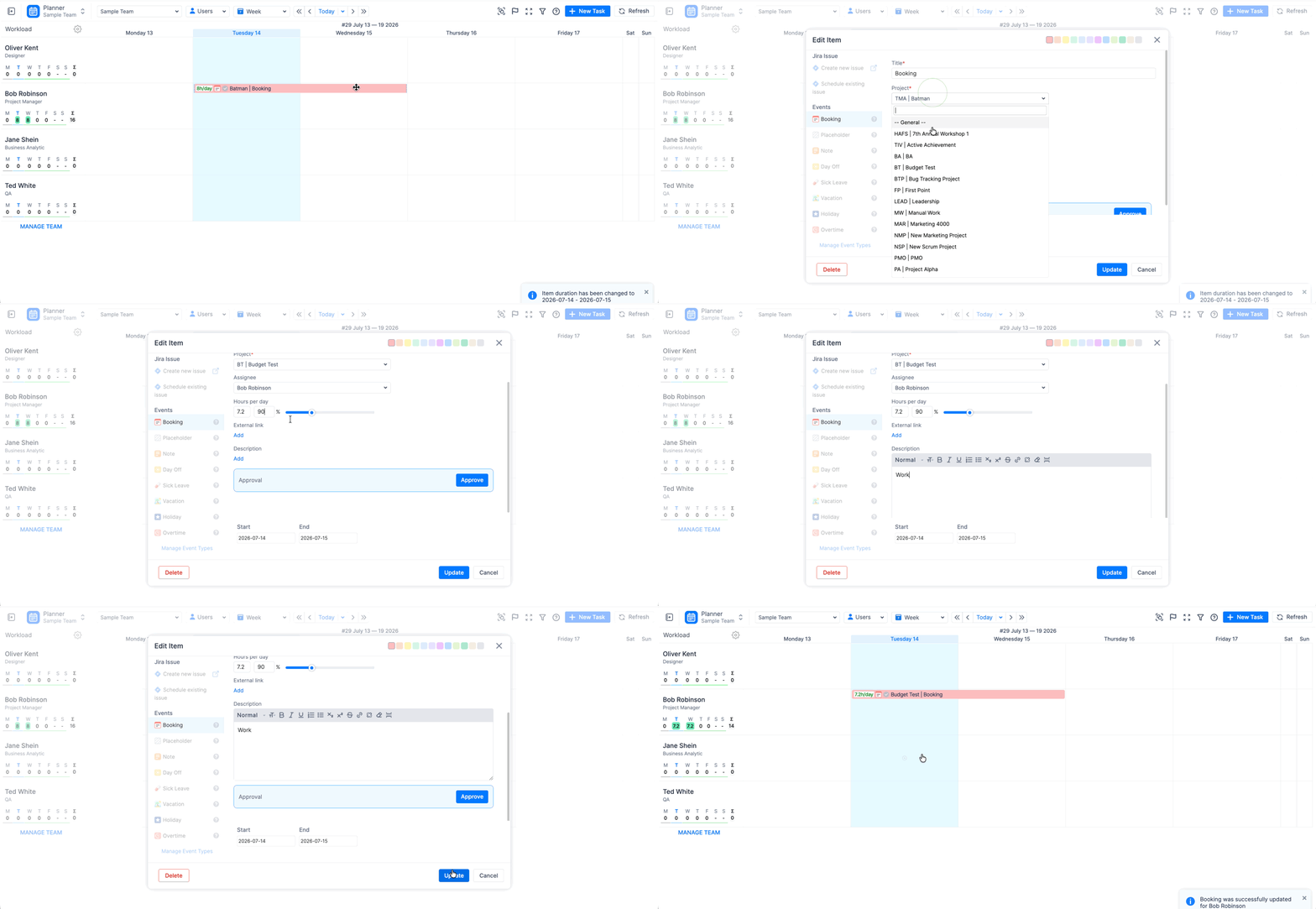
You can also update a Booking directly on the timeline:
-
drag and drop the Booking to change its date or move it to another user;
-
resize the Booking to change its duration.
This makes it easy to quickly adjust Booking dates, duration, or assignee without opening the event details.
Q: How can I delete a Booking?
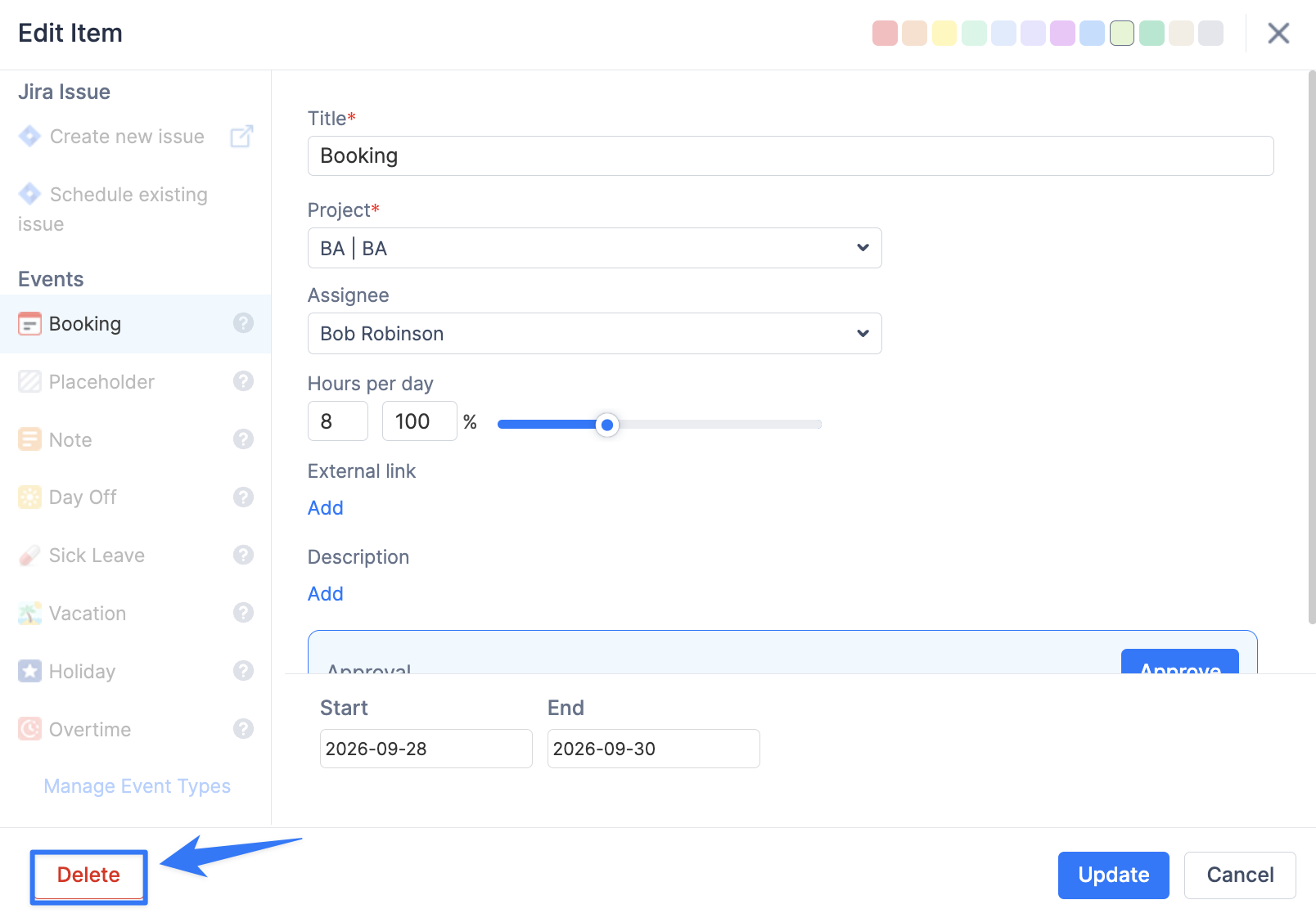
A: Click the Booking and select Open → Delete.
Alternatively, drag and drop the Booking to the Unscheduled section in the bottom-left corner.
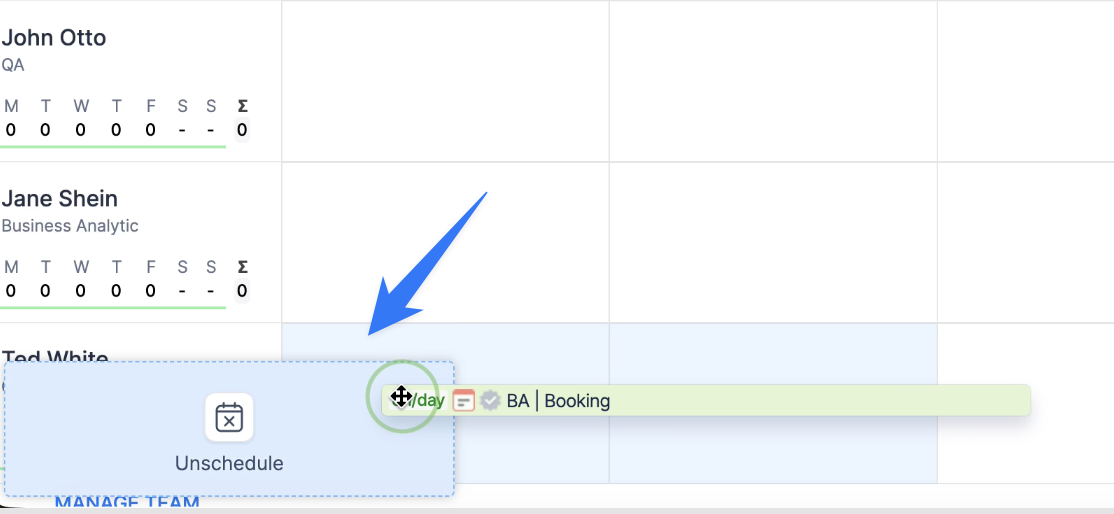
Please note that Booking events do not have a cache. Once deleted, the Booking is permanently removed.
Q: How can I delete a recurrent Booking?
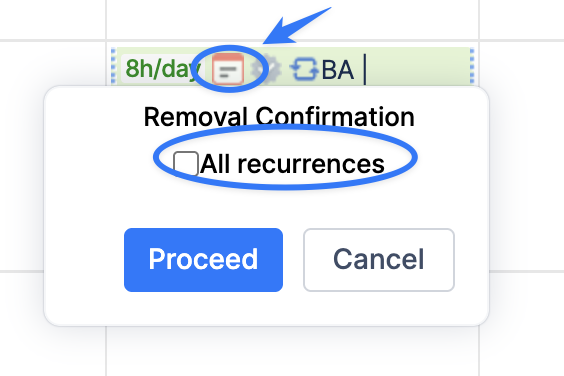
A: Recurrent Bookings can be deleted by clicking the booking icon on the Booking event and selecting ‘All recurrences’.
Q: Do Bookings affect workload and forecasting reports?
A: Yes. Bookings are included in workload calculations and forecasting reports, helping managers understand planned capacity and allocation.
Q: Do Bookings appear in Timesheets?
A: Yes. By default, Bookings can be treated as time spent in Timesheets.
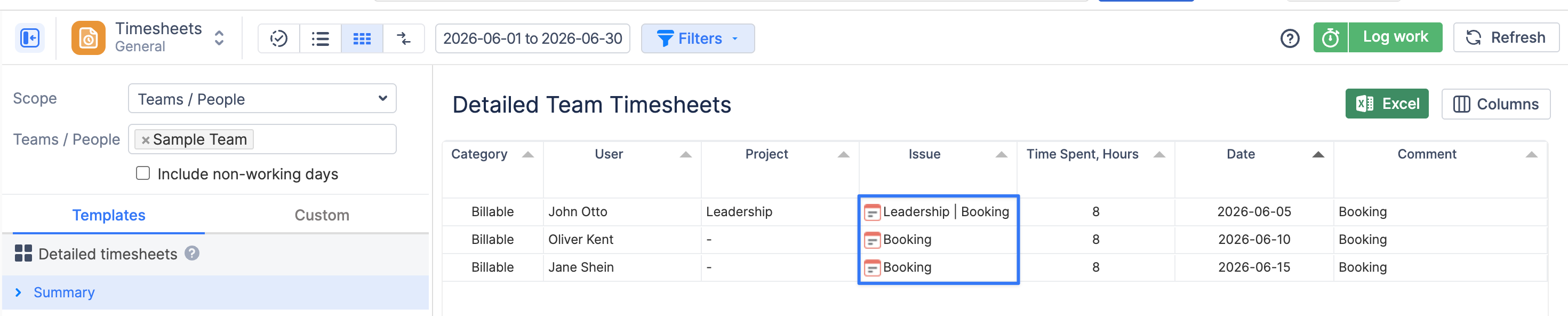
If needed, this behavior can be disabled so that Bookings are not included as worklogs under Configurations → Timesheets Configuration → Treat Booking items as worklogs.
Q: Can I clone a Booking?
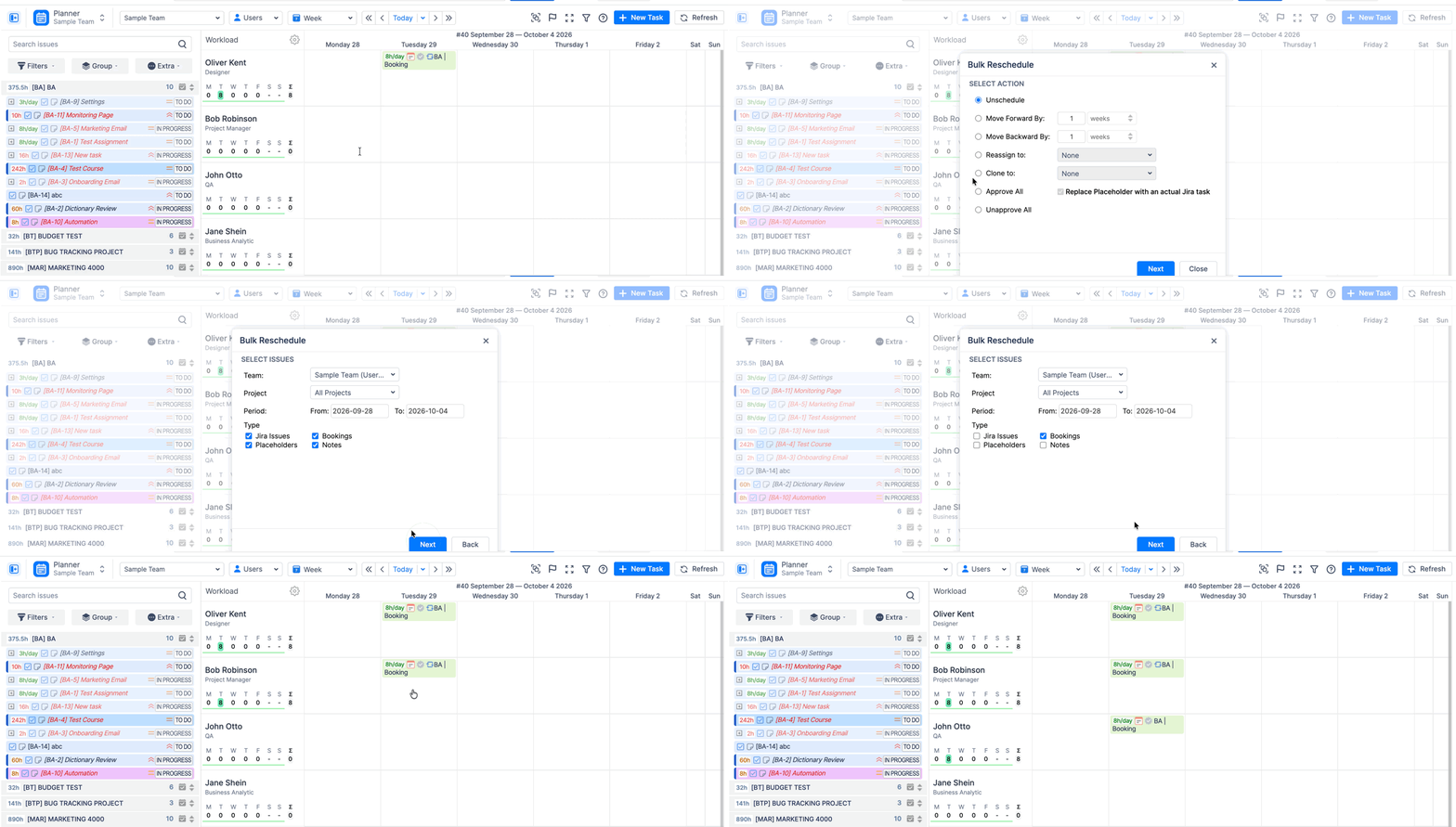
A: Yes. You can clone Bookings using bulk options or by dragging and dropping the Booking while holding Command on macOS or Ctrl on Windows.
Q: Can I add notes or reference documents to a Booking?
A: Yes. Bookings support both Description and External Link fields, allowing you to include additional information or link to external documentation.
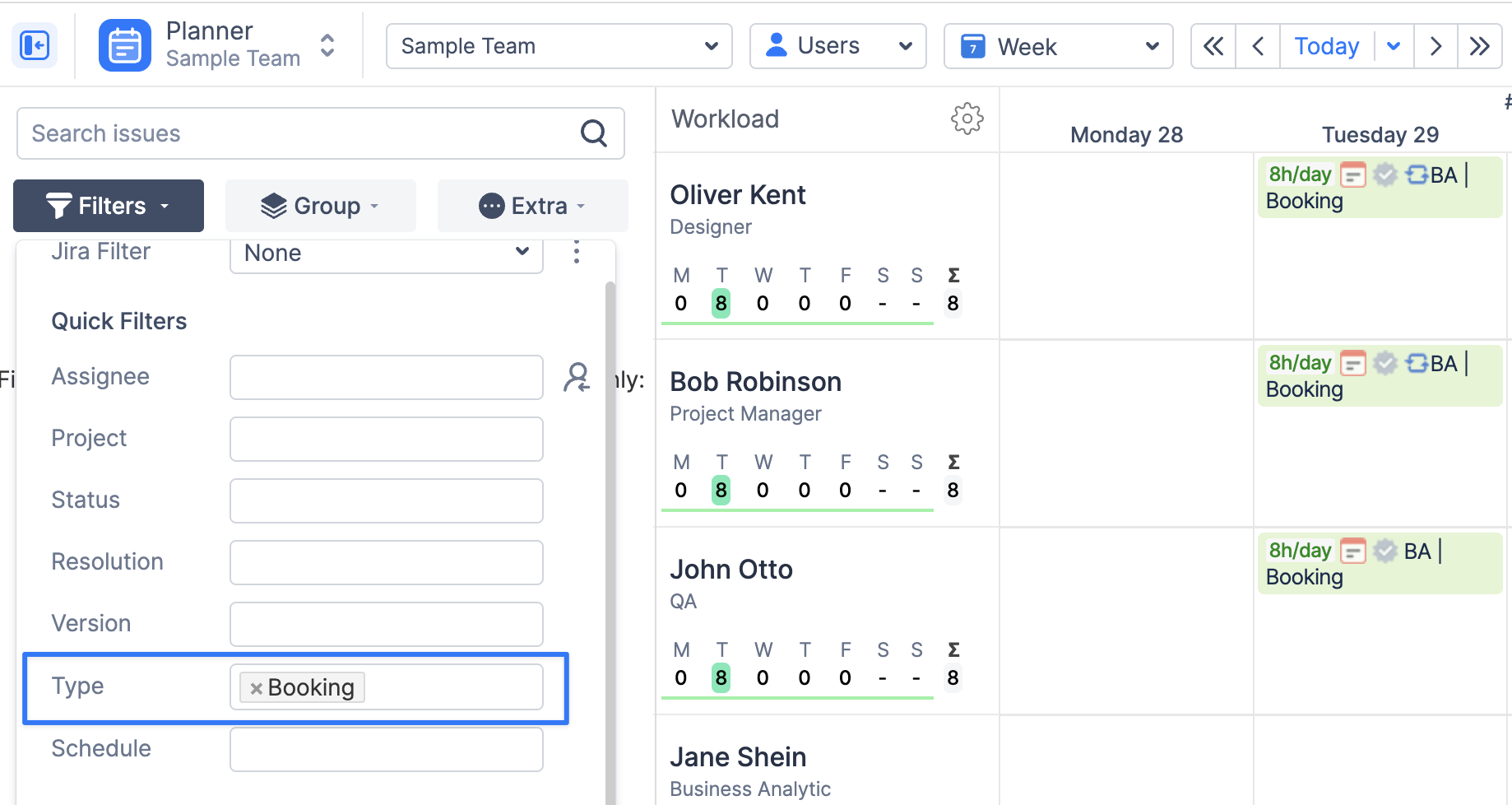
Q: Can I filter out timeline to see only Bookings?
A: Yes. Bookings can be filtered together with other timeline items using ActivityTimeline’s filtering options using Type Filter and Apply Filters to Timeline option.
Q: Can Bookings be created through the REST API?
A: Yes, Bookings as well as other custom events can be created via REST API.