
ActivityTimeline regularly checks Jira for issue updates and reflects those changes in ActivityTimeline.
By default, issue data is updated approximately every 10 minutes. This includes changes such as newly created issues, updated summaries, estimates, dates, assignees, statuses, and other issue fields used in ActivityTimeline.
If you need the latest changes to appear sooner, you can manually refresh the data by clicking the 
When Admin Manual Synchronization May Be Needed
In most cases, automatic synchronization and the Refresh button are enough.
However, an ActivityTimeline administrator may need to run manual issue synchronization when:
-
recent Jira issue changes are still not visible in ActivityTimeline;
-
a large number of issues were updated in Jira;
-
issue-related configuration was changed;
-
planning date settings were changed, for example from Due Date to Planned End Date;
-
the support team asks you to refresh issue data manually.
Manual issue synchronization is available in Configuration → Synchronization → Refresh Issues.
Quick Issue Synchronization
Use Quick Issue Synchronization when you only need to update recently changed issues.
This option allows administrators to synchronize issues modified within a selected date range. It is useful when you want to refresh recent changes without running a full issue synchronization.
By default, Quick Issue Synchronization processes up to 10,000 of the latest Jira issues.
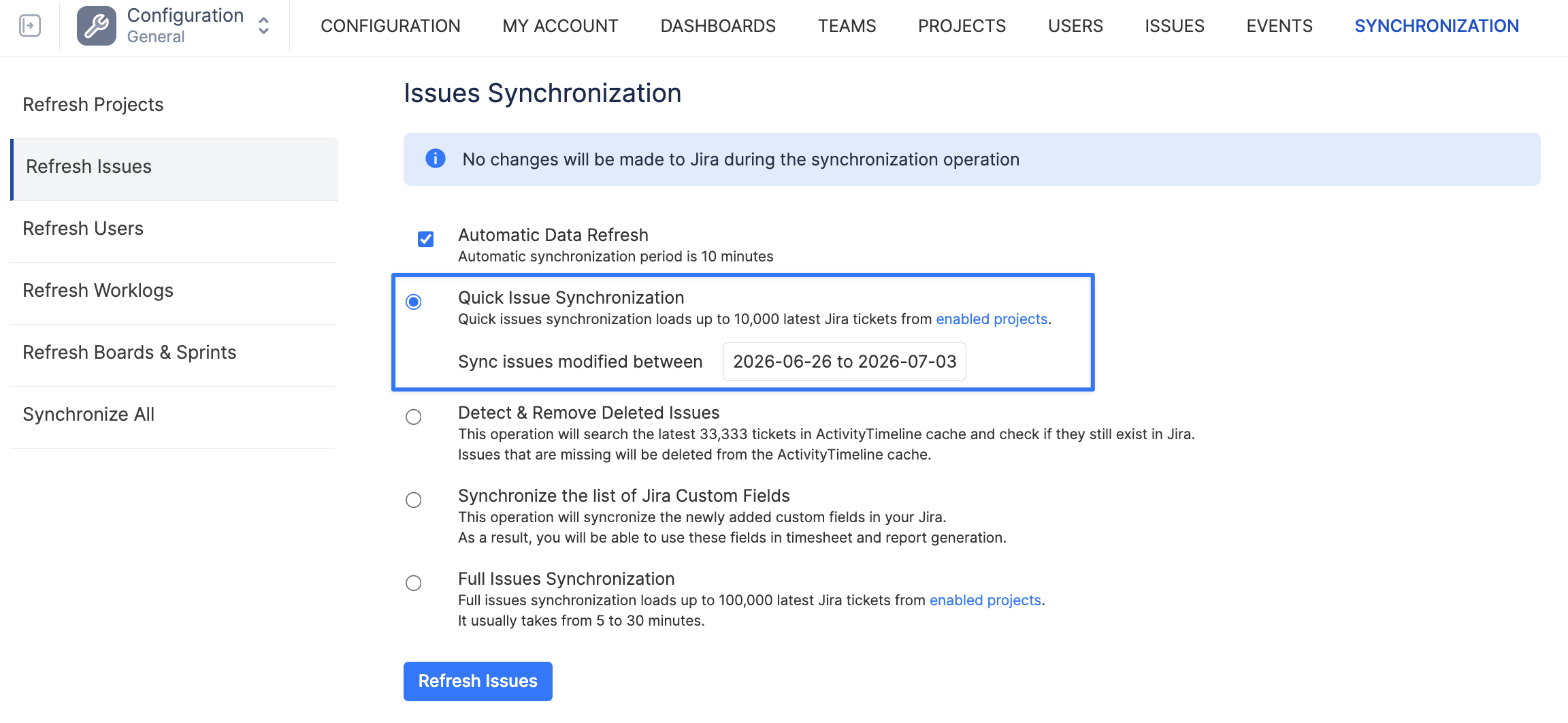
Full Issues Synchronization
Use Full Issue Synchronization when you need ActivityTimeline to fully re-check issue data from Jira.
This option is usually used after major configuration changes or when you want to make sure issue data in ActivityTimeline is fully aligned with Jira.
During this process, ActivityTimeline checks Jira issues from enabled projects and updates the issue data stored in ActivityTimeline.
By default, Full Issues Synchronization processes up to 30,000 of the latest Jira issues from enabled projects. If your instance contains more issues, you can increase this limit in Advanced Settings by modifying the Number of tickets to load from Jira setting.
Issue synchronization only updates data in ActivityTimeline. It does not change, edit, or delete issue data in Jira.
Detect & Remove Deleted Issues
Sometimes an issue may be deleted in Jira but still remain in ActivityTimeline’s stored data.
In this case, an administrator can use Detect & Remove Deleted Issues to remove obsolete issues from ActivityTimeline.
To do this:
-
Go to Configuration → Synchronization → Refresh Issues.
-
Select Detect & Remove Deleted Issues.
-
Click Refresh Issues.
ActivityTimeline will check recently modified Jira issues and remove issues that were deleted in Jira but still exist in ActivityTimeline.
The system checks the latest modified issues, usually within a range of approximately 1,000–10,000 issues.
Removing Issues Manually
Administrators can also remove obsolete issues manually from the Maintenance page.
This can be useful when you need to remove a specific deleted Jira issue from ActivityTimeline.
Webhooks Configuration (Recommended)
For better detection of deleted Jira issues and worklogs, we recommend configuring Jira webhooks.
Webhooks allow Jira to notify ActivityTimeline when an issue or worklog is deleted. This helps ActivityTimeline remove deleted items sooner, without waiting for the next scheduled synchronization.
To configure webhooks:
-
Go to Configuration → Jira Integration → Webhooks Config.
-
Enter your email and Atlassian API token.
-
If needed, create a token by clicking Create Token.
-
Click Update.
-
Click Add Webhooks.
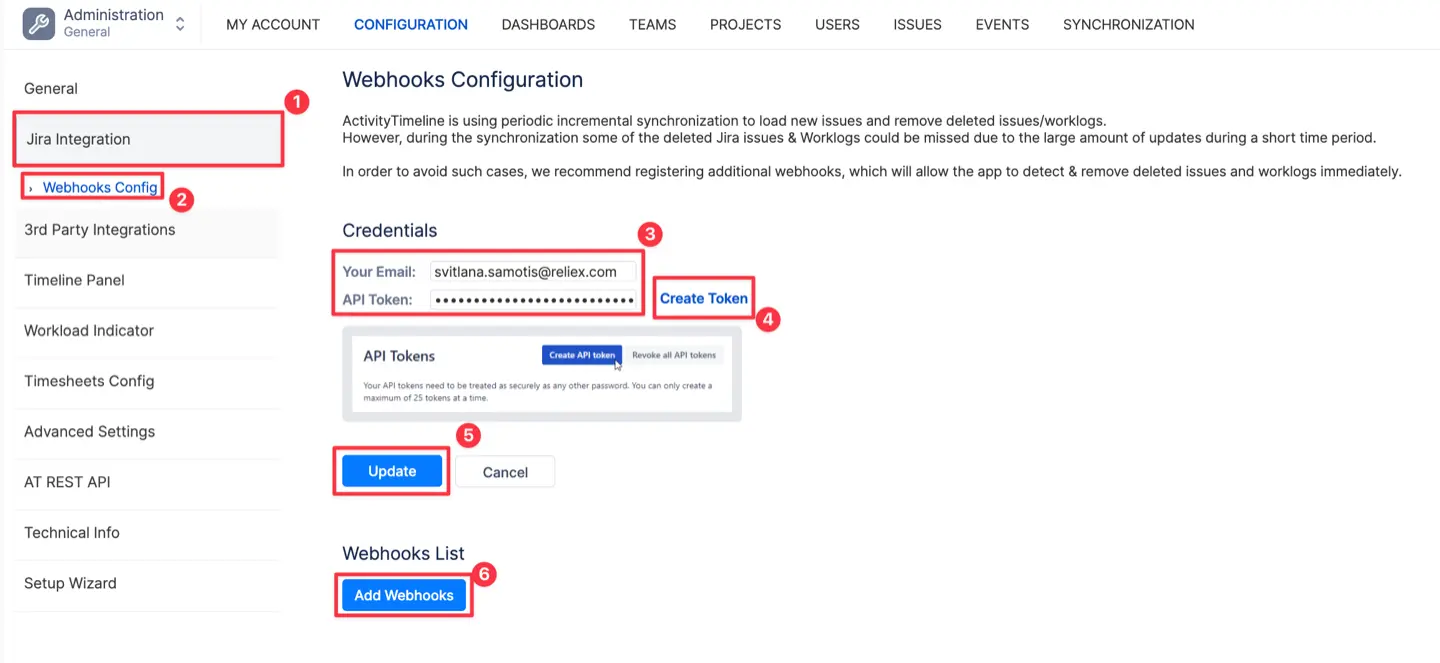
After successful configuration, two webhooks will be created.
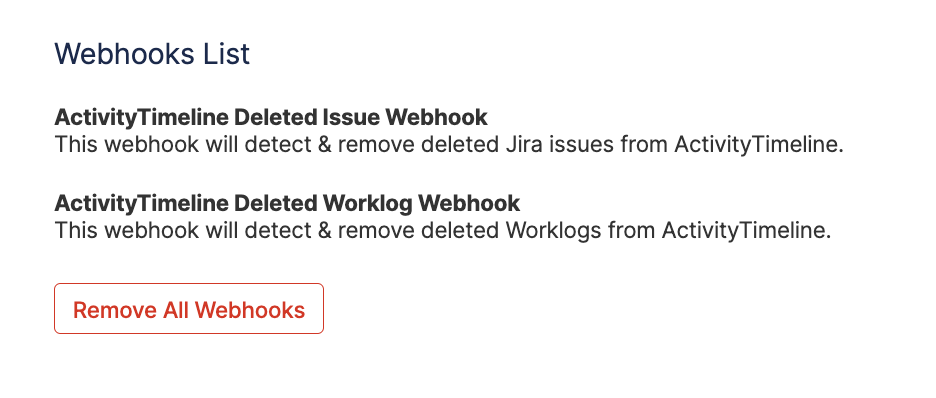
Once webhooks are configured, deleted Jira issues and worklogs will be removed from ActivityTimeline shortly after they are deleted in Jira.
If you encounter the error ‘Cannot create webhook: status code: 403, reason phrase: Forbidden’ and you are on Jira Premium using the IP allowlisting (whitelisting) feature, this means that Jira is blocking the connection. To resolve this, you need to add ActivityTimeline’s IP addresses to your Jira whitelist.
For security reasons, the list of IP addresses depends on your specific instance. Please contact our support team at support@reliex.com, and we’ll provide you with the correct IP addresses to configure.