
ActivityTimeline synchronizes selected Jira data and stores it in ActivityTimeline so the application can display plans, timelines, workloads, worklogs, and reports faster.
This means ActivityTimeline does not need to request all data from Jira every time a user opens a page or report. Instead, it works with synchronized data and regularly checks Jira for updates.
You can find synchronization settings in ActivityTimeline Configuration → Synchronization.

Only users with the Administrator role can access this page and run manual synchronization.
How Synchronization Works
When ActivityTimeline is set up for the first time, the initial synchronization is started through the Setup Wizard. During this process, ActivityTimeline imports the Jira projects selected by the administrator, together with issues, worklogs, and other data required for the app to work correctly.
After the initial setup is completed, synchronization continues automatically in the background.
ActivityTimeline uses incremental synchronization for most updates. This means the system does not reload all Jira data every time. Instead, it checks what has changed since the previous synchronization and updates only the relevant data.
By default, Jira issues and worklogs are synchronized approximately every 10 minutes. Other data, such as users, project lists, teams, or configuration-related information, may be synchronized less frequently, usually on a daily or weekly basis, depending on the data type and instance configuration.
When to Use Manual Synchronization
Manual synchronization can be useful when:
-
recent Jira changes are not yet visible in ActivityTimeline;
-
a newly created Jira project, issue, user, or worklog does not appear in the app;
-
Jira configuration was changed and you want ActivityTimeline to update this data sooner;
-
the support team asks you to run a specific synchronization.
In most cases, it is enough to run synchronization only for the specific data type you need, instead of running a full update.
Refresh Button in ActivityTimeline Modules
In addition to automatic synchronization and administrator-level manual synchronization, users can refresh data directly from ActivityTimeline modules such as Planner, Workspace, Timesheets, and Reports.
The Refresh button triggers incremental sync and loads the latest available data. This is useful when users have recently made changes in Jira and want to see them reflected without waiting.

This action is available to regular users and does not require Administrator permissions.
Synchronization Tabs
Synchronization options are grouped into separate tabs by data type. This allows administrators to refresh only the necessary information.
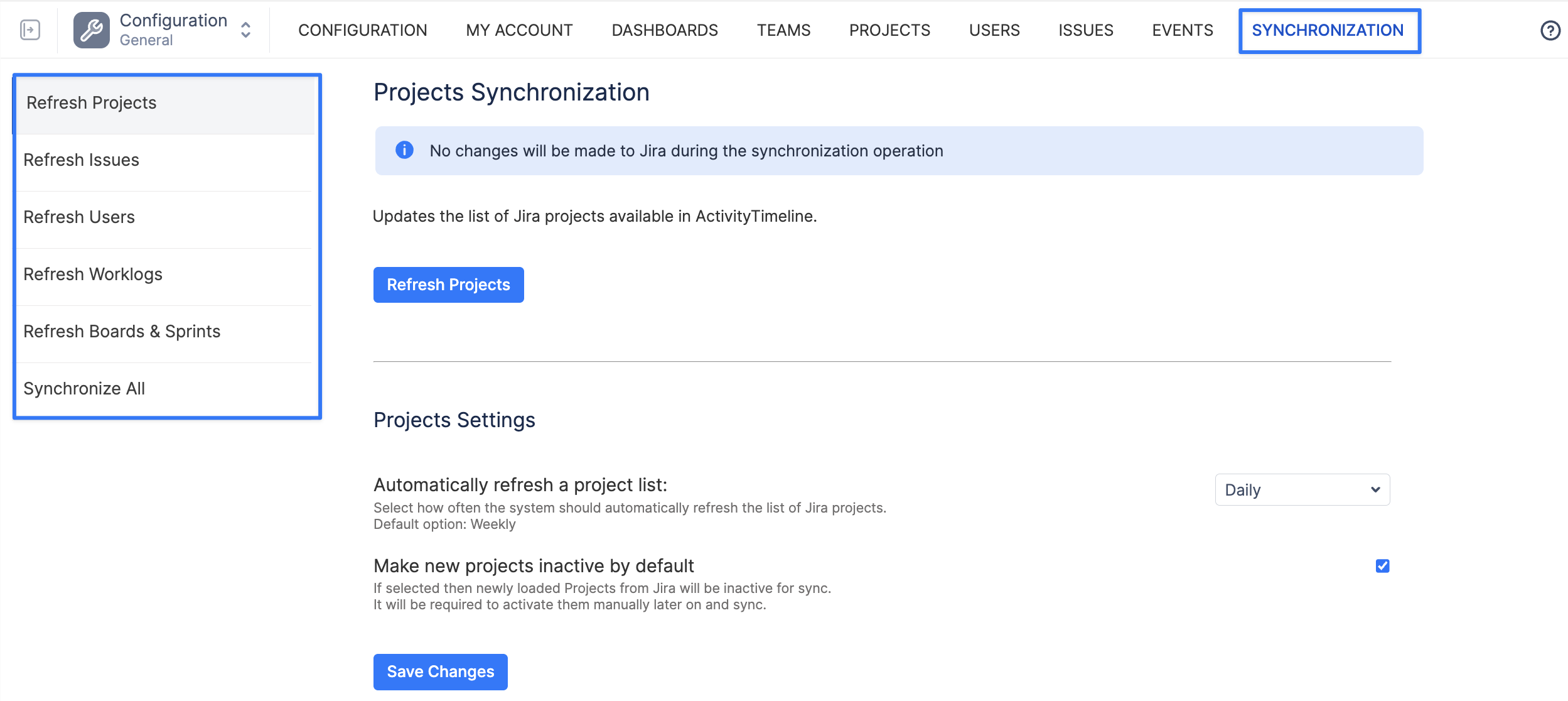
The Synchronization tab includes: