
ActivityTimeline administrators can configure how workload and availability indicators are displayed and calculated.
The Workload Indicator settings are divided into the following sections:
-
Time Tracking
-
Work Time
-
Employee’s Workspace
-
Workload & Availability Modes
Time Tracking
The Time Tracking section defines whether workload and availability indicators should be displayed, how estimates should be shown, and which calculation algorithm should be used.
Show Workload Indicator
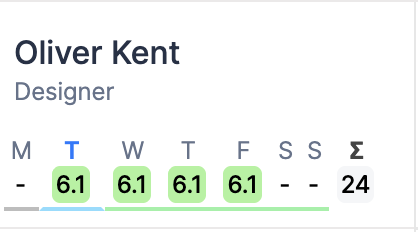
This setting defines whether ActivityTimeline should show or hide workload and availability indicators on the timeline.

Possible values:
-
Checked — the Workload Indicator is shown.
-
Unchecked — the Workload Indicator is hidden.

Default value: Checked
Time Estimate Format
This setting defines how Estimate values are displayed in ActivityTimeline.

Possible values:
-
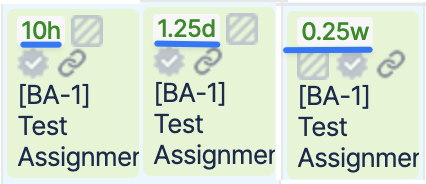
Auto — the estimate is grouped by time periods. For example, 10 hours may be displayed as 1d 2h.
-
Hours — the estimate is displayed in hours only. For example, 10h.
-
Days — the estimate is displayed in days only. For example, 1.25d.
-
Weeks — the estimate is displayed in weeks only. For example, 0.2w.
Default value: Hours
Workload Calculation Algorithm
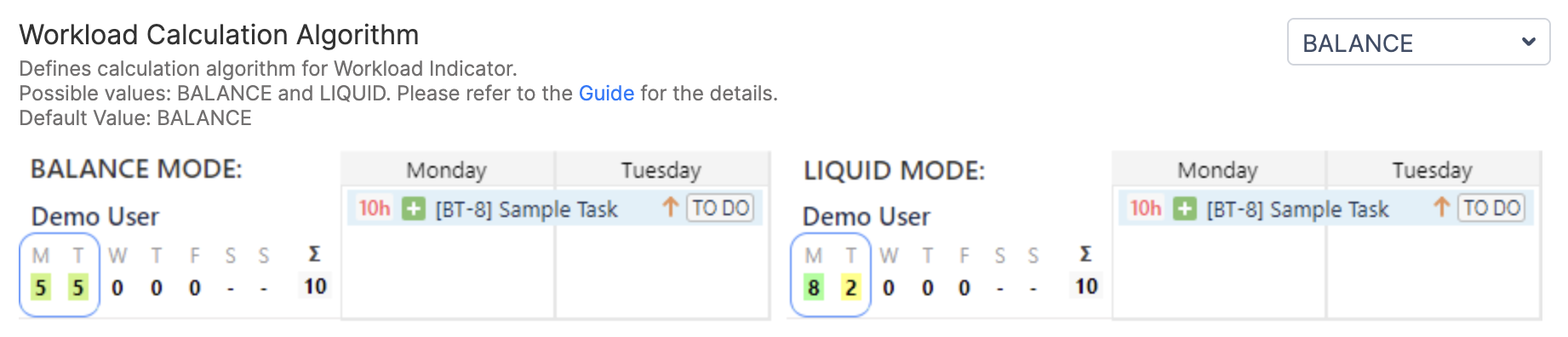
This setting defines how ActivityTimeline distributes task estimates across scheduled days.
Possible values:
-
Balance
-
Liquid
In Balance mode, the workload is distributed evenly across the days where the task is scheduled.
In Liquid mode, ActivityTimeline tries to fully allocate the first available day and then moves the remaining estimate to the next day.
Default value: Balance
Video Example: Difference between Balance & Liquid workload calculation modes
Workload Indicator Color Range Customization
This setting allows administrators to customize the color coding of the Workload Indicator based on workload percentage ranges.

By default, the workload ranges are:
-
0% up to 50% excluding
-
50% up to 87% excluding
-
87% up to 101% excluding
-
101% up to 125% excluding
-
125% and above
These ranges help visually identify underloaded, normally loaded, and overloaded users.
Work Time
The Work Time section defines default working time settings used for workload and availability calculations.
Work Hours in the Day
This setting defines the default number of working hours in one working day.

It affects workload and availability calculations and is also used to convert long estimates from days to hours.
For example, if the value is set to 8, then 2 days will be treated as 16 working hours.
Default value: 8
Tasks per Day
This setting defines how many tasks a person can work on within one day before being treated as overloaded by the number of assigned tasks.

If the number of tasks assigned to a user exceeds this value, the user’s workload may be shown as overloaded in the Workload Indicator and reports.
Default value: 5
Work Days
This setting defines which days are treated as working days.

By default, Saturday and Sunday are treated as weekends. The Workload Indicator ignores weekends during workload calculation, as well as vacations, holidays, sick leaves, and days off.
Default value: Monday, Tuesday, Wednesday, Thursday, Friday
Employee's Workplace
The Employee’s Workspace section controls how workload and worklog information is displayed in the user’s workspace.
Worklog Chart Mode
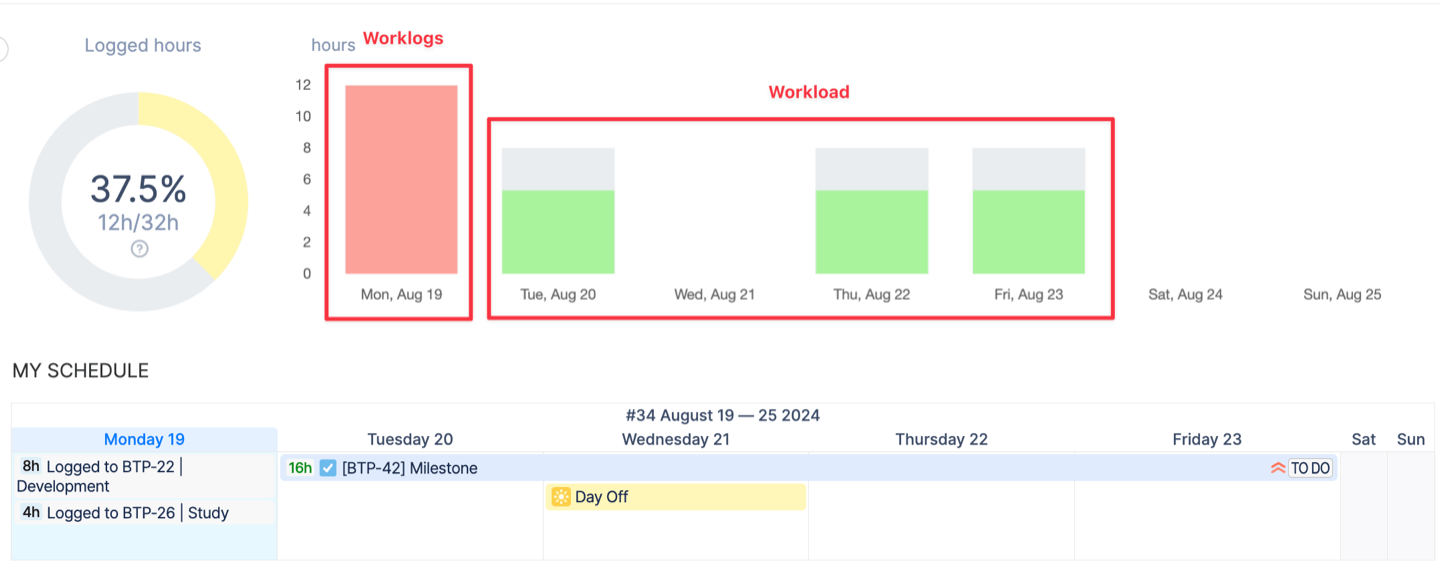
This setting defines what information should be shown on the bar chart in the Work View.

Possible options include:
-
Show worklogs only.
-
Show both worklogs and forecasted workload from assigned tasks.
-
Hide the chart.
Default value: Show Worklogs Only
When Show both Worklogs & forecasted Workload is enabled, users can compare already logged time with planned workload directly in the Workspace view.
Workload & Availability Modes
This section defines how ActivityTimeline distributes remaining estimates when a task is scheduled from the past into the future.
This is important when a task has a remaining estimate and part of its scheduled period is already in the past.
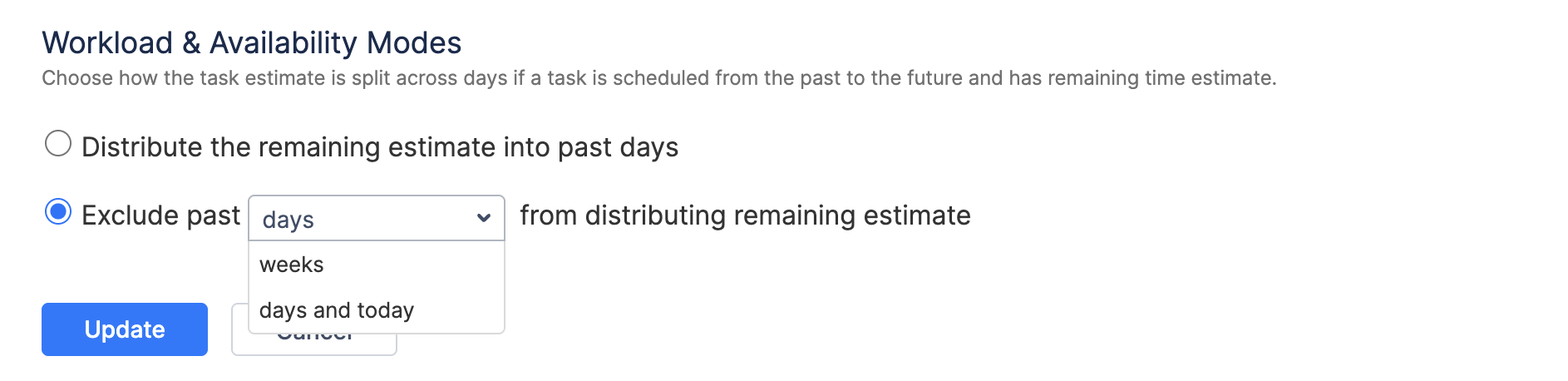
Possible options:
-
Distribute the remaining estimate into past days — ActivityTimeline distributes the remaining estimate across the full scheduled task period, including past days. This option is usually not recommended for teams that track actual time, as it may make past workload appear active again.
-
Exclude past period from distributing remaining estimate — ActivityTimeline excludes the selected past period and distributes the remaining estimate only across the current and future period.
When excluding past time, administrators can choose which past period should be excluded, such as past days, past weeks, or other available options from the dropdown.
Default value: Exclude past days from distributing the remaining estimate
The Workload & Availability Modes setting is closely related to the general Time Tracking mode configured in ActivityTimeline.
In the general configuration, administrators can choose whether users log worked time or do not log worked time. The Workload & Availability Modes section provides additional control over this behavior, especially for tasks scheduled from the past into the future and still having a remaining estimate.
We recommend reviewing both settings together to make sure workload calculations match your organization’s planning and time tracking process.