
Viewing Users and Teams on the Planner
In the Planner module, you can choose whose timelines should be displayed on the dashboard.
You can view:
-
a single user;
-
multiple individual users;
-
one or more pre-created teams;
-
an automatically generated team;
-
only your own timeline.
This allows you to switch between personal planning, team-level planning, and broader resource overview depending on what you need to review.
Team Types
ActivityTimeline supports different ways of creating and managing teams.
Only users with the Administrator or Manager role can create and manage teams.
There are three main team types:
|
Team type |
Description |
|---|---|
|
Teams created manually by adding users. |
|
|
Teams automatically grouped by the system based on users’ skills or positions. |
|
|
Imported Teams |
Teams imported from Jira teams or created based on Jira groups. |
Automatic Team
One of the options available in the Users & Teams dropdown is Automatic Team.
An Automatic Team is generated by the system based on the Jira issues currently displayed in the Issue Panel.
ActivityTimeline checks the issues returned by the selected filters, identifies their assignees, and automatically builds a list of user timelines on the Planner.
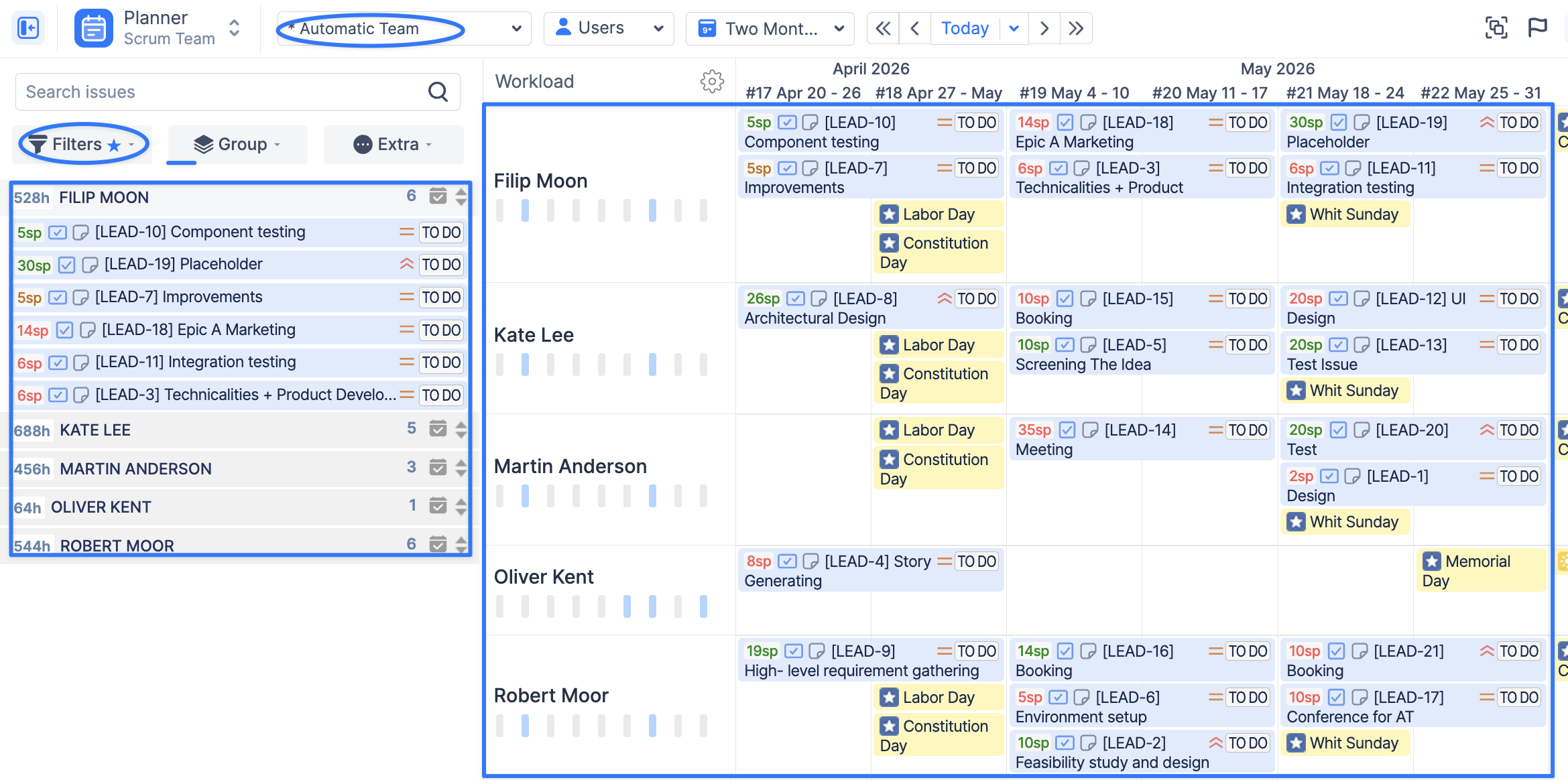
This is useful when you want to quickly plan or review work for users involved in a specific filtered set of Jira issues.
Please note that theTeam Panel is not available for Automatic Team.
Only Me
The Only Me option allows users to display only their own timeline on the Planner.
When this option is selected, the dashboard shows the current user’s schedule only.
This is useful for personal planning and reviewing individual workload.

Users in Multiple Teams
A user can belong to several teams in ActivityTimeline.
Managers and Team Leads of all teams that include this user can access and manage that user’s timeline.
This is useful for cross-functional teams, shared resources, and employees who contribute to multiple projects or departments.
Selecting Multiple Teams or Users
You can select multiple teams in the Users & Teams dropdown in Users or Teams Mode.
When several teams are selected, members of all selected teams are displayed on the Planner.
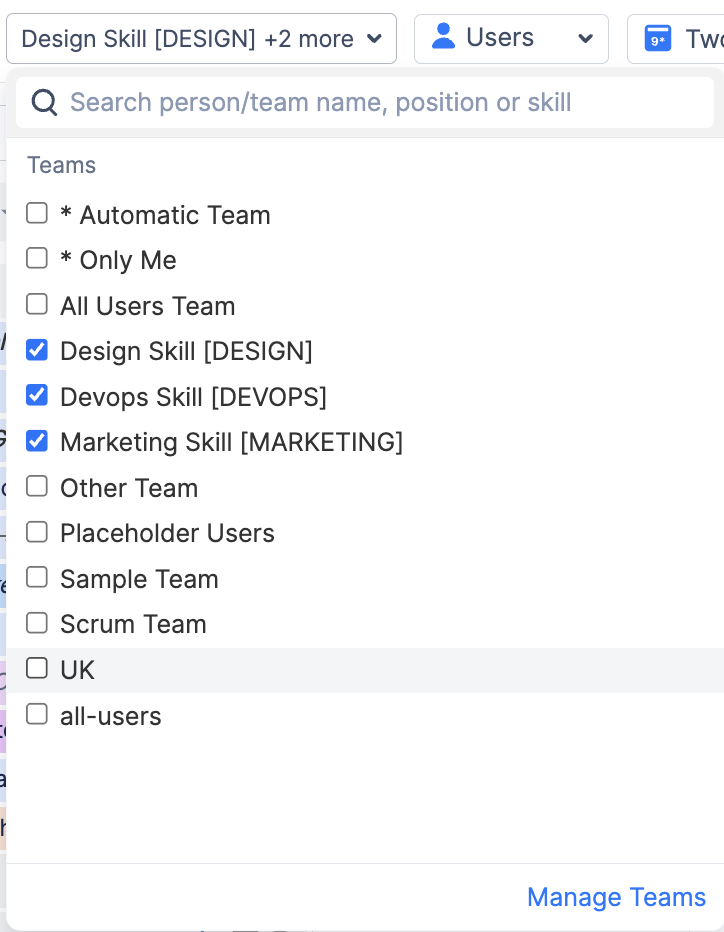
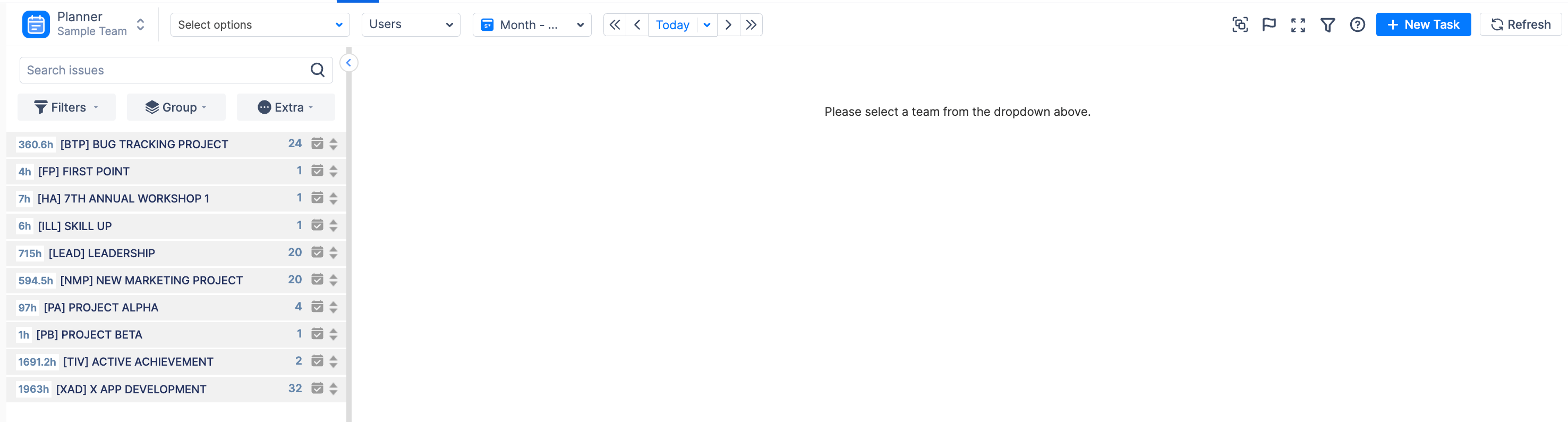
If no teams or users are selected, no user timelines will be displayed on the dashboard.
Selecting Users and Teams Together
You can select both individual users and teams at the same time in Users or Teams view.
When multiple entities are selected, a “+” sign appears in the dropdown to indicate that the current view includes more than one selected item.
If you select a single user and a team, and then switch to Team with Users view, the Planner will display:
-
all users from the selected team;
-
the Team Panel;
-
the additionally selected individual user.
Please note that in Team with Users view, the selected individual user cannot be unchecked directly. To remove that user from the selection, switch back to the Users view and update the selection there.