
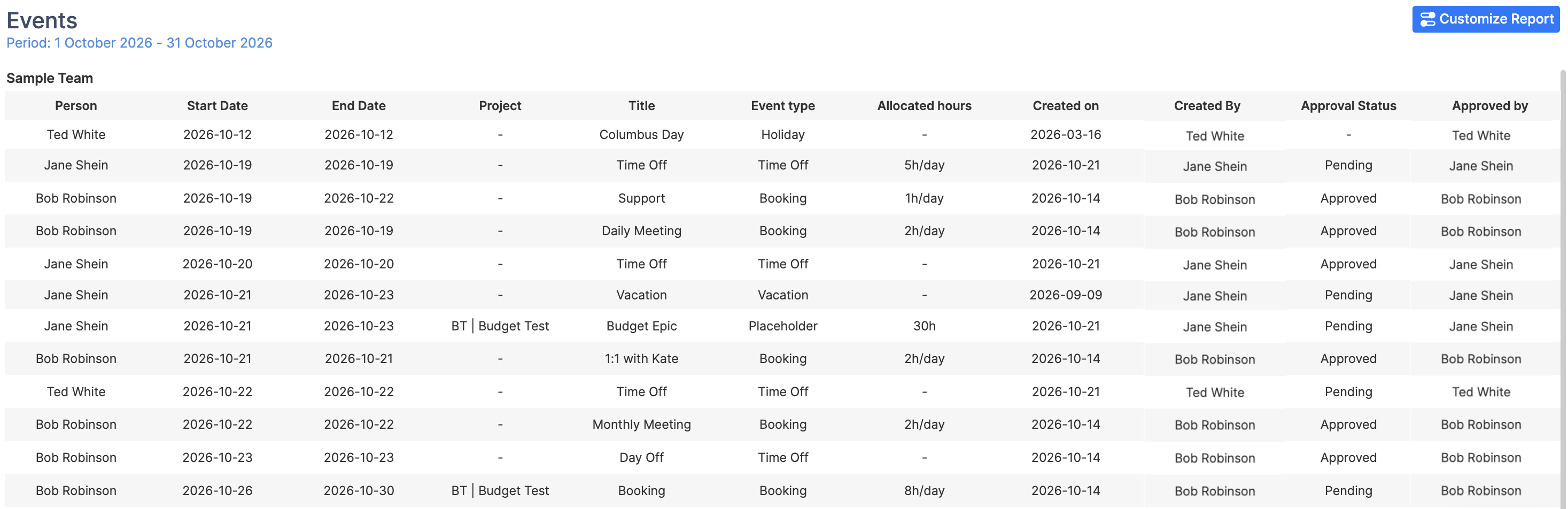
The report shows a list of all scheduled events for the selected team during the selected period. This includes bookings, notes, placeholders, sick leaves, days off, holidays, vacations, and custom events based on these types. For event types with approval enabled, it also shows the approval status and who approved the event.
Report Generation
-
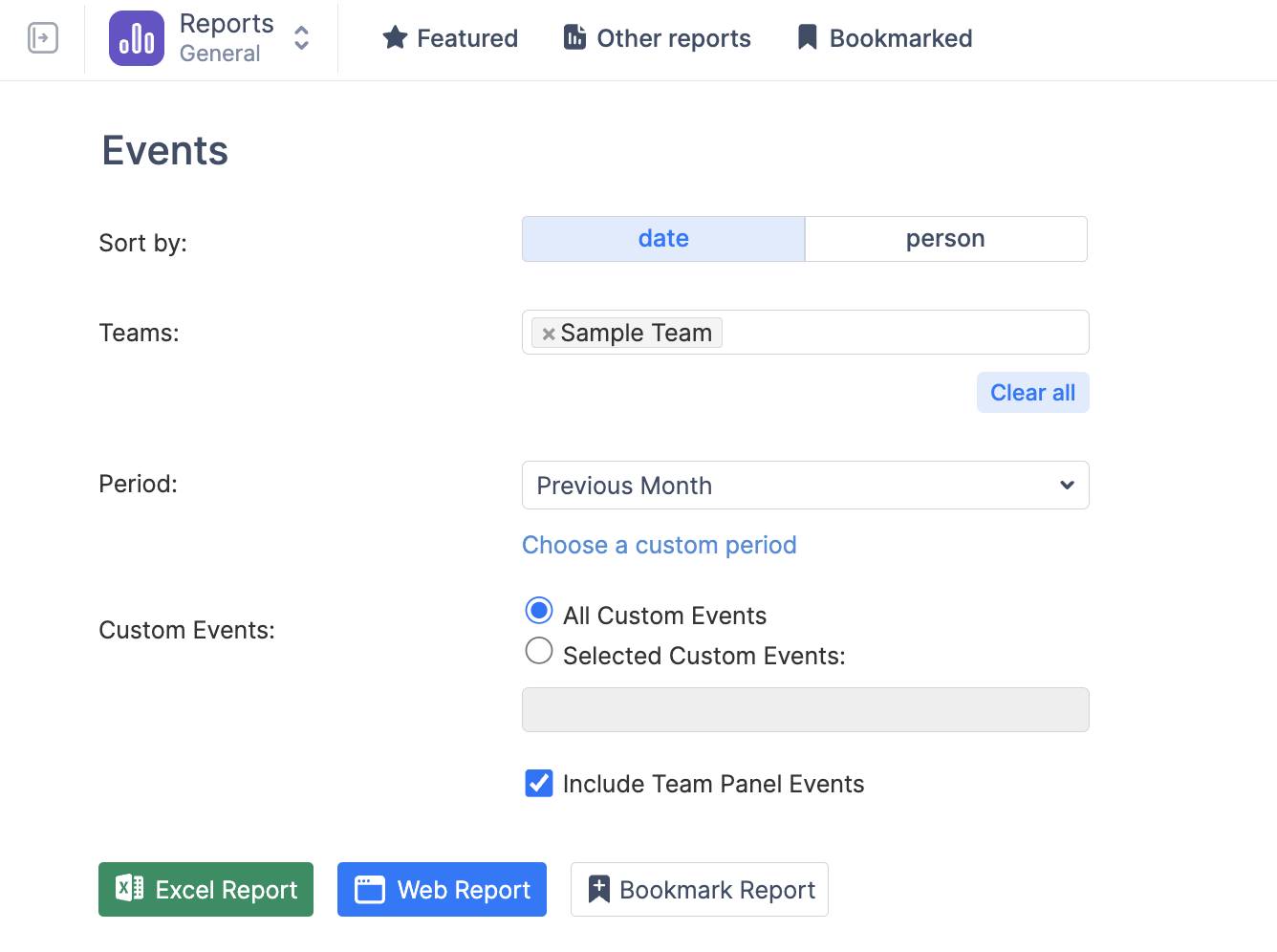
Go to Reports → Other reports and open Events.
-
Choose whether to sort the results by date or person.
-
Select the Teams to include.
-
Choose a Period, or click Choose a custom period to set your own dates.
-
Select All Custom Events, or choose Selected Custom Events and specify the event types to include.
-
Enable Include Team Panel Events if you also want events scheduled on the Team Panel.
-
Click Web Report to view the results in ActivityTimeline or Excel Report to download them.
What the Report Shows
The report shows a list of all scheduled events for the selected team during the selected period, including event dates, type, allocated hours, and creation details. For event types with approval enabled, it also shows the approval status and who approved the event.
To customize additional event types go to Configuration → Events → Create new timeline event type → Create a new event with one of the Event Types on the Custom Events page.