
Financial data—including labor rates, project costs, and profit margins—is often highly sensitive. ActivityTimeline provides granular access control to ensure that only authorized personnel can view or manage the Finances module.
Configuration Location
To manage these settings, navigate to: ActivityTimeline Configuration → Finances Configuration (left-hand menu).
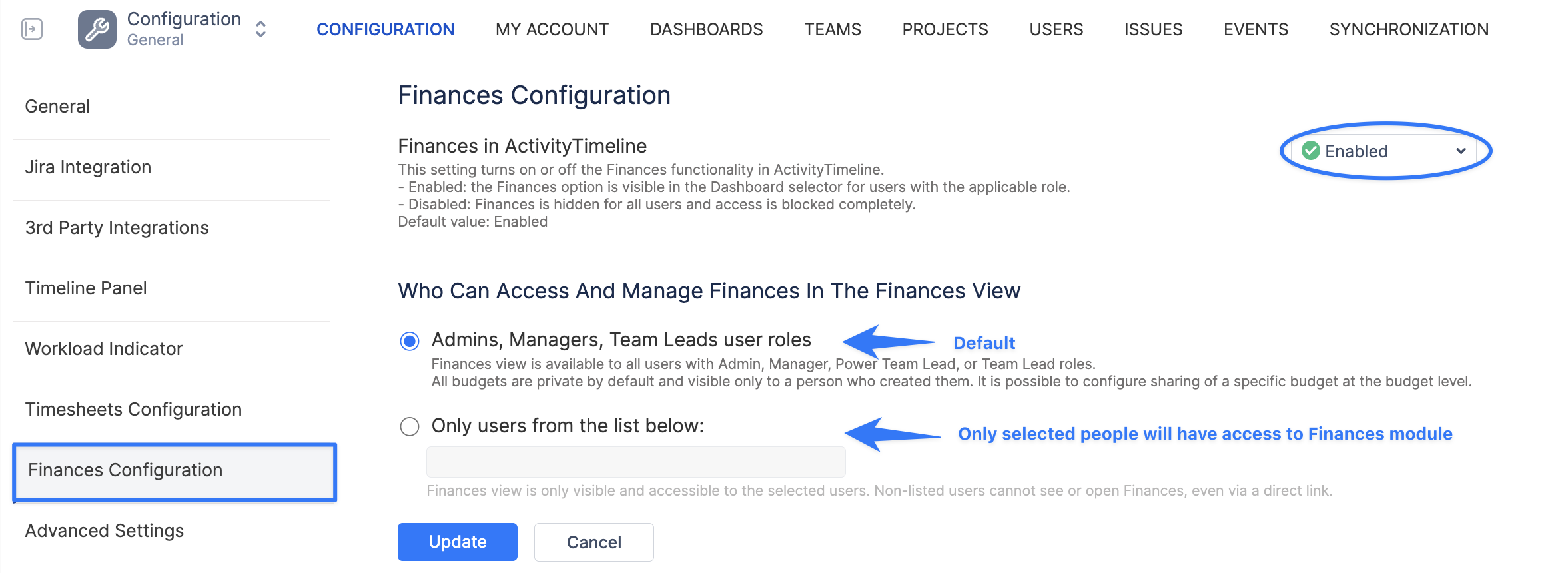
1. Global Module Enablement
At the top of the page, you can control the availability of the module for the entire organization:
-
Enabled (Default): The Finances module is active. Access is determined by the permissions defined below.
-
Disabled: The Finances module is completely hidden for all users. Direct URL access is blocked, and no financial data is processed in the UI.
2. Defining Access Levels
Under the section "Who Can Access And Manage Finances In The Finances View," you can choose between two logic modes:
Mode A: Role-Based Access (Default)
Setting: Admins, Managers, Team Leads user roles
-
Behavior: The Finances module is visible in the main menu to any user assigned the Administrator, Manager, or Team Lead role within ActivityTimeline.
-
Privacy Note: While these roles can see the module, individual budgets remain private to their creators unless explicitly shared at the budget level.
Mode B: Restricted User List
Setting: Only users from the list below This is the most secure configuration for enterprise environments where financial oversight is restricted to a specific group (e.g., CFOs or Accountants).
-
Behavior: Only the specific individuals added to the user-picker list will see the "Finances" module in their navigation bar.
-
Direct Link Protection: For any user not on this list, access is strictly blocked. If a restricted user attempts to navigate to a Finance URL directly (e.g., via a browser bookmark), they will be met with an "Access Denied" screen.
-
Impact: All other users—including those with Manager or Team Lead roles—will have the module completely removed from their view.