
Access Management
Q: Can I change the Owner of a budget after it has been created?
A: No. The creator of the budget is automatically assigned as the Owner, and this role is immutable. This ensures that the person responsible for the initial setup remains the primary authority for that budget's security and sharing settings.
Q: What is the difference between an Owner and a user with Administration access?
A: Both roles have full visibility and can edit budget configurations (rates, scopes, and targets). The only difference is User Management:
-
Owners are the only ones who can add or remove users from the sharing list.
-
Administrators can manage the financial data and settings but cannot change who else has access to the budget.
Q: I shared a budget with a user, but their reports are empty or incomplete. Why?
A: This is likely due to the Jira Permission Mirroring feature. ActivityTimeline Finances respects your Jira security settings. If the user does not have "Browse Project" permissions for the Jira projects included in your budget's scope, the system will hide that data from them to prevent unauthorized access to sensitive worklogs.
Q: Can Read-Only users see labor rates?
A: Read-Only users can see the resulting costs and revenues in the reports and the line-by-line transactions in the Detailed Financial report. However, they cannot access the "Labor Rates" or "Configuration" tabs to see your global rate cards or multiplier logic. This allows you to share project health with stakeholders without exposing your internal cost structures.
Q: What can a Read-Only user do?
A: Read-Only users are restricted from making any changes to the budget's setup, but they have the power to:
-
View the Summary, Budget vs Spend, and Detailed Financial reports.
-
Filter data by Date Range or Grouping.
-
Export to Excel: They can download the Detailed Financial report for external audits or presentations.
Q: How does the Reuse Jira permissions setting affect my budget?
A: This setting ensures your financial data is as secure as your Jira data.
-
Per Project: The user only sees financial data for projects they can access in Jira.
-
Per Issue: The user only sees costs/revenue for specific Jira issues they have permission to view. If your budget scope is broad (e.g., a JQL filter tracking 10 projects), a user might only see a partial view of the budget based on their specific Jira access.
Budget Setup & Tracking Rules
Q: What is the difference between a Manual Budget and an Estimate Based Budget?
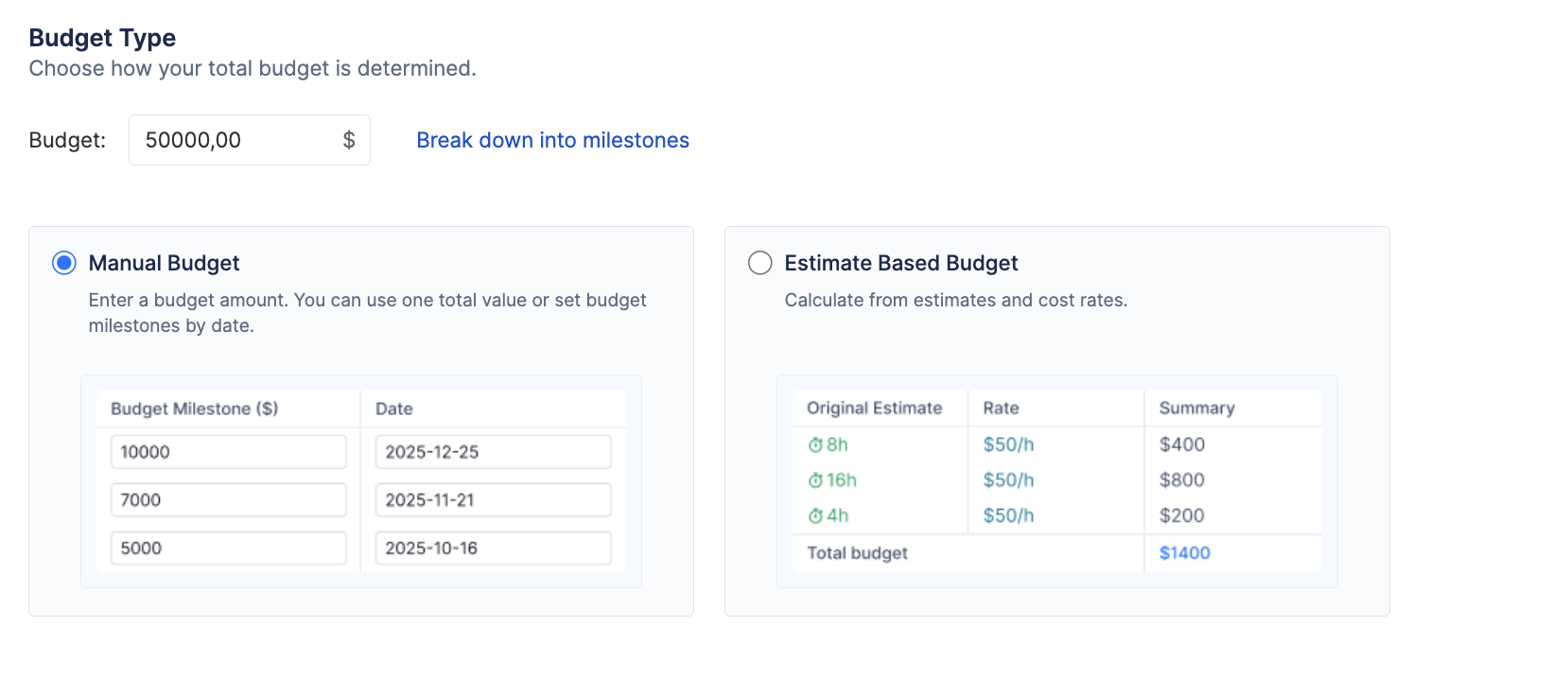
A: This setting determines your total budget cap.
-
Manual Budget: You enter a fixed dollar amount (e.g., $100,000). This is best when you have a strict, top-down budget approved by leadership.
-
Estimate Based Budget: The system calculates your total budget dynamically by multiplying the Original Estimates of all Jira issues in your scope by your default project rates. This is best for agile teams building bottom-up budgets.
Q: What happens if I select Without end date?
A: Selecting "without end date" creates an ongoing operational budget. This is ideal for tracking continuous product development (like SaaS maintenance) or internal departmental costs where there is no final delivery date. The reports will continue to aggregate data indefinitely.
Q: How do I track a fixed-price contract?
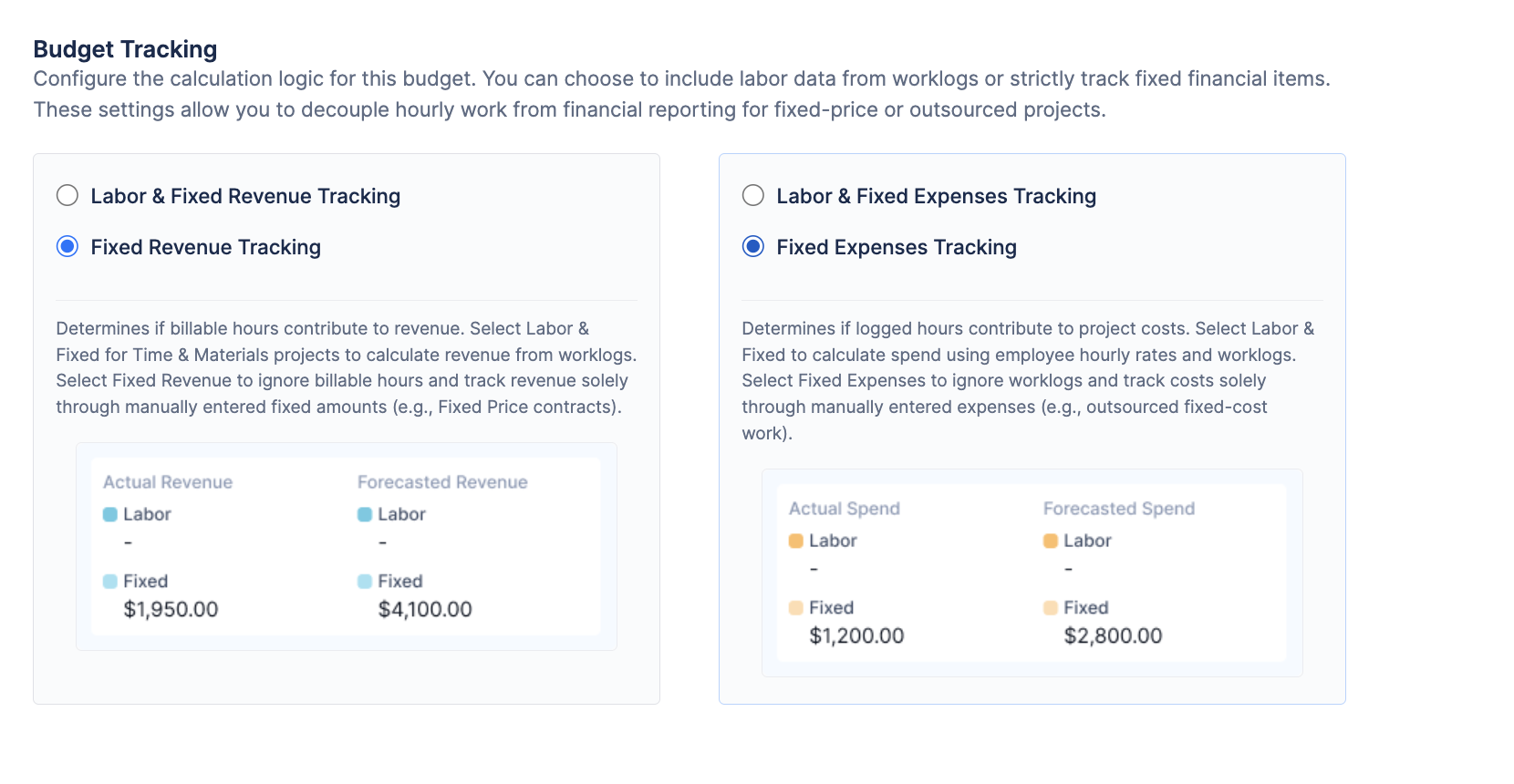
A: To track a fixed-price project, you must disconnect your team's hours from your revenue.
-
Go to Configuration → General.
-
Under Revenue Tracking, select Fixed Revenue Tracking (this ignores all billable hours).
-
Under Cost Tracking, keep Labor & Fixed Expenses Tracking enabled (to track your internal costs).
-
Log your fixed contract amount as a manual Revenue transaction via the
+ Add Transactionbutton.
Q: What does Budget Scope control?
A: The Scope defines which Jira issues the budget monitors. If you set the scope to a specific Jira Project, ActivityTimeline will only calculate labor costs and revenues for worklogs logged against issues within that specific project. You can scope by Projects, Epics, or a saved JQL filter.
Q: Can the same Jira project be included in multiple budgets?
A: Yes. You can create multiple budgets that track the same Jira project. For example, you might have one budget tracking the "Development" phase (Jan-Mar) and another budget tracking the "Maintenance" phase (Apr-Dec) of the same project.
Rates & Hierarchy
Q: Which rate is used if multiple rates could apply?
A: ActivityTimeline uses a strict "Rate Hierarchy" to ensure the most specific rate is always applied to a worklog. The system checks for rates in this exact order:
-
Category Rate (Highest Priority): If the worklog is assigned a specific Category (e.g., "Urgent Support"), the system uses the rate defined for that Category.
-
User Rate (Medium Priority): If no Category rate exists, the system checks if the specific individual who logged the time has a custom rate assigned to them.
-
Default Budget Rate (Lowest Priority): If neither a Category nor a User rate exists, the system falls back to the default rate defined for the entire budget.
Q: What is the difference between Hourly and Monthly Rates?
A: This is a crucial distinction in how costs and revenues are calculated:
-
Hourly Rates: Are directly tied to Jira worklogs. If a user works 5 hours, the cost is
5 * Hourly Rate. If they don't log time, their cost is $0.-
Monthly Rates: Are time-based and independent of worklogs (ideal for salaried employees). The system takes the fixed monthly amount and automatically prorates it into a daily cost based on the active days in that specific calendar month. This cost is applied even if the user logs zero hours in Jira.
-
Q: If I change a user’s rate, will historical data be recalculated?
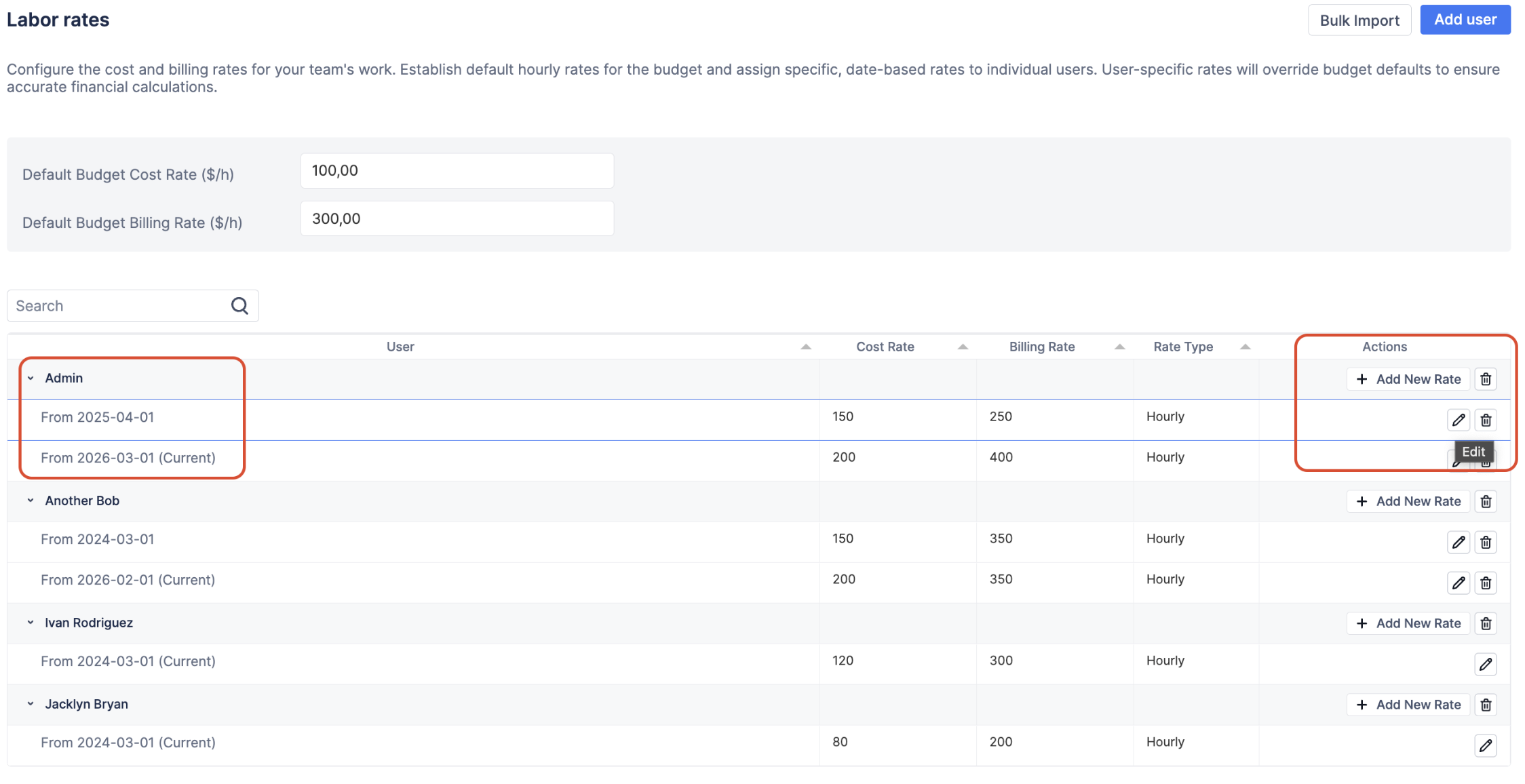
A: No, not if you use the correct method. ActivityTimeline uses Effective Dating to preserve historical accuracy.
To update a rate without altering the past, you must click + Add New Rate on the user's row, select the Start date for the new rate, and enter the new amount. The system will use the old rate before that date, and the new rate from that date forward.
Warning: If you simply click the pencil icon and edit an existing, past-dated rate, it WILL recalculate historical data.
Q: How do Category Rates work?
A: Category rates (Labor rate adjustments) allow you to price specific types of work differently, regardless of who performs it. For example, you might charge a premium for "Emergency Fixes."
When configuring a Category Rate, you can either:
-
Fixed Rate: Assign a flat dollar amount (e.g., $200/hr) for any work logged under that category.
-
Multiplier: Apply a modifier to the user's base rate (e.g., a multiplier of 1.5 means "Emergency" work costs 1.5x whatever that specific user's normal rate is).
Q: How do I handle non-billable work?
A: The best way to handle this is via Labor rate adjustments.
-
Create a specific Worklog Category in Jira (e.g., "Internal Sync" or "Non-Billable").
-
In your budget's Custom Category rates tab, add that category.
-
Set the Cost Rate to your internal cost (so you track the expense of the time).
-
Crucially, set the Billing Rate to $0. Any time logged to this category will now increase your Actual Spend without falsely inflating your Actual Revenue.
-
Allocations & Targets
Q: Why does the Budget vs Spend report show No allocations set?
A: This happens when you try to view the report using a "Group by" dimension (e.g., Category, Project) that you haven't set up targets for yet.
The left-hand "Budget" pie chart doesn't calculate automatically from Jira; it relies on you manually telling the system how you plan to distribute your total budget.
To fix this, click the Set Budget Allocations button on the empty chart (or go to Configurations → Budget Allocations) and define your spending targets for that specific grouping.
Q: What is the difference between Total Budget and Budget Allocation?
A:
-
Total Budget: This is the single, overarching financial cap for your entire project (e.g., $100,000). You set this on the General configuration tab.
-
Budget Allocation: This is how you plan to slice up that $100,000. Allocations are your internal spending targets (e.g., allocating $40,000 to "Development" and $60,000 to "Marketing"). You set these on the Budget Allocations tab.
Q: Can I create different allocation breakdowns for the same budget?
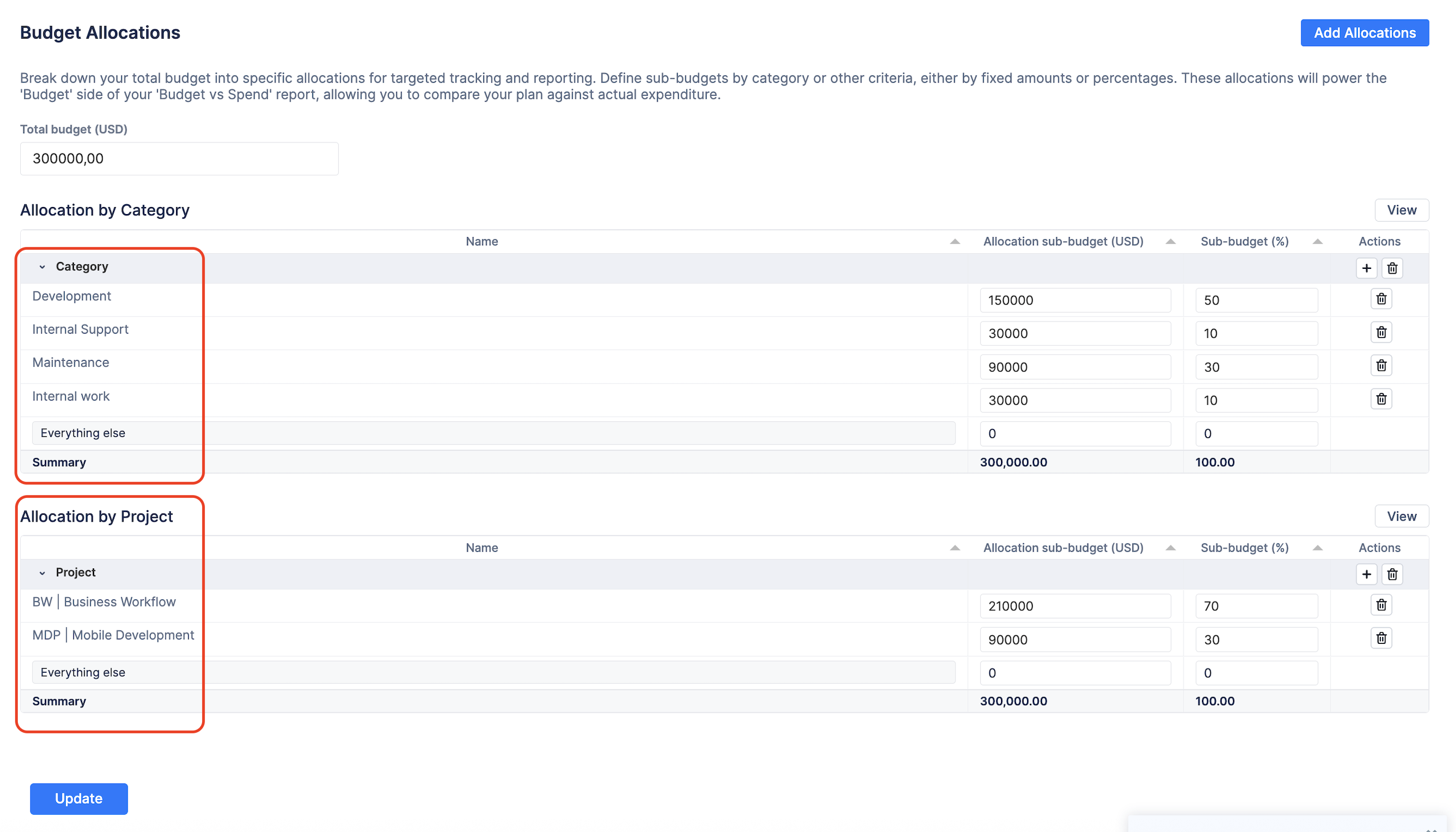
A: Yes! This is a very powerful feature. You can go to Configurations → Budget Allocations and create multiple, distinct breakdowns.
For example, you can create one allocation rule grouped by Category (Billable vs. Non-Billable) and a completely separate rule grouped by Project (Website V1 vs. Mobile App).
When you return to the "Budget vs Spend" report, you can seamlessly switch between these views using the "Group by" dropdown.
Reports & Calculations
Q: How is Actual Spend calculated?
A: "Actual Spend" represents your true, incurred costs up to the current date. It is calculated automatically by adding two components:
-
Labor Costs: The sum of all approved Jira worklog hours multiplied by the most specific cost rate assigned to that user/category on that date. (If you use Monthly Rates, it includes the prorated daily cost).
-
Fixed Expenses: The sum of all manual transactions (e.g., software licenses, travel) you entered via the
+ Add Transactionbutton that are dated on or before today.
Q: How is Forecasted Spend (and Revenue) calculated?
A: "Forecasted Spend" predicts your total final cost at the end of the project. It is not based on remaining Jira estimates.
It is calculated by taking your current Actual Spend (past) and adding any known, scheduled costs that occur strictly in the future:
-
Future Labor Costs: The prorated daily cost of users assigned a Monthly Rate extending through the end of the budget period.
-
Future Fixed Expenses: Any manual expense transactions you added via
+ Add Transactionthat are dated in the future. -
(Revenue follows the exact same logic, using Billing Rates and Fixed Revenue transactions).

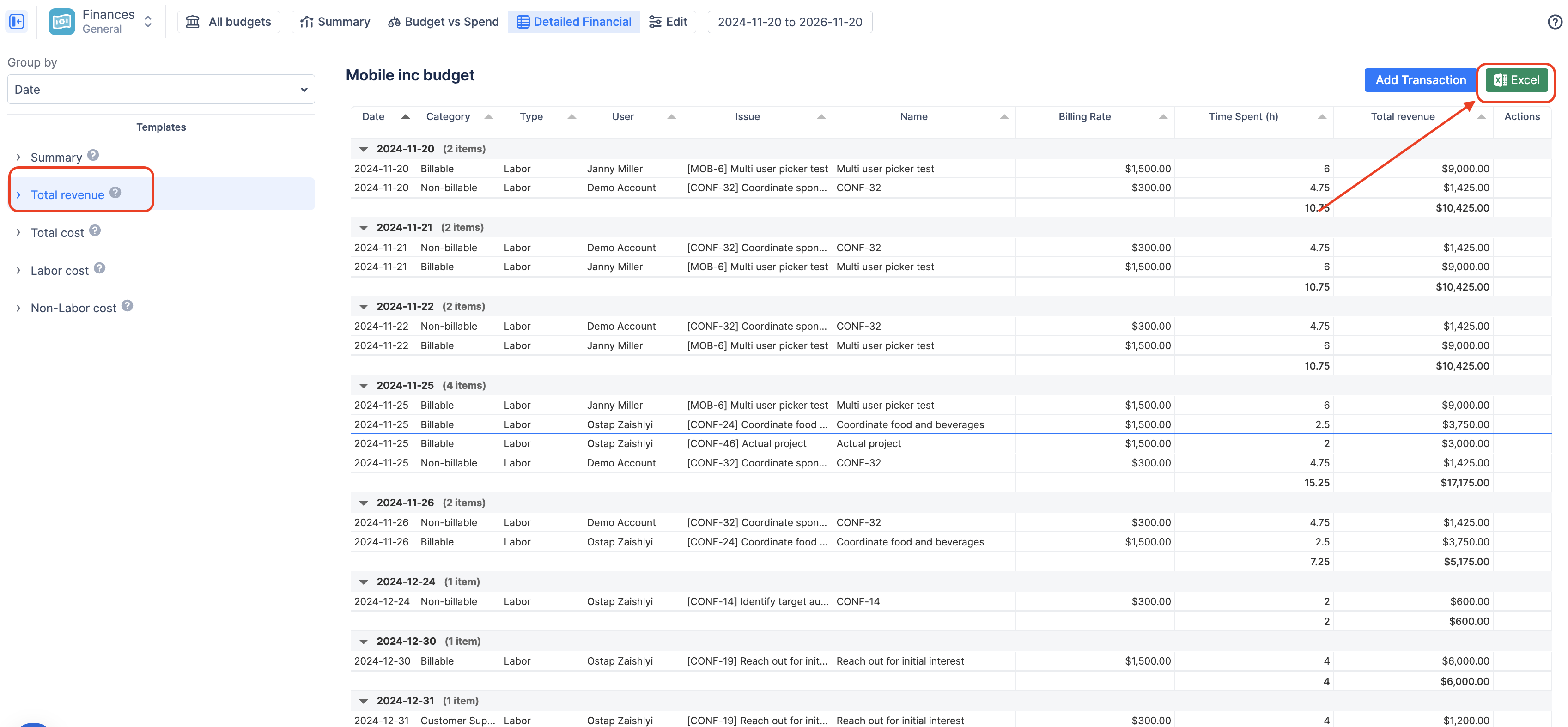
Q: Which report should I use when preparing an invoice?
A: The Detailed Financial report is designed specifically as an auditable ledger for invoicing.
-
Navigate to the Detailed Financial tab.
-
Click the Total revenue template on the left panel. This filters out all internal costs and non-billable time.
-
Set your desired Date Range (e.g., "Last Month").
-
Click the green Excel button in the top right corner. The exported spreadsheet will contain a clean, line-by-line breakdown of every billable hour and fixed revenue item, ready to attach to your invoice.
Q: How can I see only non-labor expenses?
A: Use the Detailed Financial report. Click the Non-Labor cost template on the left panel. This instantly filters out all calculations based on worklogs or monthly employee rates, leaving you with a clean audit of only your manually entered fixed expenses (software, travel, contractors, etc.).