ActivityTimeline is a resource planning application, so the main focus of the Finances module is tying the activities of your individual resources and teams directly to project costs and revenue.
Before you begin configuring your first financial tracker, it’s essential to understand a few core concepts that dictate how money is calculated and allocated within the system.
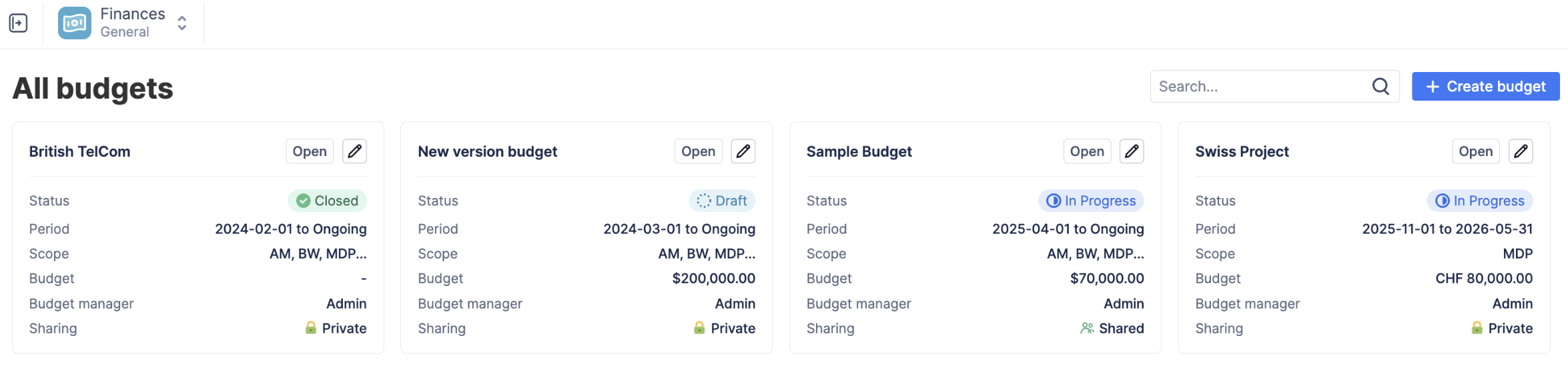
You can access the list of all your budgets in ActivityTimeline → Finances:
The Budget (Project)
A concept of a Budget is pretty straightforward in ActivityTimeline. It acts as a primary container for a specific set of financial data.
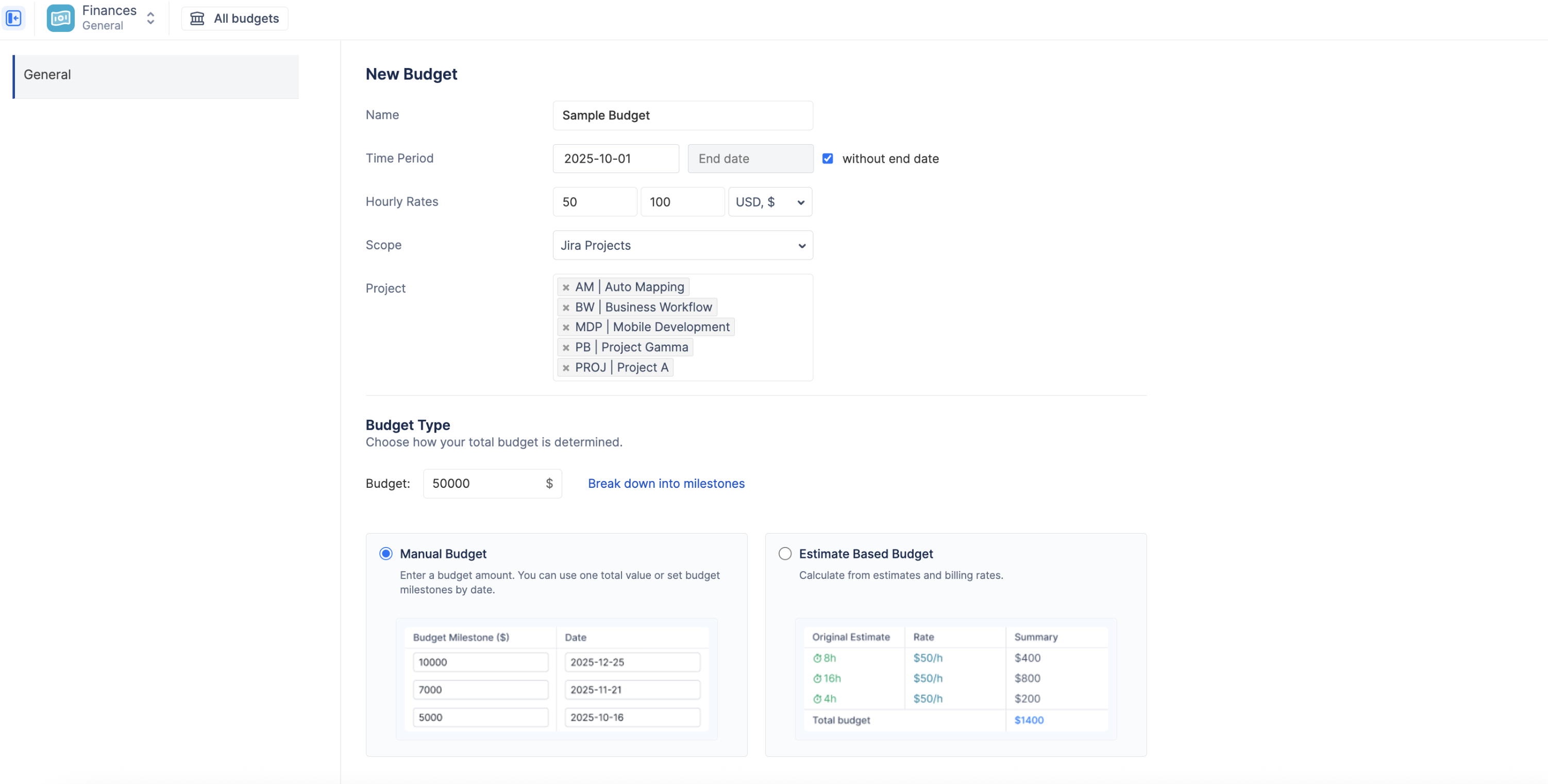
A Budget defines the boundaries of what you are tracking—connecting the financial targets you set in ActivityTimeline with the actual work happening in Jira. When you create a new Budget, you are essentially drawing a fence around a specific body of work to monitor its costs and revenue.
There are three ways to define the scope of a Budget in ActivityTimeline:
-
Jira Projects: The budget tracks all issues and worklogs within one or multiple selected Jira Projects.
-
Jira Epics: The budget tracks all issues and sub-tasks belonging to one or multiple specific Epics, regardless of the overarching project.
-
Jira JQL (Saved Filter): For highly customized tracking (e.g., "All high-priority bugs assigned to the Dev Team this quarter"), the budget tracks any issues returned by a saved Jira filter.
Financial Entities
The Finances module revolves around three primary entities that determine your project's financial health:
-
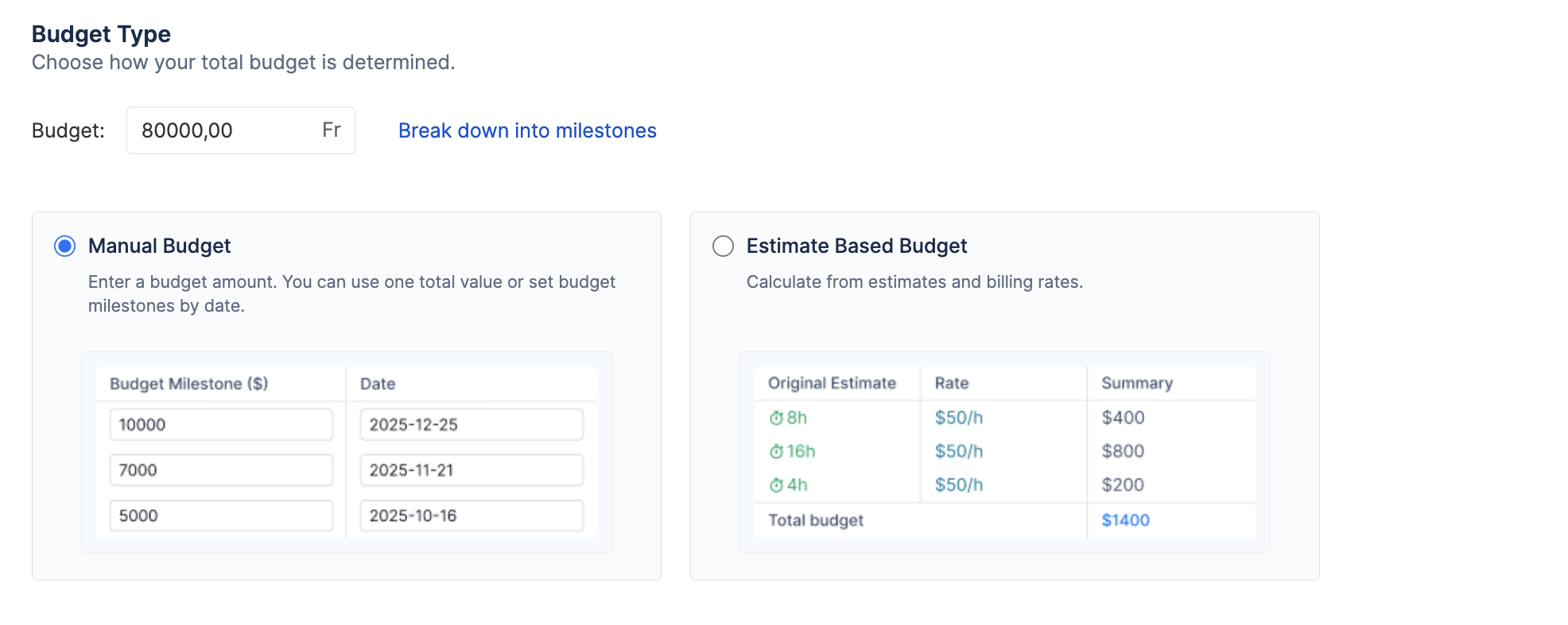
Budget (Planned): This is the monetary cap or target assigned to a specific scope of work (like a Jira Project, Epic, or JQL filter). The budget can be a Manual Budget (a single fixed amount you enter) or an Estimate-Based Budget (automatically calculated by multiplying original task estimates by user cost rates).
-
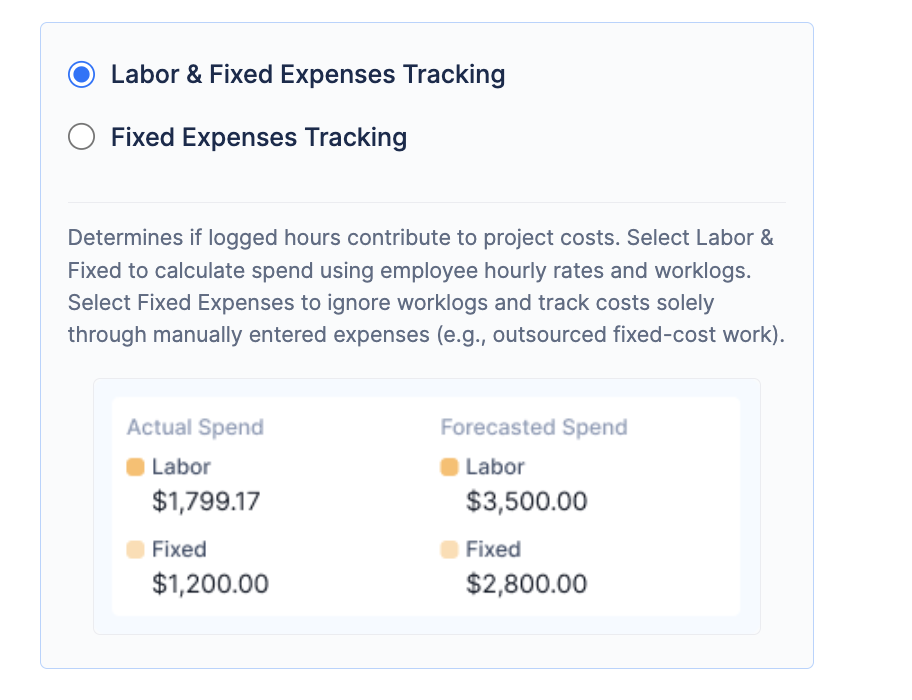
Actual Spend (Cost): This is the true cost incurred by your team. It is calculated automatically by adding the cost of all worklogs (hours logged × the user's hourly cost rate) plus any manually entered fixed expenses (like software licenses or travel).
-
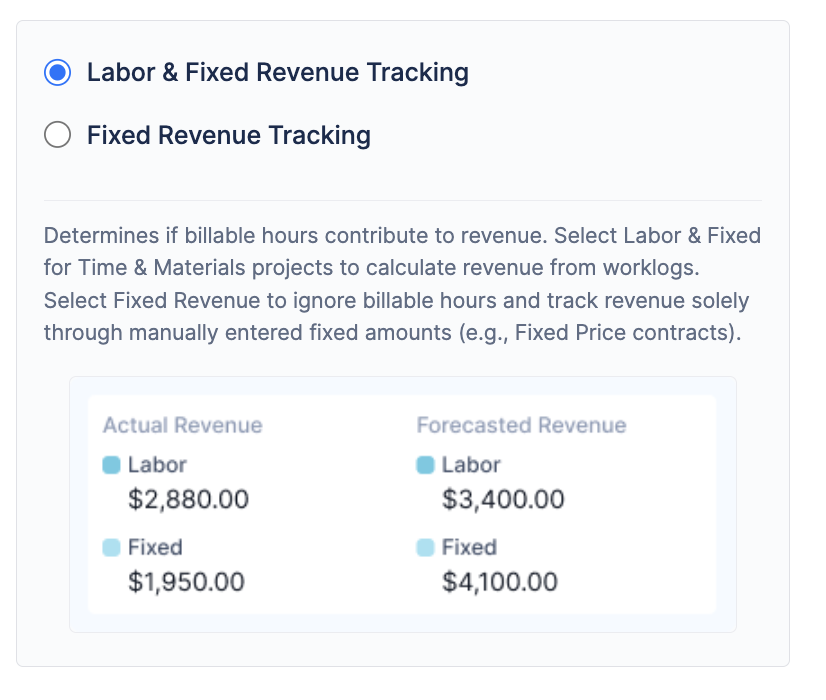
Actual Revenue: This is the income generated by your team. It is calculated automatically by adding the value of all billable worklogs (hours logged × the user's hourly billing rate) plus any manually entered fixed revenue items.
Labor Rates
Labor rates are the engine of the Finances module. They convert the time your team logs in Jira into actionable cost and revenue data.
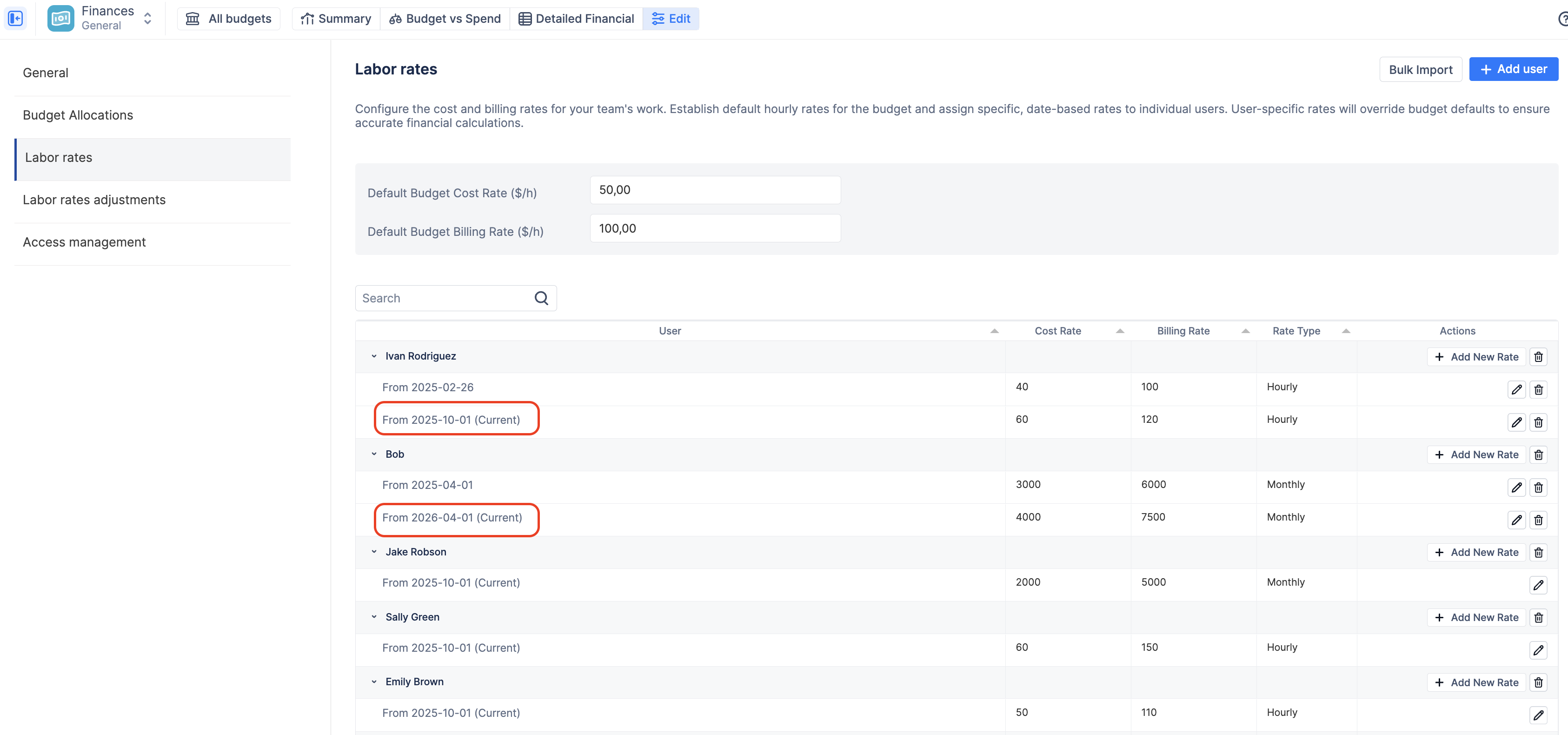
To ensure accurate historical reporting, all rates in ActivityTimeline are effective-dated. This means a rate change only applies from a specific date onward, preserving the accuracy of past financial calculations.
Hourly vs. Monthly Rates
ActivityTimeline supports two distinct ways to calculate the financial impact of a team member:
-
Hourly Rates: The standard method. The system multiplies the specific hours logged on a Jira issue by the user's hourly rate. If they don't log time, no cost or revenue is generated.
-
Monthly Rates: A time-based method, often used for salaried employees or fixed retainers. A Monthly Rate is a fixed amount applied to the user for the calendar month, which does not depend on the Jira worklogs. The system automatically prorates this amount across the active days of the month. Learn more about how the labor rates work in Labor Rates & Rate Hierarchy
There is a strict Rate Hierarchy in ActivityTimeline. When calculating the cost or revenue of a specific worklog, the system looks for the most specific rate available on that date, in this order:
-
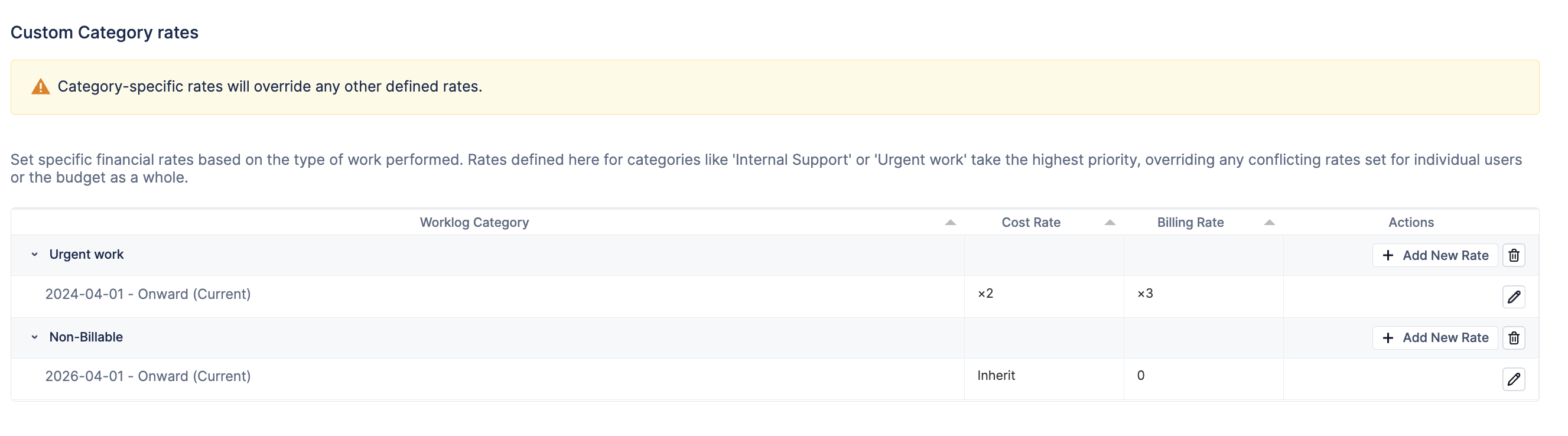
Labor rate adjusted rate: A rate assigned to a specific type of work/category (e.g., "Urgent work" or "Non-billable"). This overrides all other rates, and can be represented as an absolute value (e.g., non-billable billing rate is $0/hour for the end customer) or as a multiplier (e.g. Urgent work is x3 the normal rate).
-
User Rate: A specific rate assigned to an individual team member.
-
Default Budget Rate: The fallback rate applied to the entire budget if no user or category rate exists.
Budget Allocations (Targets)
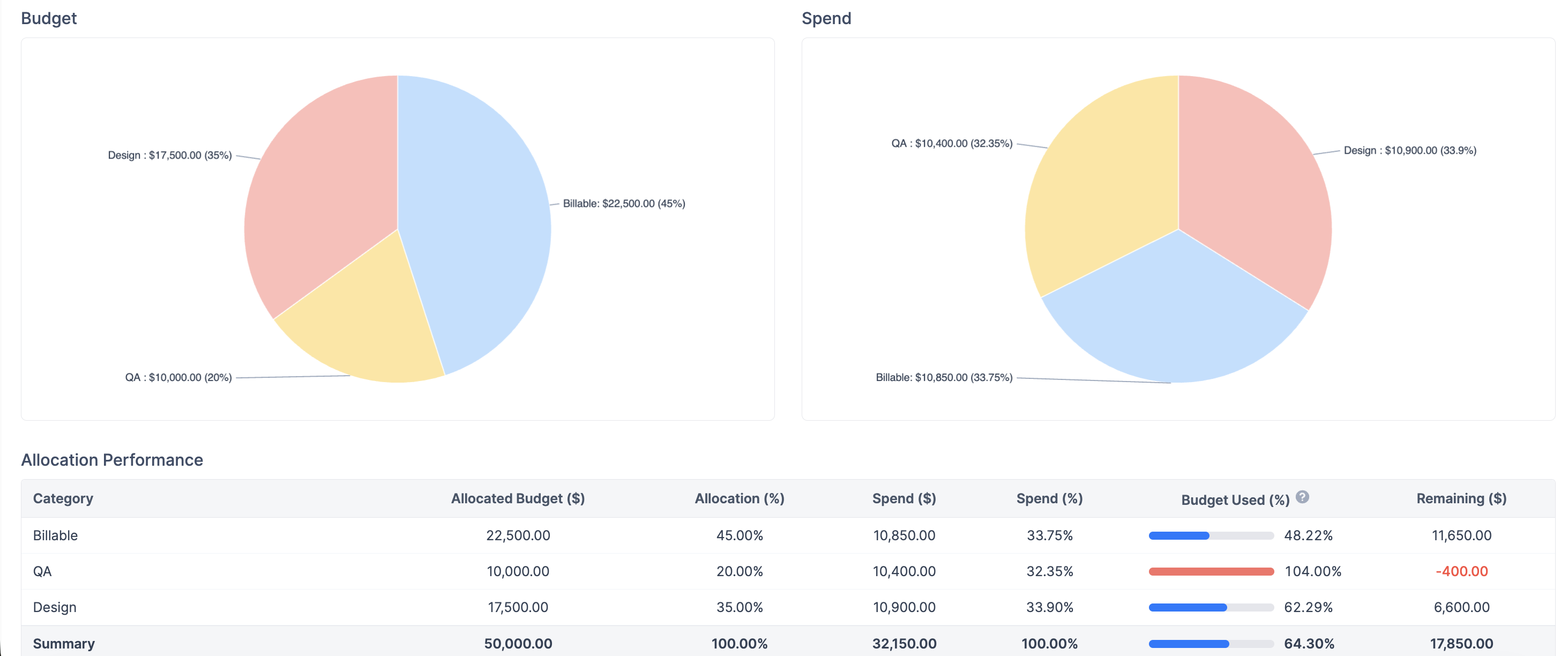
While your "Total Budget" might be a single number (e.g., $50,000), you often need to track spending against specific targets within that budget. This is done using Budget Allocations.
Budget Allocations allow you to manually break down your total budget across custom dimensions (like Jira Categories, Components, or specific Assignees).
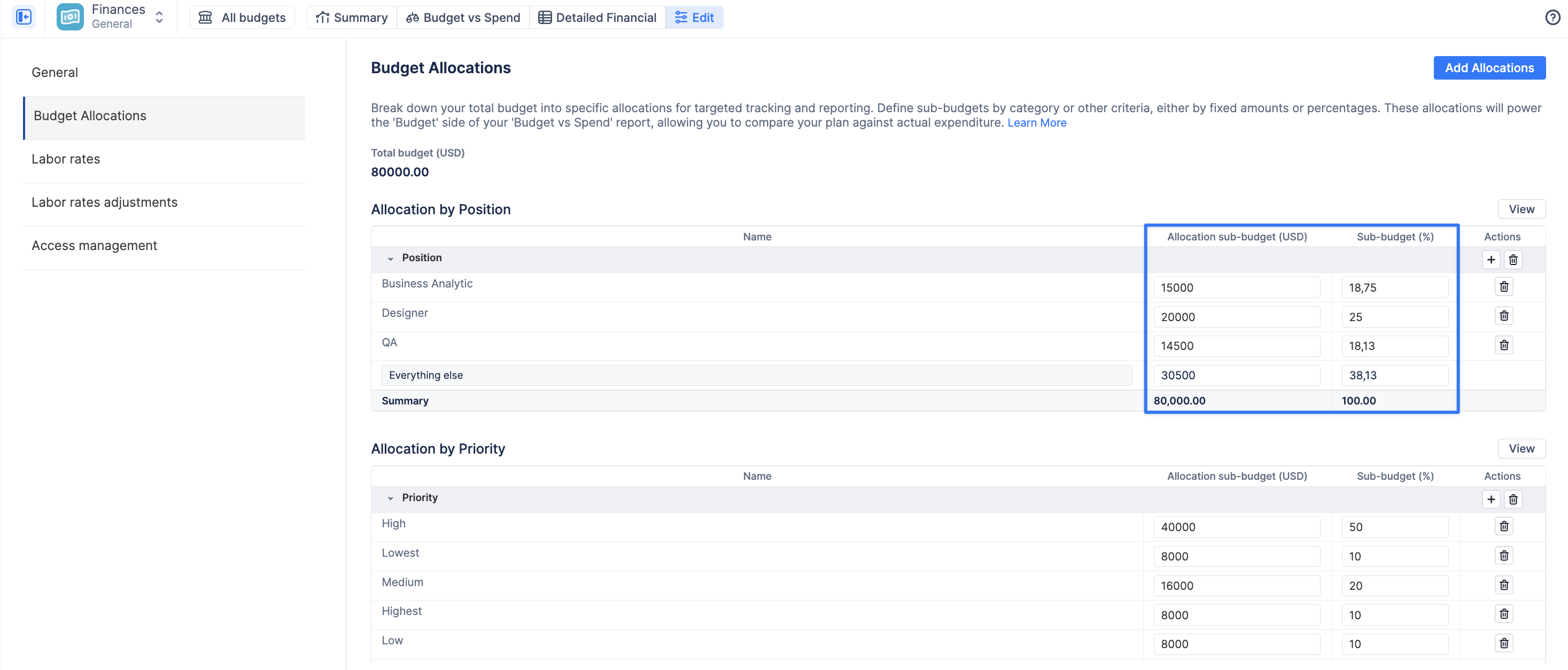
These manual allocations are crucial because they power the "Budget" (Target) side of your "Budget vs Spend" reports, allowing you to visually compare your strategic plan against the actual expenditure calculated from your team's worklogs.