
Manual Transactions: Capturing the Full Project Ledger
While ActivityTimeline automatically calculates labor costs based on Jira worklogs, real-world projects are rarely composed of effort alone. The Manual Transactions feature allows you to bridge the gap between project management and accounting by recording fixed costs and non-hourly revenue directly within your budget container.
Goal & Purpose
The primary goal of Manual Transactions is Budget Accuracy. By including financial data that exists outside of Jira tickets, you ensure that your Actual Spend and Actual Revenue reflect the true financial health of the project.
Without manual transactions, your reports only show "Labor" (effort). With them, you gain a complete Profit & Loss (P&L) view, allowing for precise tracking of profit margins and burn rates.
How it Works
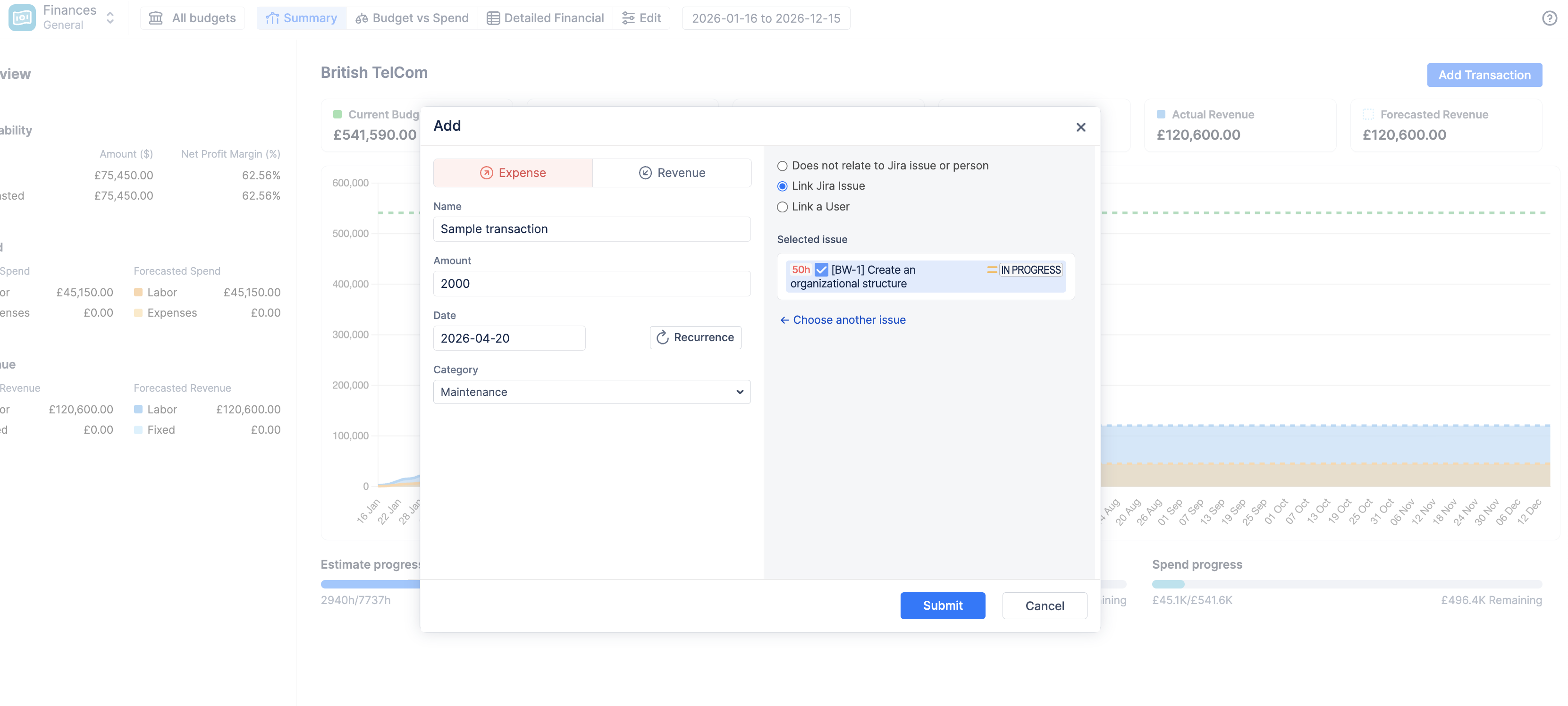
Manual transactions can be added from any report screen (Summary, Budget vs Spend, or Detailed Financial) by clicking the blue + Add Transaction button.
1. Defining the Entry
-
Expense vs. Revenue: Choose whether the item is a cost (e.g., a software license) or income (e.g., a milestone payment).
-
Amount & Date: Transactions are "point-in-time" entries. The amount is added to your Actuals as soon as the selected date is today or in the past.
-
Recurrence: For ongoing costs (like monthly server hosting), you can set a recurrence pattern. The system will automatically generate future entries, which are immediately reflected in your Forecasted totals.
-
Categories: Assigning a category (e.g., "Non-billable" or "Travel") is critical for the Budget vs Spend report. This allows you to group manual costs into specific "slices" of your financial pie chart.
2. Linking to Jira Entities
To provide deeper context, transactions can be linked to specific entities:
-
Link Jira Issue: Ties a cost (like a specific contractor fee) to a specific task for granular profitability auditing.
-
Link a User: https://activitytimeline.atlassian.net/wiki/x/BIDjKgE
Reporting Impact
Manual transactions flow through the entire Finance module:
-
Summary Dashboard: Included in the "Expenses" (for costs) or "Fixed" (for revenue) breakdown sidebars.
-
Detailed Financial Report: Each transaction appears as a unique line item of the "Non-Labor" type (unless linked to a user).
-
Cumulative Trend Chart: Future-dated manual transactions or recurring patterns define the trajectory of your Forecasted Spend/Revenue lines.
Use Cases: Real-World Scenarios
For Expenses (Costs)
-
Software & Tooling: Record the cost of specialized licenses or API access required for a specific project.
-
Travel & Expenses (T&E): Log flights, hotel stays, or client entertainment costs incurred by the team.
-
External Contractors: If a vendor provides a flat-fee service (e.g., a security audit), log the invoice amount here to see its impact alongside internal team costs.
-
Hardware Procurement: Capture the cost of servers, laptops, or specialized equipment dedicated to the project scope.
For Revenue (Income)
-
Fixed-Price Milestones: In Fixed-Price contracts, hourly logs don't increase income. Use manual transactions to log $10,000 at the "Design Sign-off" milestone.
-
Down Payments: Record initial deposits received before work begins to show an early positive cash flow.
-
SaaS Subscriptions: For operational budgets, log the monthly recurring revenue (MRR) generated by the product.
-
Performance Bonuses: Record additional revenue triggered by meeting specific SLA targets or early delivery.
Expert note on Forecasting: Manual transactions are the most reliable way to stabilize your forecast. While labor costs fluctuate based on team speed, a recurring manual expense provides a "fixed floor" for your burn rate, allowing for much more predictable financial planning.