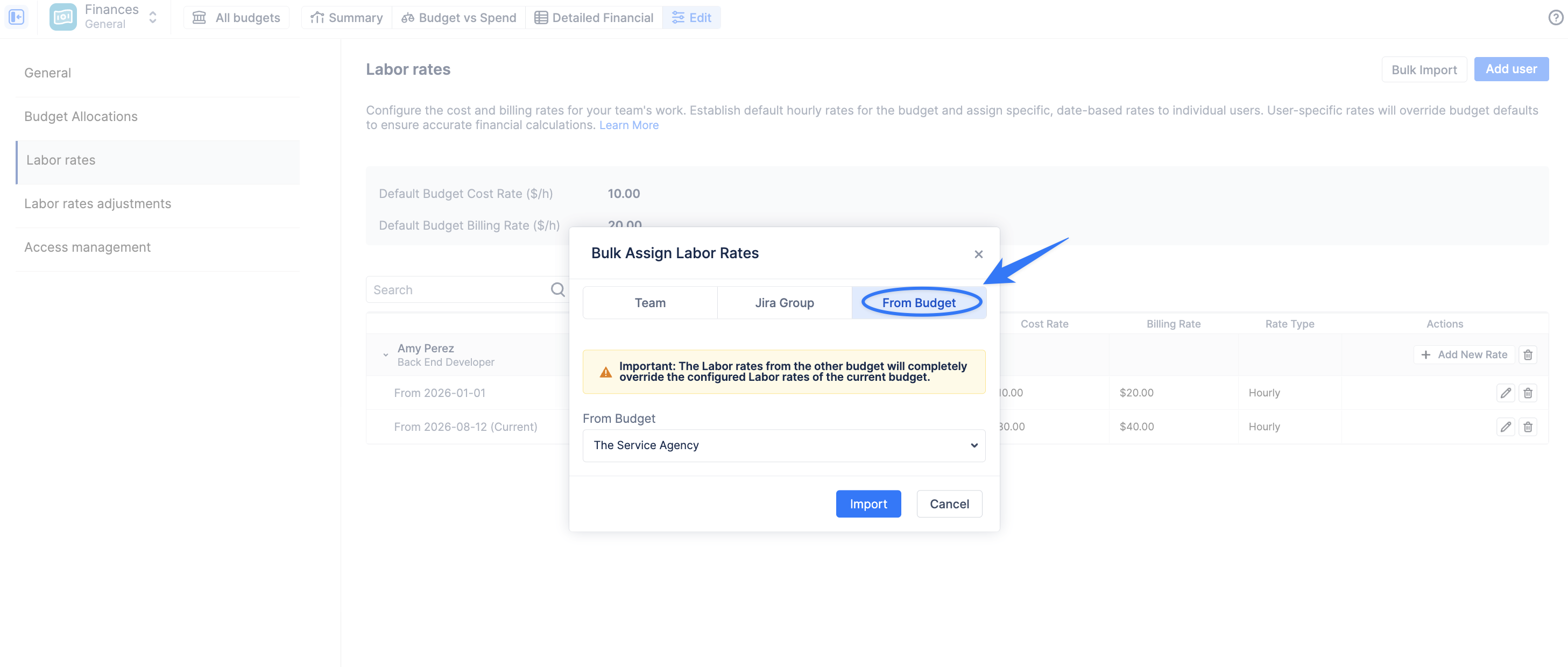
Labor rates are the engine of the Finances module. They are the multipliers that convert the time your team logs in Jira (Worklogs) into actionable Cost and Revenue data.
ActivityTimeline provides a flexible Rate Hierarchy, allowing you to set broad defaults for a project while overriding them with highly specific rates for individual users or specialized types of work.
To manage these settings, navigate to the Configurations of your budget and select the Labor rates tab.
Setting Default Budget Rates
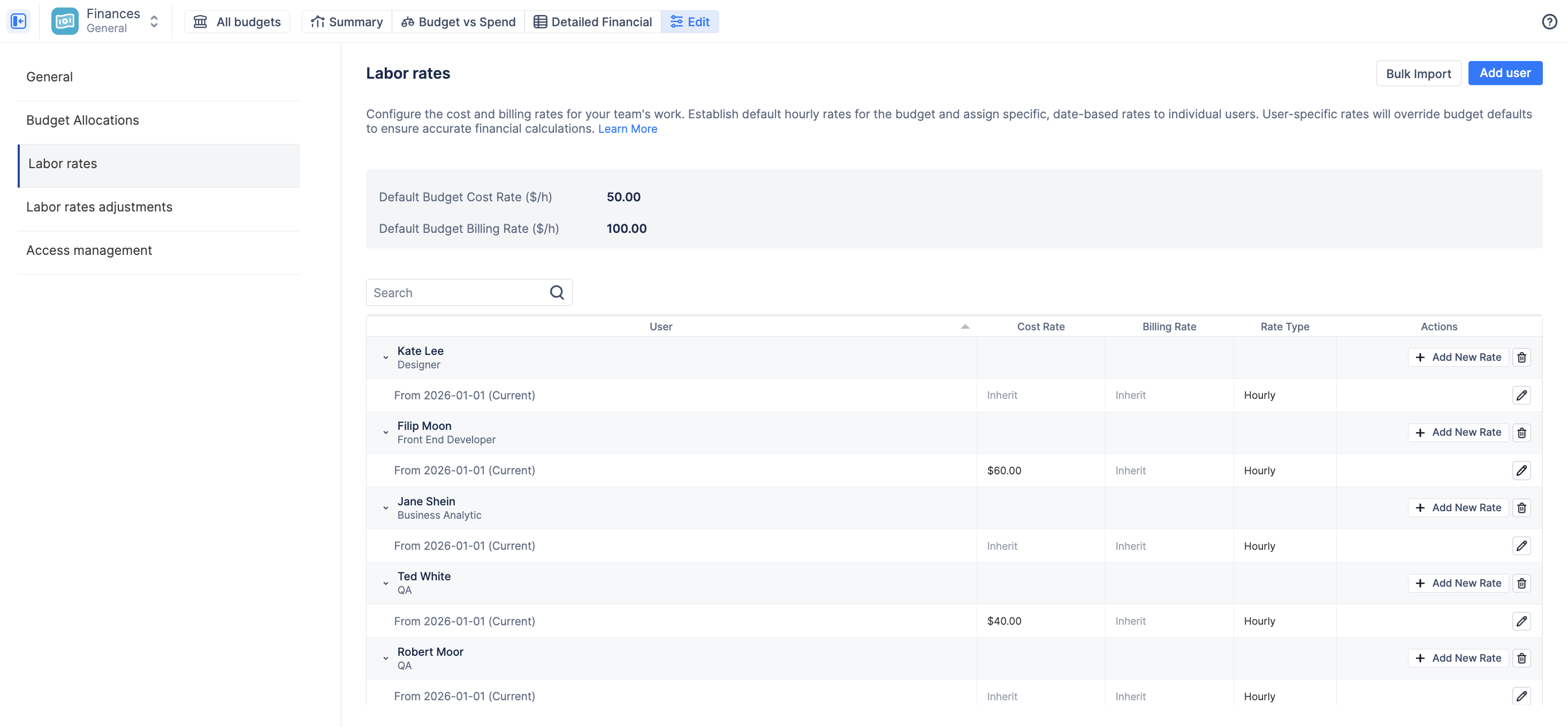
At the top of the Labor rates screen, you must define the Default Budget Cost Rate and the Default Budget Billing Rate.
These serve as the baseline for your entire budget. If a team member logs time on an issue within this budget's scope, and no other specific rate applies to them, the system will use these default rates to calculate the financial impact of their worklog.
Effective Dating for Rates (Historical Accuracy)
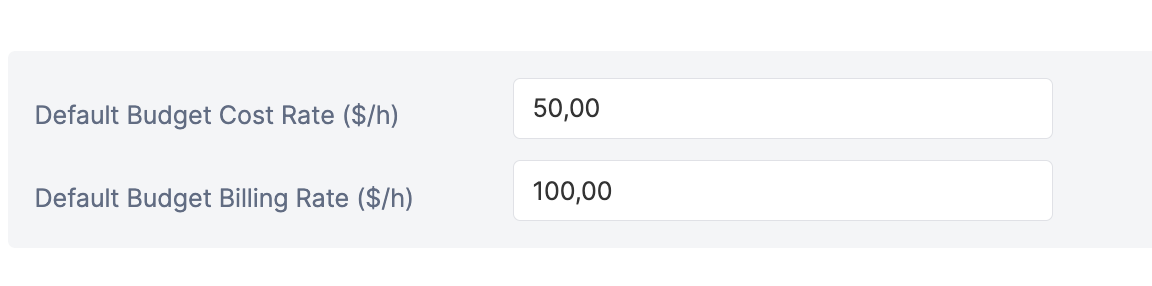
To ensure your financial reports remain accurate over time, all User and Category rates in ActivityTimeline are effective-dated.
This means a rate change only applies from a specific date onward.
Why is this important?
If an employee gets a raise on July 1st, you want their new, higher Cost Rate to apply to all worklogs from July 1st forward. However, you do not want that new rate to retroactively change the cost of the work they completed in June.
By using effective dates, ActivityTimeline preserves the historical accuracy of your past financial calculations while applying the correct rates to current and future work.

Configuring User Rates
You can assign specific hourly or monthly rates to individual team members working on the budget.
-
On the Labor rates tab, click the blue + Add User button.
-
Select the User from the dropdown menu.
-
Choose the Rate Type (Hourly or Monthly).
-
Enter the specific Cost and Billing rates for this user.
-
Click Add.
How Monthly Rates Work?
When selecting Monthly, the system treats the value as a fixed monthly amount for the user.
Calculation logic
-
The monthly rate is applied once per calendar month
-
It is automatically distributed (pro-rated) across the days of that month
-
The system calculates an equivalent daily rate, which is then used in reporting
Proration rules
-
If the rate is active for the full month → full monthly amount is applied
-
If the rate is active for part of the month → the value is pro-rated based on active days
Example:
If the monthly cost = 3000 and the user is active for 15 out of 30 days →
→ Applied cost = (3000 / 30) × 15
Important Behavior
-
Monthly rates are time-based, not worklog-based
-
They contribute to Cost and Revenue regardless of logged time
-
If the user has a configured monthly rate, then his/her worklogs will not be calculated in the budget.
Adding a New Rate (Effective Dating)
To update a user's rate (e.g., due to a promotion) while preserving their historical data:
-
Locate the user in the Labor rates table and click the + Add New Rate button on their row.
-
Select the Start date from which the new rate should take effect.
-
Enter the new Cost Rate and Billing Rate.
-
Click the checkmark (Save) icon.
The system will now use the old rate for worklogs before that date, and the new rate for worklogs on or after that date.
Bulk Import & Assign Labor Rates
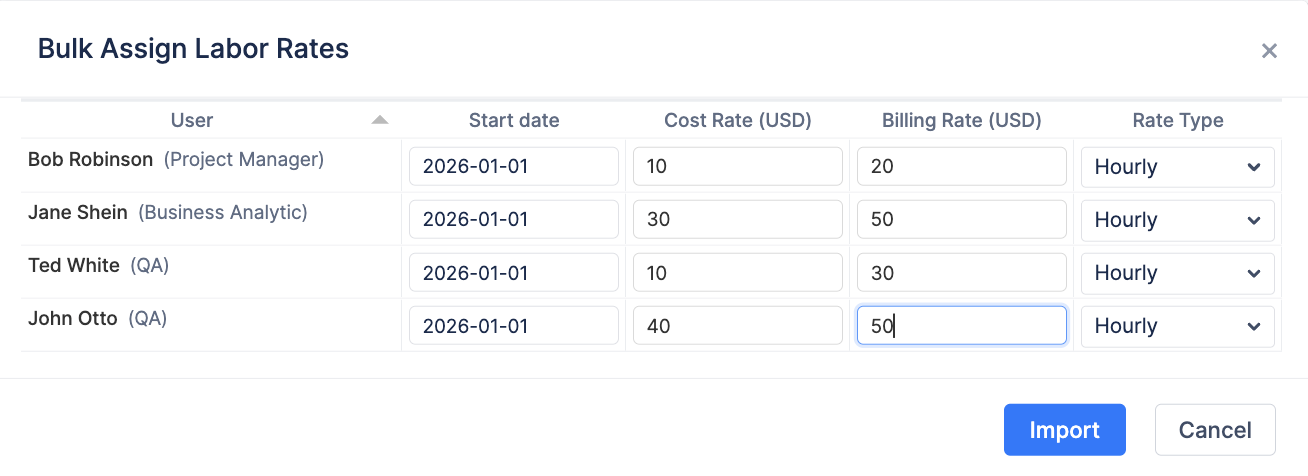
To streamline the setup of large teams, you can use the Bulk Import feature. This allows you to quickly pull in multiple users and assign their rates at once, rather than adding them individually.
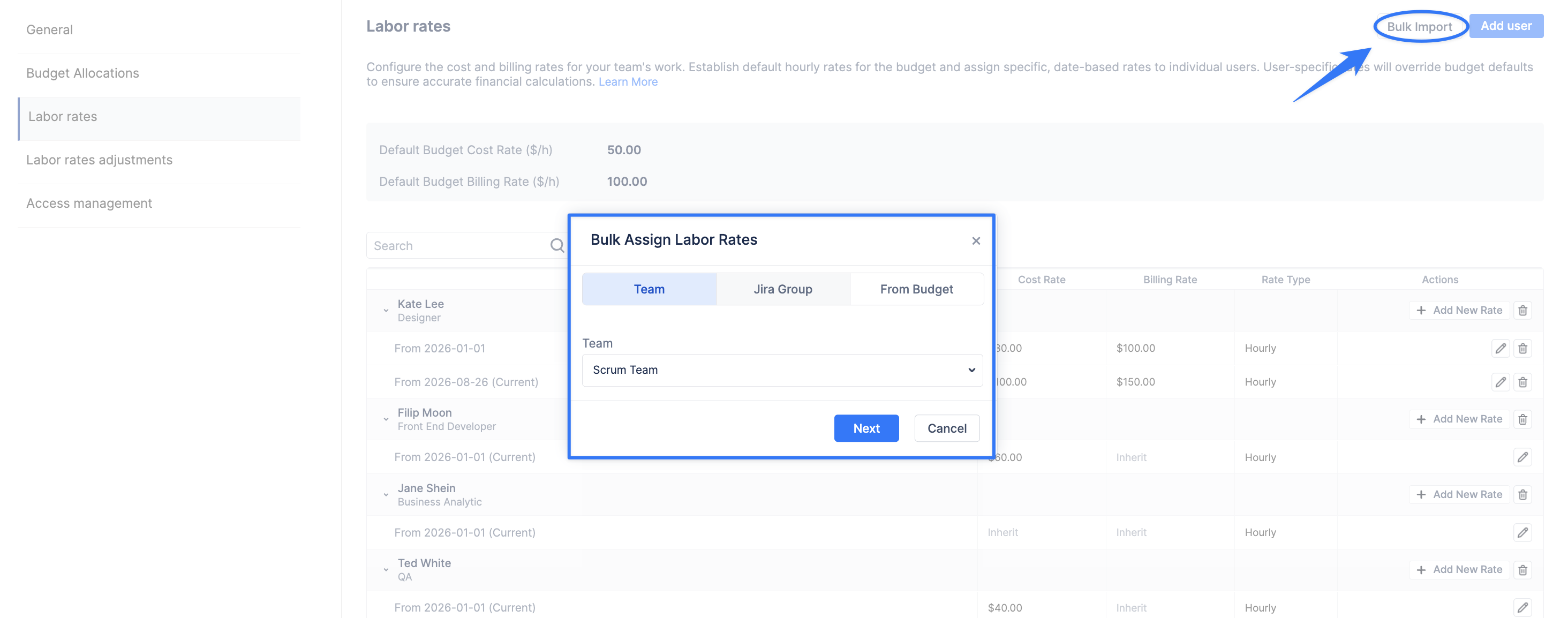
To begin, navigate to the Labor rates tab in your budget configuration and click the Bulk Import button in the top right corner. You have three methods for importing:
1. Import from ActivityTimeline Team or Jira Group
This is the fastest way to populate your labor rates list with members of an existing team.
-
Select Source: Choose between an existing ActivityTimeline Team or a Jira Group.
-
Assign Rates: In the Bulk Assign window, users are set to "Inherit" the default budget rates by default.
-
Customization: You can inline-edit the Cost Rate or Billing Rate fields to define specific rates for individual users before finalizing.
-
Rate Type: Choose between Hourly or Monthly for the imported group.
-
Finalize: Click Import to add these users to your budget.
2. Import from Existing Budget
This option allows you to sync financial settings across different projects by pulling labor rates directly from another budget.
-
Select Budget: Choose the source budget from the dropdown menu.
-
Override Logic: Unlike importing from a team or group, importing From Budget is an override action. The system will pull all user-specific rates and effective dates from the source budget.
-
Important: Using this method will completely override any user-specific rates currently configured in your current budget. This ensures perfect financial consistency across related projects or milestones.