
Once you have created a budget, you can manage its core settings, define its boundaries, and configure how it calculates your financials.
To access these settings, navigate to Finances → Select your budget from the All budgets list → Click the “Edit” button in the top right corner.
This section covers the General configuration tab, which is the control center for your budget's scope and calculation rules.
General Settings & Scope
The General tab is where you define the foundational parameters of your budget: its name, its timeframe, what Jira data it includes, and how the total budget amount is determined.
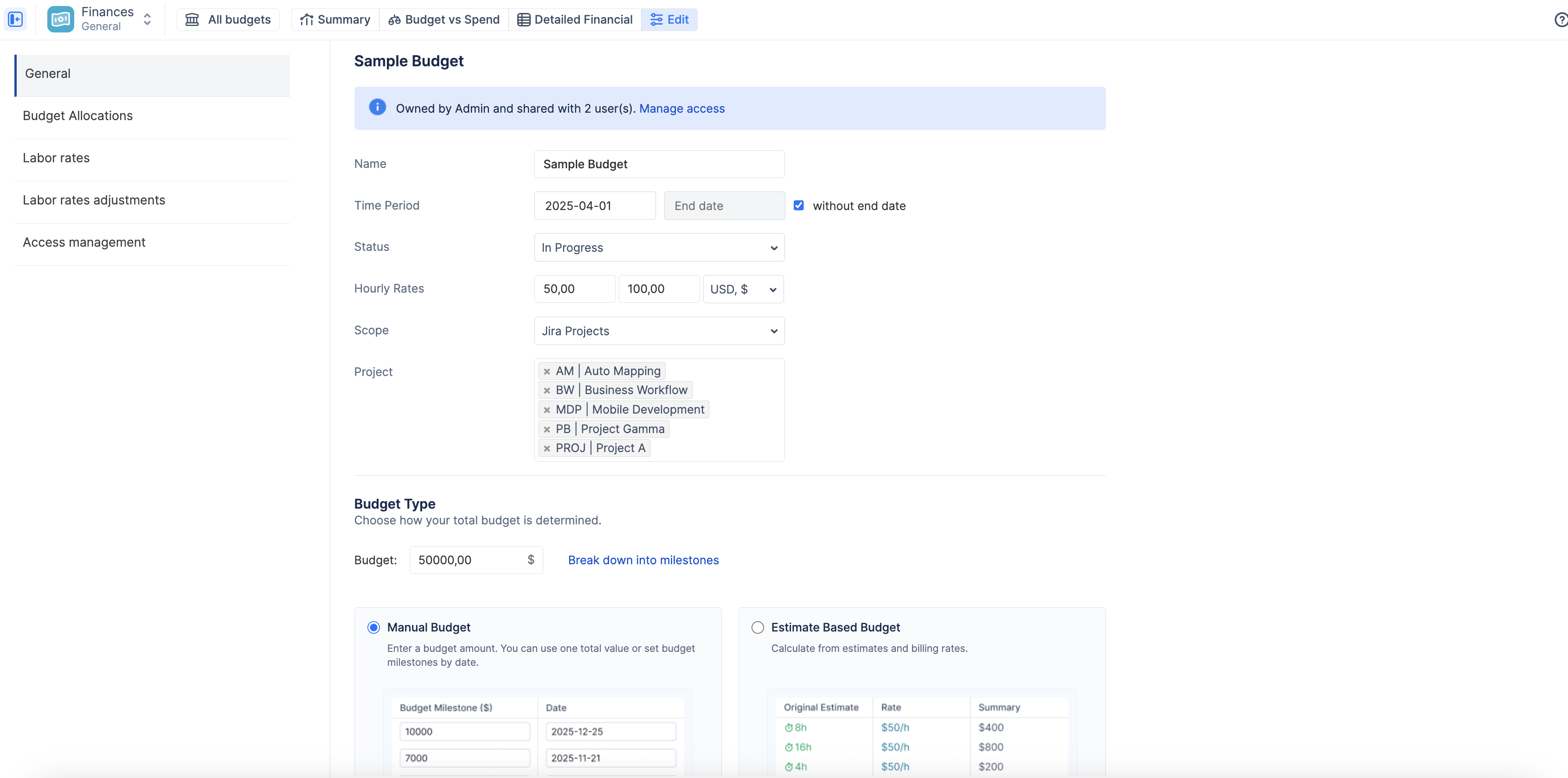
Basic Information
-
Name: The display name of your budget (e.g., "Website Revamp Q3").
-
Time Period: The Start and End dates for your budget.
-
Important: ActivityTimeline will strictly filter all financial calculations (like actual spend from worklogs) to this specific date range. Worklogs outside these dates will not be included in this budget's reports.
-
You can check the without end date box for ongoing operational budgets.
-
Scope
The Scope setting defines the boundaries of your budget. It tells the system exactly which Jira issues to monitor for worklogs and estimates.
You can define your scope using one of three methods:
-
Jira Projects: Select one or multiple entire Jira projects. Every issue within the selected projects will be included in the budget.
-
Jira Epics: Select one or multiple specific Epics. Only the issues and sub-tasks belonging to these Epics will be tracked, allowing you to budget for specific features or phases regardless of the parent project.
-
JQL (Jira Query Language): Use a saved Jira filter for highly customized tracking. This is ideal for complex scenarios, such as tracking all "High Priority" bugs assigned to a specific team across multiple projects.
Budget Type
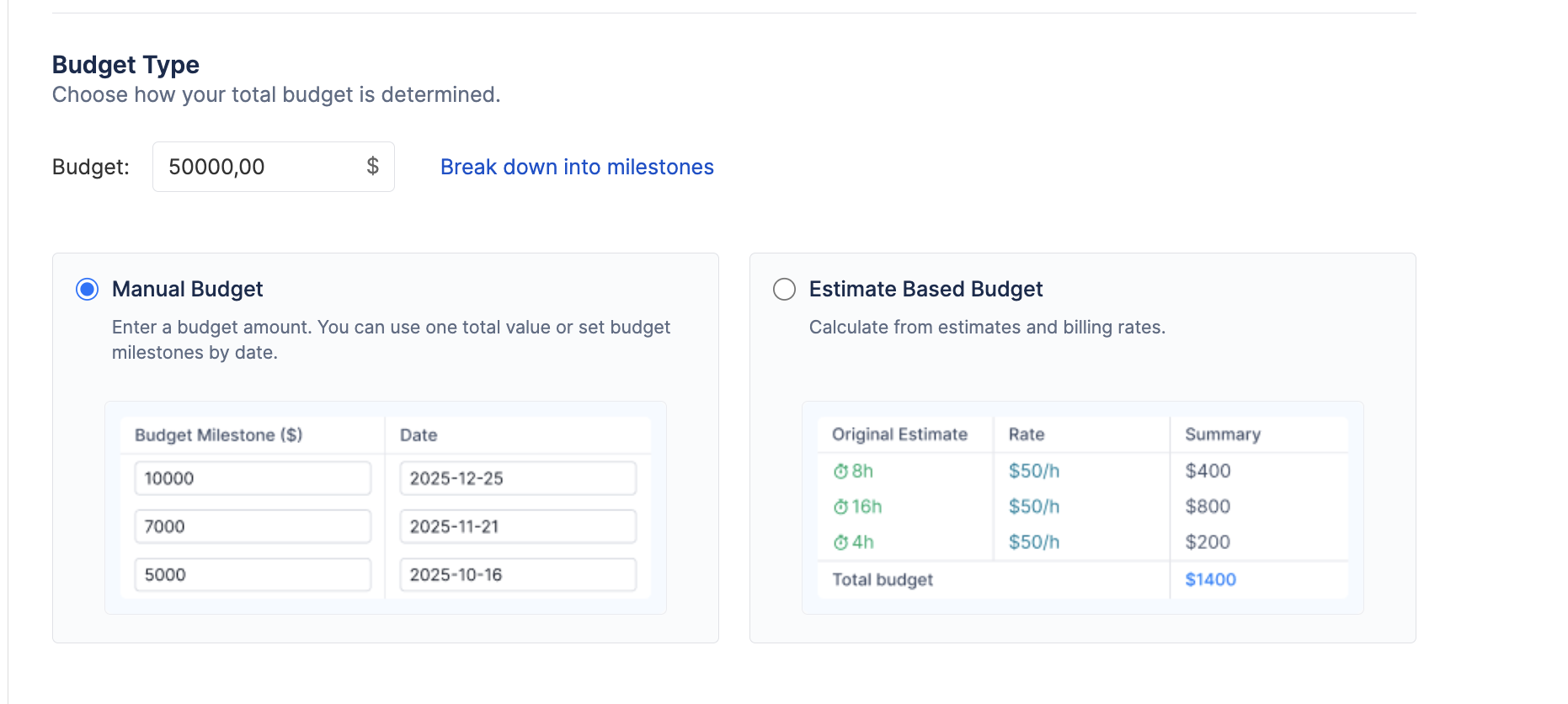
This setting determines how your Total Budget amount (the cap you are tracking against) is defined.
-
Manual Budget: Select this to enter a single, fixed monetary amount manually (e.g., $50,000). This is best when you have a strict top-down budget approved by management.
-
Budget Milestones: If you select Manual Budget, you can optionally click Define Budget Milestones to break your total amount into smaller, date-specific targets (e.g., $10,000 by Q1, $20,000 by Q2).
-
-
Estimate-Based Budget: Select this to have the system calculate your total budget automatically from the bottom up. The system will multiply the Original Estimate of every task in your Scope by the applicable Cost Rate. This is ideal for agile teams that build their budgets based on detailed task estimation.
Budget Tracking
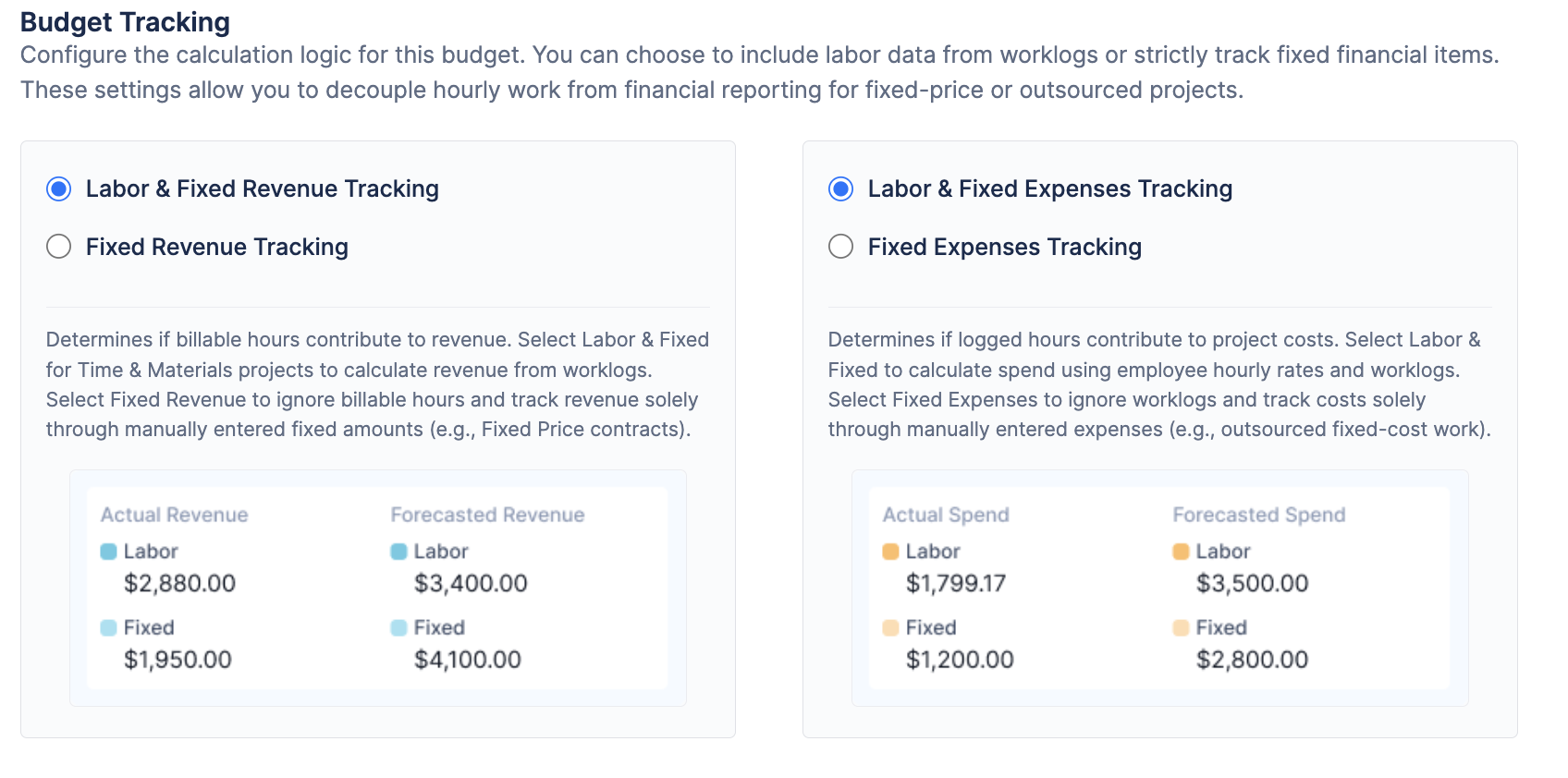
These settings control the calculation logic for your Actual Revenue and Actual Spend. They allow you to decouple hourly work from financial reporting, which is crucial for handling different types of contracts (like Time & Materials vs. Fixed-Price).
-
Revenue Tracking
Determines if billable hours logged by your team contribute to your total revenue.
-
Labor & Fixed Revenue Tracking: Revenue is calculated from logged hours (Worklog Hours × Billing Rate) plus any manually entered fixed revenue items. This is ideal for Time & Materials projects.
-
Fixed Revenue Tracking: Revenue is calculated only from manually entered fixed revenue items. Revenue from billable hours will be ignored in all reports. This is useful for Fixed-Price contracts where hourly work doesn't increase income or SaaS businesses that don’t bill their spent time.
-
Cost Tracking
Determines if hours logged by your team contribute to your project costs.
-
Labor & Fixed Expenses Tracking: Spend is calculated using employee hourly rates (Worklog Hours × Cost Rate) plus any manually entered fixed expenses. This is the standard setting for tracking the true cost of effort.
-
Fixed Expenses Tracking: Spend is calculated only from manually entered fixed expenses (e.g., invoices from external vendors). Hourly labor costs are ignored. This might be used when tracking a budget composed entirely of outsourced, fixed-cost deliverables.