
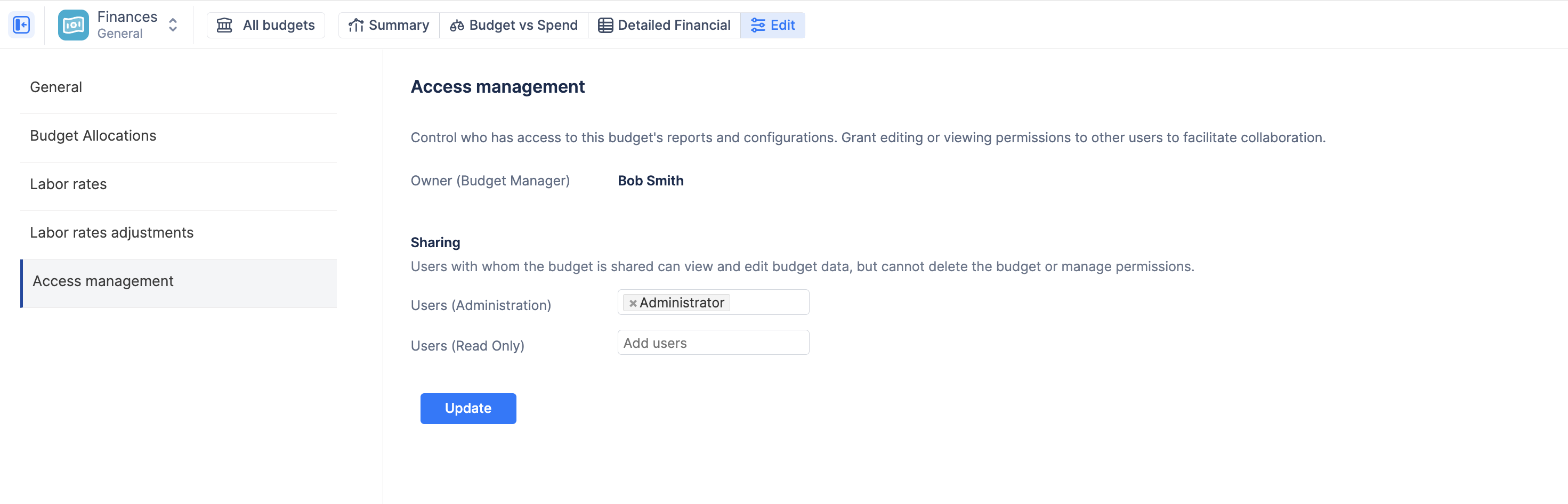
Access Management allows budget owners to control visibility and editing rights for specific financial trackers. This ensures that sensitive salary information or project costs are only accessible to authorized personnel while facilitating collaboration across the management team.
Understanding Financial Roles
Every budget in ActivityTimeline has a defined hierarchy of access. Permissions are assigned at the budget level, meaning a user may be an Administrator on one project budget while having Read-Only access to another.
1. The Owner (Budget Manager)
The Owner is the individual who created the budget.
-
Immutability: The ownership of a budget is fixed and cannot be altered once the budget is created.
-
Exclusive Rights: The Owner is the only person with authority to manage permissions. Only the Owner can add or remove users from the Administration or Read-Only lists.
-
Full Control: Has full access to all reports, configurations, labor rates, and manual transactions.
2. Users (Administration)
Administrative access is designed for co-managers who need to maintain the budget's data.
-
Capabilities: Can view all reports and transactions, and edit all configurations (Labor Rates, Allocations, Scope, Tracking Settings).
-
Restriction: Administrators cannot manage permissions or share the budget with other users. This remains the exclusive right of the Owner.
3. Users (Read-Only)
Read-Only access is ideal for stakeholders who need to monitor project health without altering the financial setup.
-
Capabilities: Can view all three financial reports (Summary, Budget vs. Spend, Detailed Financial) and all underlying transaction data.
-
Data Extraction: Read-only users have the authority to Export to Excel from the reports, allowing for offline analysis.
-
Restriction: They cannot access the "Edit" configuration pages or modify any rates, targets, or transactions.
Permissions Matrix
|
Feature |
Owner |
Administration |
Read-Only |
|
View Financial Reports |
✅ |
✅ |
✅ |
|
View Detailed Transactions |
✅ |
✅ |
✅ |
|
Export to Excel |
✅ |
✅ |
✅ |
|
Edit Budget Configurations |
✅ |
✅ |
❌ |
|
Add/Edit Transactions |
✅ |
✅ |
❌ |
|
Manage Access & Sharing |
✅ |
❌ |
❌ |
Jira Permission Mirroring (Security Perimeter)
The Finances module strictly adheres to your organization's Jira security protocols. Even if a user is granted access to a budget in ActivityTimeline, their visibility is governed by the "Reuse Jira permissions per Project" or "per Issue" configuration.
-
Logic: The system draws a "fence" around the budget's scope. If a user does not have permission to view a specific Jira project or issue, the financial data (worklogs and associated costs) for that project/issue will be hidden from them within the Finance reports.
-
Impact: This ensures that financial visibility never bypasses the core access levels established within Jira itself.
Note: Access management is configured individually for each budget. To grant access, navigate to the specific budget, click Edit, and select the Access management tab in the left-hand menu.