
This module is part of the Advanced Edition of ActivityTimeline.
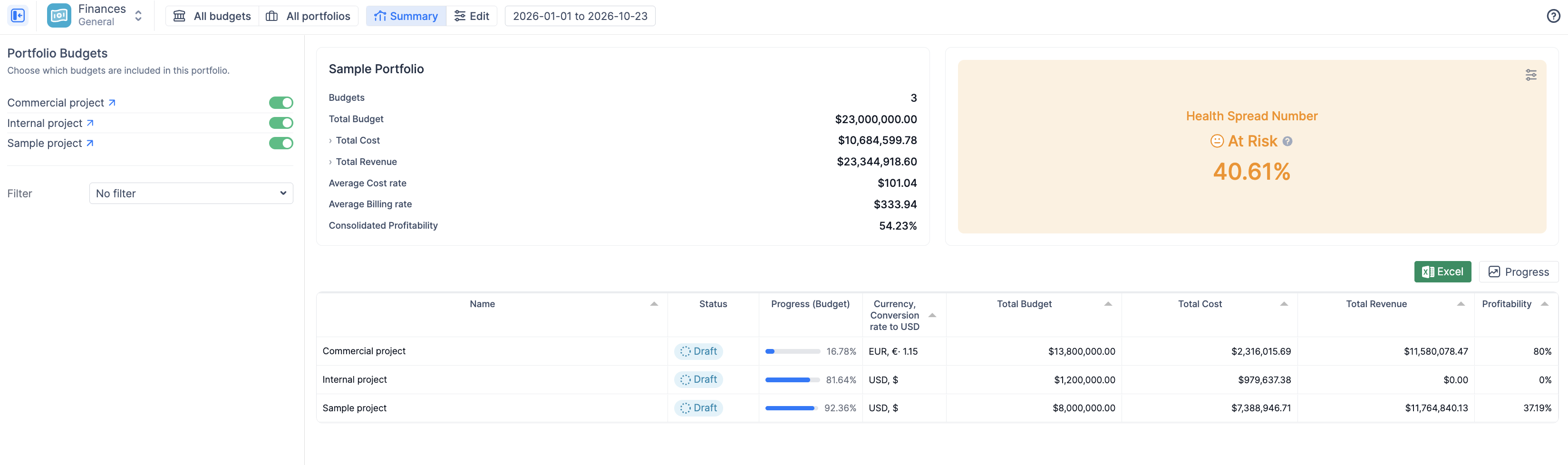
A Portfolio groups several existing Budgets into one consolidated view — a "budget of budgets". It lets a financial manager, department head or executive see the total budget, cost, revenue and profitability across many projects, departments or clients in a single principal currency, and check at a glance whether the whole portfolio is on track.
A Portfolio does not calculate anything on its own. All costs, revenue and progress are still calculated inside each Budget (from Jira worklogs, labor rates and manual transactions). The Portfolio reads those numbers, converts them to one currency and adds them up. That means a Portfolio is always as accurate as the Budgets inside it.
When to use a Portfolio
-
You run several client or project Budgets and want one consolidated profitability figure.
-
Budgets are kept in different currencies and you need one reporting currency.
-
You want a quick health signal across projects — for example, "are we spending faster than we deliver?"
-
You are a Delivery Manager or PMO and need a roll-up view without opening every Budget.
Prerequisites
-
ActivityTimeline Advanced Edition with the Finances module enabled, and your role allowed to use Finances (see Finances Access Control & Visibility).
-
At least one existing Budget. A Portfolio can only include Budgets you have access to.
-
Each Budget should have its labor rates and time period configured — the Portfolio inherits both.
Navigation
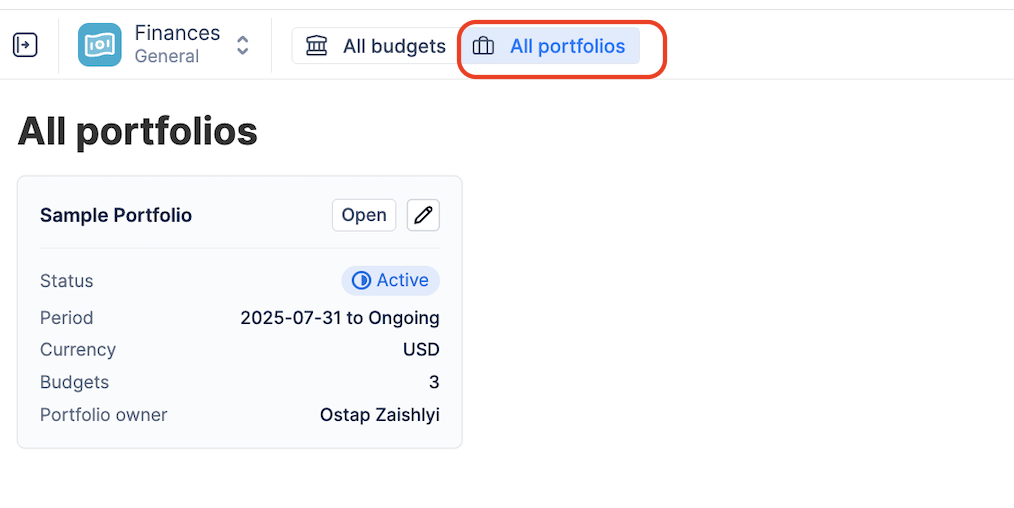
Open Finances in the top ActivityTimeline menu. The toolbar has two list buttons:
-
All budgets — the list of individual Budgets.
-
All portfolios — the list of Portfolios. Each card shows the Portfolio name, status, the number of included Budgets, consolidated Total Cost and Total Revenue, and the Portfolio owner.
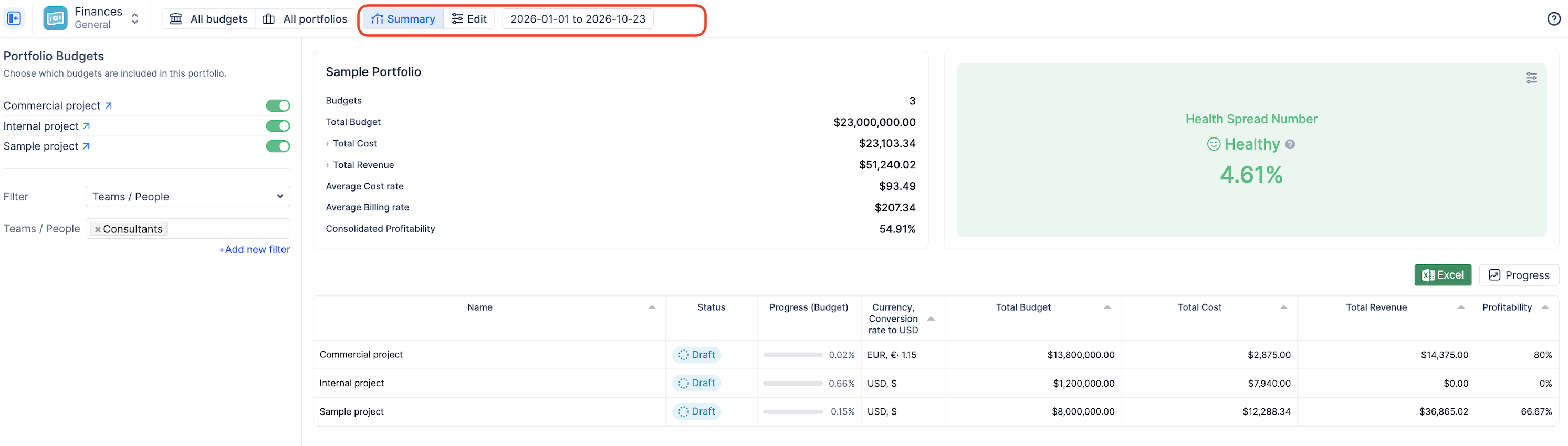
When a Portfolio is open, the toolbar shows two tabs: Summary (the consolidated report) and Edit (the configuration), plus the date range selector.
Creating a Portfolio
-
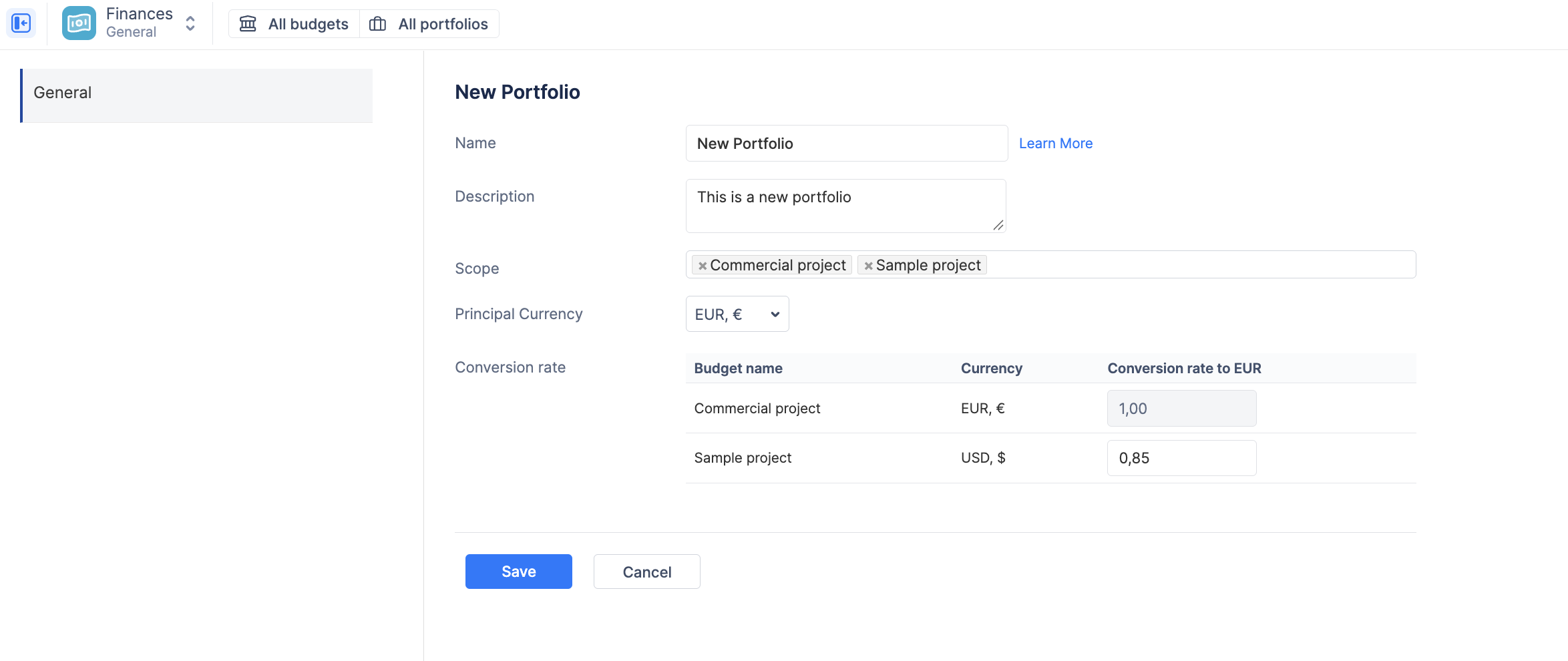
Go to Finances → All portfolios and click + Create portfolio.
-
Name the Portfolio and add an optional Description.
-
In Scope, select the Budgets to include. Only Budgets you have access to are listed. You can add or remove Budgets later.
-
Select the Principal Currency — the currency in which all consolidated numbers are shown.
-
In the Conversion rate table, enter a rate for every Budget whose currency differs from the principal currency (for example,
EUR → USD = 1,15). Budgets that already use the principal currency show1,00and cannot be edited. -
Set the Status (for example Draft while you are still configuring it, Active when it is ready).
-
Click Save.
💡 Note: The Portfolio has no time period of its own. Its period is always derived from the included Budgets — from the earliest Budget start date to the latest Budget end date. Each Budget contributes data only within its own start/end dates, so Portfolio totals always match the underlying Budgets.
💡 Note on conversion rates: One rate per currency is applied to all amounts in that Budget, regardless of their date. Historical (effective-dated) exchange rates are planned for a later release. If you change a rate, all consolidated numbers are recalculated with the new rate.
Portfolio Summary
The Summary tab is the consolidated dashboard. It is made of four parts: the left panel (which Budgets and filters are applied), the Key Numbers panel, the Health Spread Number card, and the Budgets table.
Date range
Use the date range selector in the toolbar to choose the reporting period. Cost and revenue are calculated for worklogs and transactions that fall inside the selected range and inside each Budget's own period. If the range includes future dates, future transactions and planned worklogs within each Budget's period are included too. The selected range is remembered when you reload the page.
Including and excluding Budgets
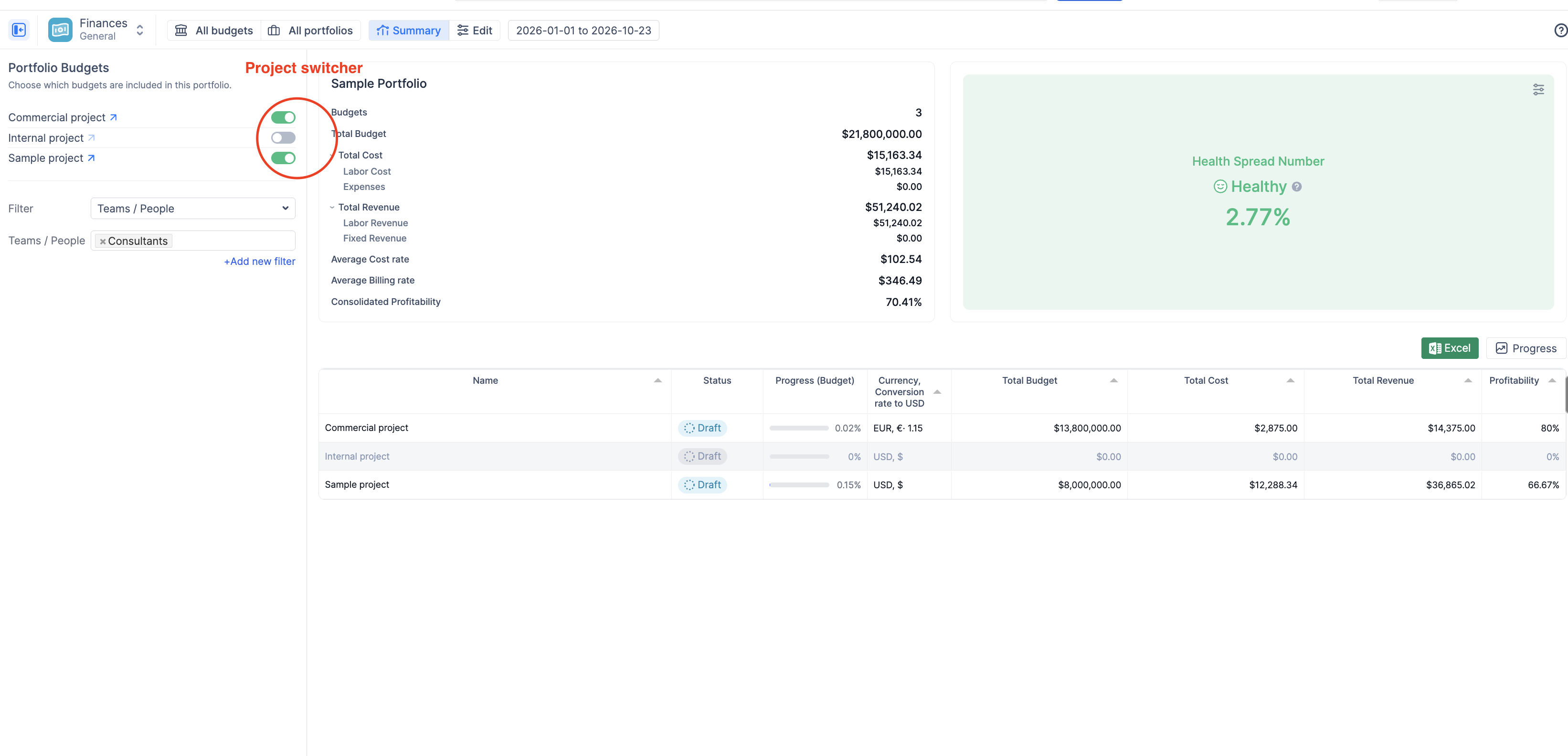
The Portfolio Budgets list in the left panel shows every Budget in the Portfolio scope with an ON/OFF switch. Turn a Budget off to exclude it from all consolidated numbers, the Health Spread and the table totals without removing it from the Portfolio. The arrow icon next to a Budget name opens that Budget.
Filters
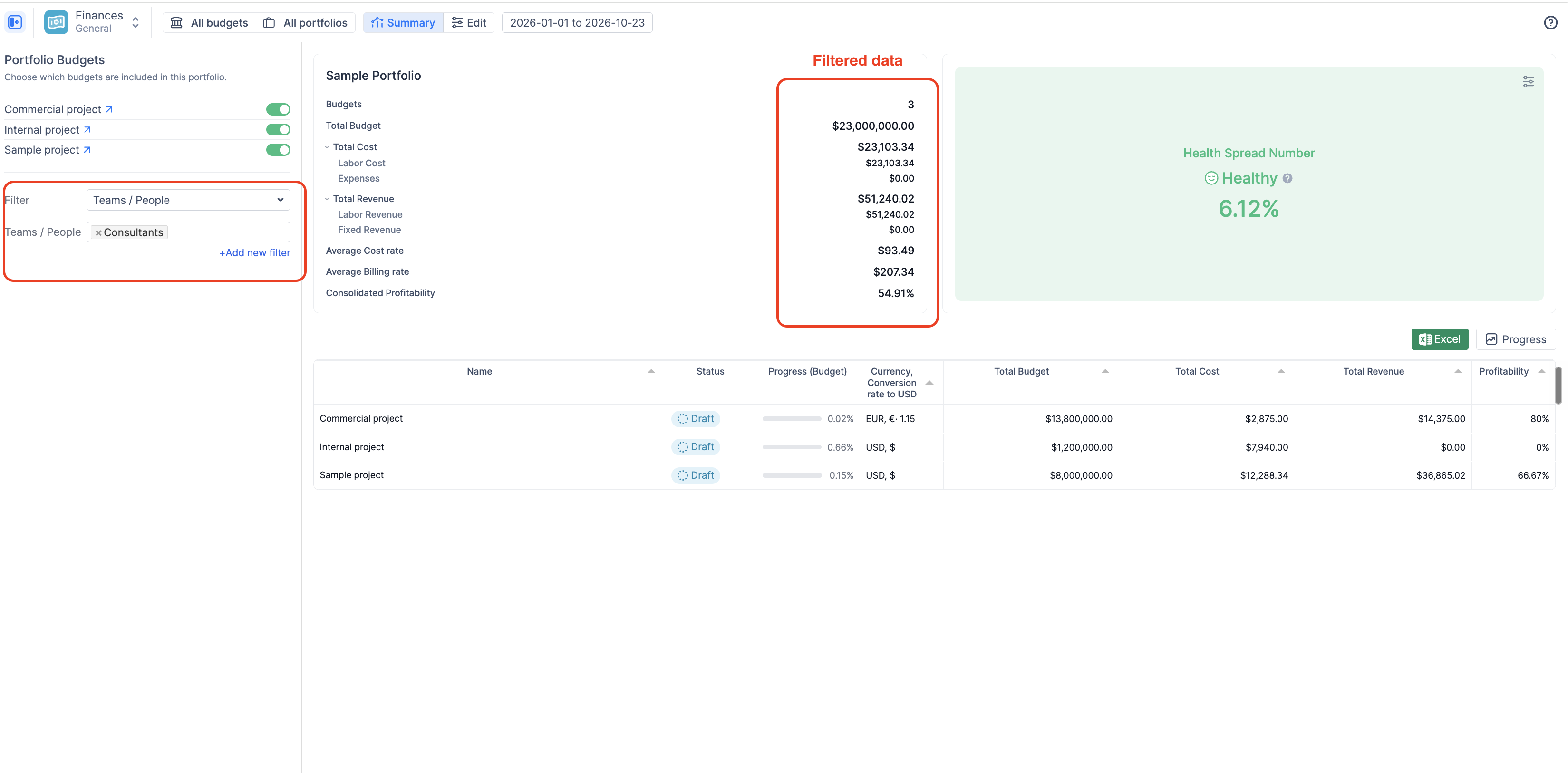
Below the switches, the Filter dropdown narrows the consolidated numbers the same way filters work inside a single Budget. You can filter by Budget, Teams / People, Project, Epic, Category or Position, and combine several filters with + Add new filter. The Budget filter works on top of the ON/OFF switches — a Budget counts only if it is switched on and matches the filter.
Filters, the selected Progress basis and the Health Spread configuration are saved per Portfolio and restored the next time you open it.
Key Numbers
|
Row |
What it shows |
|---|---|
|
Budgets |
Number of Budgets in the Portfolio scope. |
|
Total Budget |
Sum of the Total Budget of all enabled Budgets, converted to the principal currency. |
|
Total Cost |
Sum of all costs in the selected period. Expand the row to see Labor Cost (logged hours × cost rates) and Expenses (manual expense transactions). |
|
Total Revenue |
Sum of all revenue in the selected period. Expand the row to see Labor Revenue (logged hours × billing rates) and Fixed Revenue (manual revenue transactions). |
|
Average Cost rate |
|
|
Average Billing rate |
|
|
Consolidated Profitability |
|
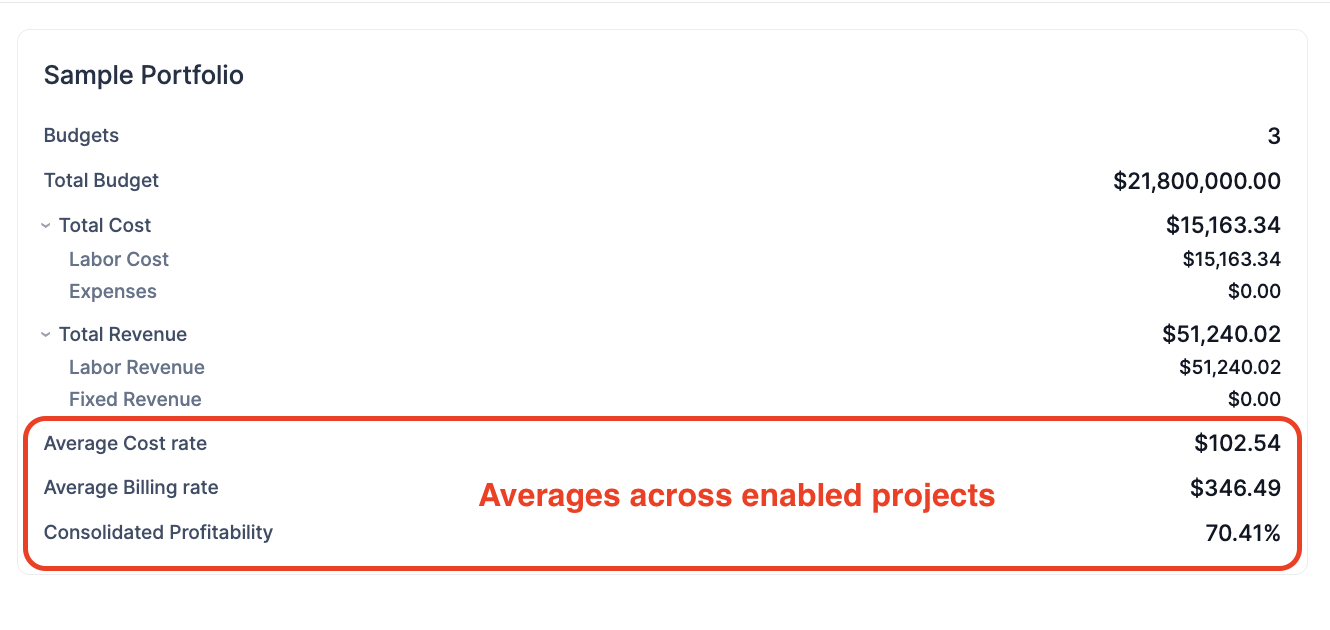
💡 Note: If the included Budgets mix hourly and monthly labor rates, the average rate rows show a Mixed Rate indicator. Expand the row to see the hourly and monthly breakdown. Manual transactions linked to a user but without time spent are excluded from the average rate calculation.
Health Spread Number
The Health Spread Number is a configurable indicator that compares two progress metrics and shows the difference in percentage points. It answers questions like "are we burning budget faster than we complete the work?"
Health Spread = First metric − Second metric

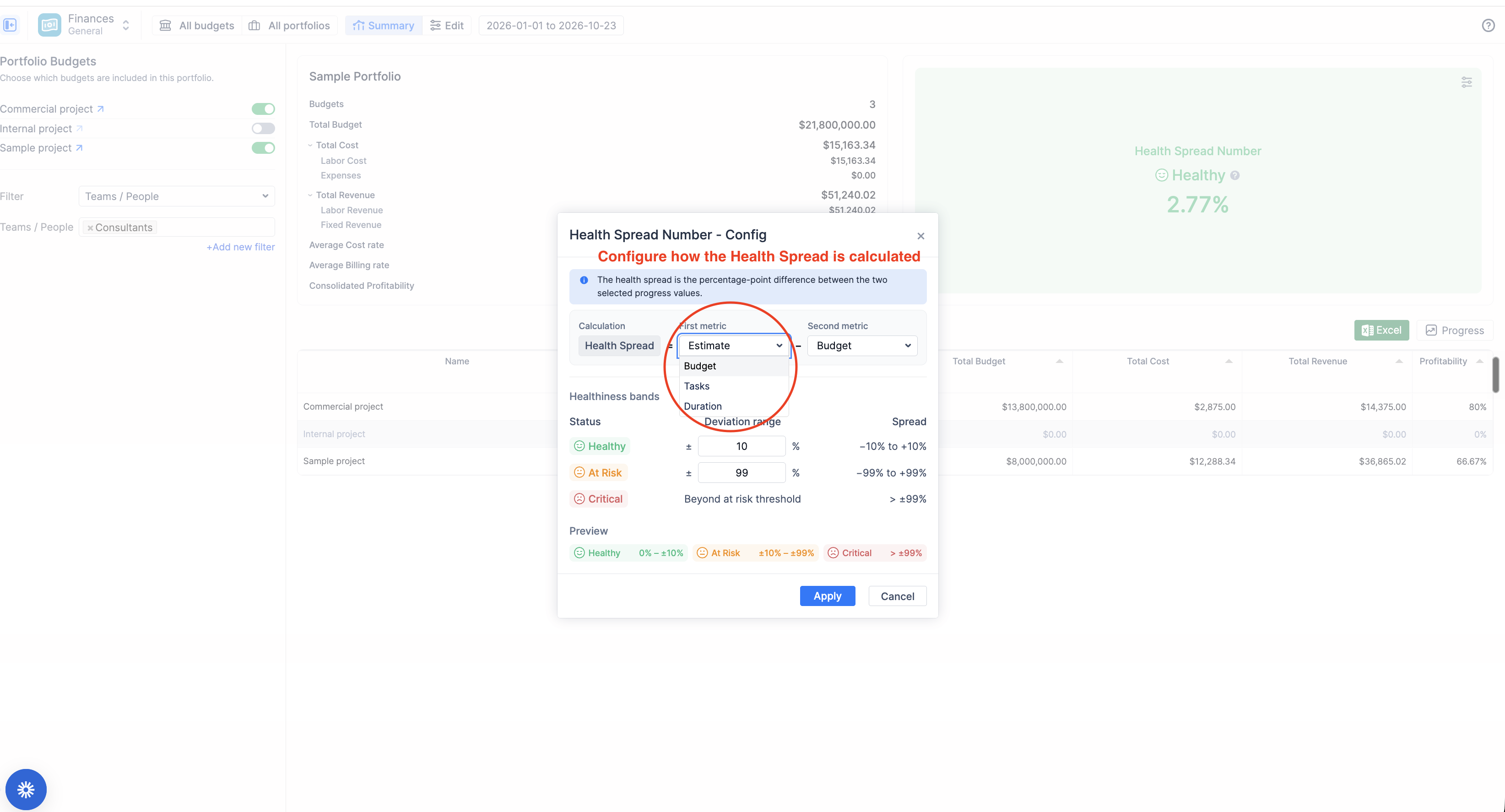
Click the settings icon in the top-right corner of the card to open Health Spread Number – Config and choose:
-
First metric and Second metric — any two of Estimate, Budget, Tasks or Duration progress (see Progress basis below for how each is calculated).
-
Healthiness bands — the acceptable deviation for each status:
-
Healthy — within ± the first threshold (default ±10%).
-
At Risk — within ± the second threshold (default ±99%).
-
Critical — beyond the At Risk threshold.
-
The Preview row shows the resulting ranges. Click Apply to save; the configuration is stored per Portfolio.
Example. With Budget − Duration and a Healthy band of ±10%: if 60% of the budget is spent while only 45% of the period has elapsed, the Health Spread is +15% — the Portfolio is spending ahead of schedule and shows At Risk. A negative value means the first metric lags behind the second.
Budgets table
Each row is a Budget in the Portfolio; click a name to open it (if you have access to that Budget). Disabled Budgets are greyed out. Columns can be sorted.
|
Column |
Description |
|---|---|
|
Name |
Budget name, linked to the Budget. |
|
Status |
The Budget's own status (e.g. Draft, Active). |
|
Progress (…) |
Progress bar calculated on the selected Progress basis; the header shows which basis is active. |
|
Currency, Conversion rate to [principal] |
The Budget's currency and the rate used to convert it. The column is hidden when all Budgets use the principal currency. |
|
Total Budget / Total Cost / Total Revenue |
The Budget's figures for the selected period, converted to the principal currency. |
|
Profitability |
|
Progress basis
Use the Progress dropdown above the table to choose how the Progress column (and the Health Spread metrics) are calculated:
|
Basis |
Calculation |
|---|---|
|
Estimate |
|
|
Budget (default) |
|
|
Tasks |
Share of completed issues among all issues in the Budget scope. |
|
Duration |
Share of the Budget period that has already elapsed, within the selected date range. |
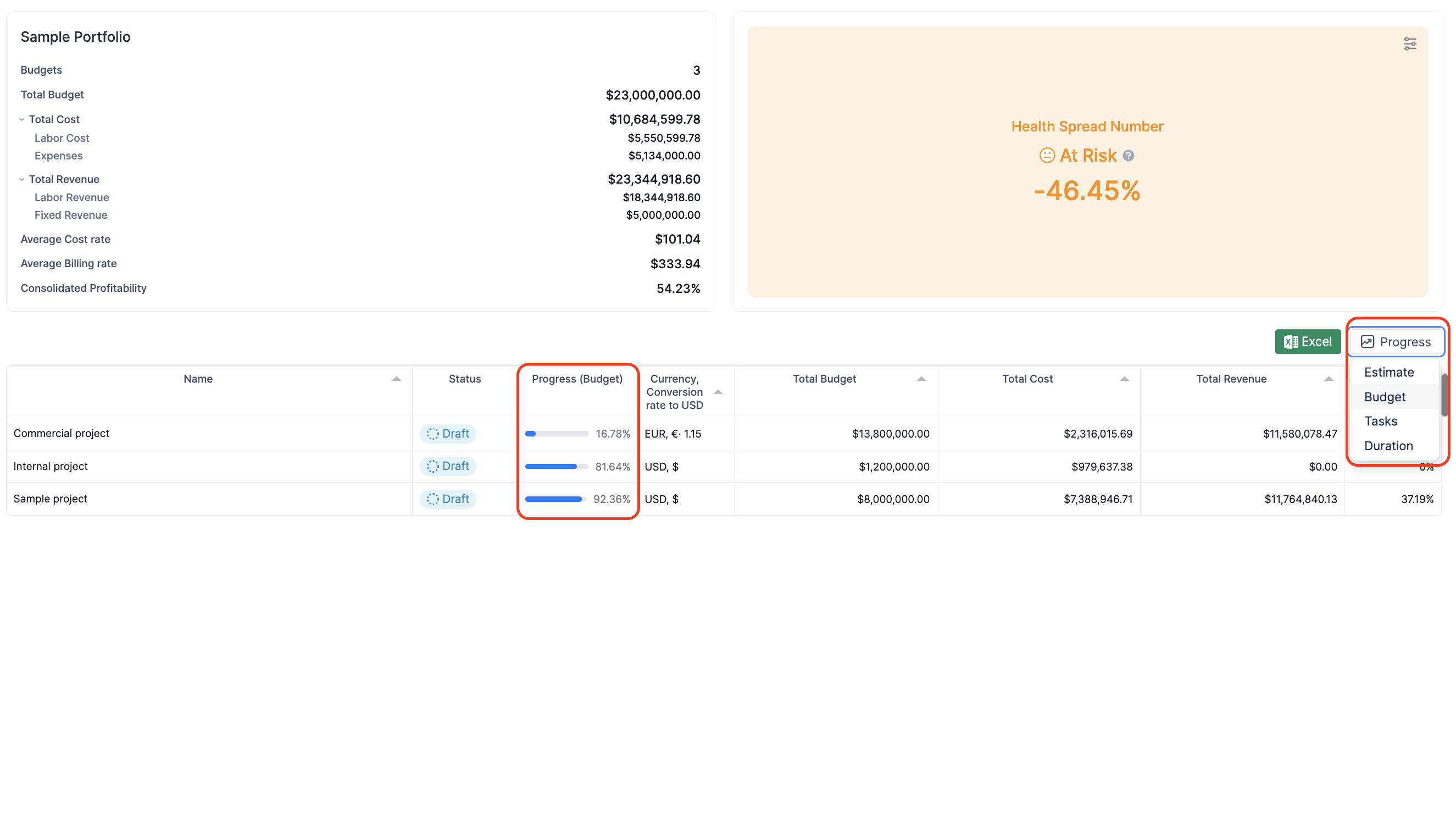
💡 Note: Estimate and Tasks progress are based on the issues in scope and are not limited by the selected date range; Budget and Duration progress respect the date range.
Export to Excel
Click Excel above the table to download the Portfolio. The workbook contains two sheets: the Budgets table (name, status, progress, currency and conversion rate, totals, profitability) and the Key Numbers summary (totals with the labor/expenses split, average rates and consolidated profitability). The export reflects the current state of the view: the selected date range, enabled Budgets, filters and Progress basis.
Editing and deleting a Portfolio
Open the Portfolio and switch to the Edit tab to change the name, description, scope, principal currency, conversion rates or status, then click Save. Adding a Budget to the scope adds a row to the Conversion rate table if its currency differs from the principal one.
To delete a Portfolio, click Delete Portfolio at the bottom of the Edit tab. Deleting a Portfolio never deletes or changes the Budgets inside it.
Access and sharing
-
A Portfolio is private to its owner (the user who created it). Having access to all Budgets inside a Portfolio does not grant access to the Portfolio itself.
-
Inside a Portfolio, you can open only the Budgets you have access to. Budget-level permissions (Owner / Administration / Read-Only) are unchanged — see Access Management in Finances.
-
Because the numbers come from the Budgets, the Jira permission perimeter ("Reuse Jira permissions per Project / per Issue") applies to Portfolio totals as well: data from Jira projects or issues a user cannot see is not included.
-
A dedicated Access management tab for Portfolios (sharing a consolidated view without granting every Budget) is planned for a future release.
Notes and limitations
-
Portfolio numbers are cached for performance. After you log work, add a transaction or change a Budget, allow a few minutes (usually ~2 min) for the Portfolio totals to refresh.
-
One conversion rate per currency; effective-dated exchange rates are not supported yet.
-
For milestone-based Budgets, Total Budget shows the current effective budget regardless of the selected date range.
-
Monthly labor rates are prorated to the Budget period, so a date range that extends beyond a Budget's end date does not add extra salary cost.
-
Portfolios cannot be bookmarked yet. Use the All portfolios list to reopen one.
-
Only one Progress basis can be shown in the table at a time.