
Overview
ActivityTimeline can support a Timesheet Approval Process where submitted worklogs are reviewed and approved by authorized users.

Organizations can also use Time Tracking Period Closure to limit when users can add or modify worklogs for past reporting periods.
The approval workflow and period closure are optional features. Their availability and behavior depend on your ActivityTimeline configuration.
How Timesheet Approval Works
When the approval workflow is enabled, worklogs can be reviewed and approved by users with the required permissions:
-
Administrators.
-
Managers.
-
Power Team Leads.
-
Team Leads.
The worklogs available for approval depend on the user’s ActivityTimeline role and access permissions. For example, a Team Lead may only be able to review worklogs belonging to members of their teams.
Once a worklog is approved, editing may be restricted to protect the approved time from further changes.

If the approval workflow is not enabled, worklogs do not require an additional approval step and are treated as final records.
When to Use Timesheet Approval
The approval workflow is useful when your organization needs to:
-
Review employee timesheets before finalizing them.
-
Confirm worklogs before payroll, billing, or financial reporting.
-
Track whether submitted time has already been reviewed.
-
Prevent users from changing approved worklogs without additional review.
Review and Approve Worklogs
You can review worklogs from any view in the Timesheets module.
The Detailed View is particularly useful when you need to inspect individual worklogs and their details.
To review and approve a worklog:
-
Open Timesheets.
-
Configure the required scope and period.
-
Open the view that displays individual worklogs.
-
Locate the worklog you want to review.
-
Click the worklog to open the Record Details panel.
-
Review the worklog information.
-
Approve the worklog.
The approval status is updated accordingly.
When multiple worklogs need to be reviewed, users can use bulk approval options to process several worklogs at once.
Before using bulk approval, configure the timesheet scope, period, and filters carefully to ensure that the correct worklogs are included.
Understanding Approval Status
Each worklog has an approval status.
If Time Tracking Period Closure is not enabled, you will see:
-
Pending Approval: The worklog has not been approved yet. It can still be edited or deleted if permissions allow.
-
Approved: The worklog has been reviewed and approved.
If Time Tracking Period Closure is enabled, additional statuses may appear:
-
Closed Approved: The worklog was approved before the reporting period closed and can no longer be changed.
-
Closed Rejected: The worklog was not approved before the reporting period closed and is now locked.
Review Approval Progress
Depending on the selected Timesheet view and your configuration, you can:
-
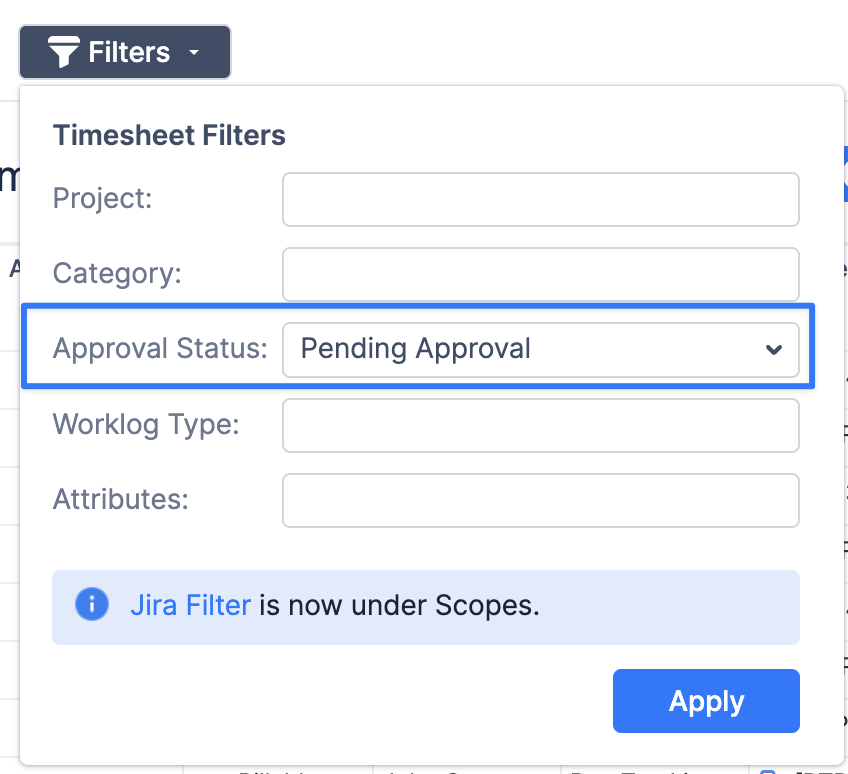
Filter worklogs by approval status.
-
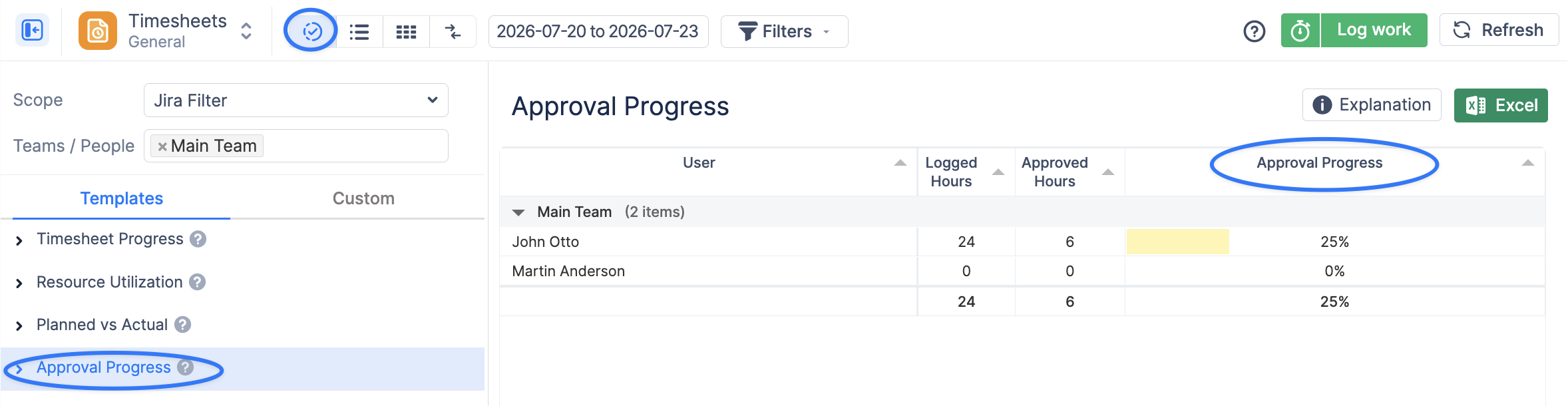
Monitor approval progress for users or teams in Progress View → Approval Progress.
-
View who approved a worklog, where this information is available.
This helps managers identify timesheets that still require review before the reporting period is finalized.
Editing Approved Worklogs
Approved worklogs are locked from further editing. This helps protect reviewed time from unintended changes.
If an approved worklog needs to be corrected, an authorized user may need to unapprove it before changes can be made. If the reporting period has already closed, additional restrictions apply.
Period Closure and Grace Period
When Time Tracking Period Closure is enabled, ActivityTimeline determines whether a worklog can be added or modified based on the configured reporting period.
Organizations may use weekly or monthly reporting periods.
After a reporting period ends, a grace period may give users additional time to complete or correct their worklogs.
For example, if your organization uses monthly reporting with a three-day grace period, users can still complete or correct the previous month’s worklogs during the first three days of the new month.
Once the grace period ends, the reporting period closes.
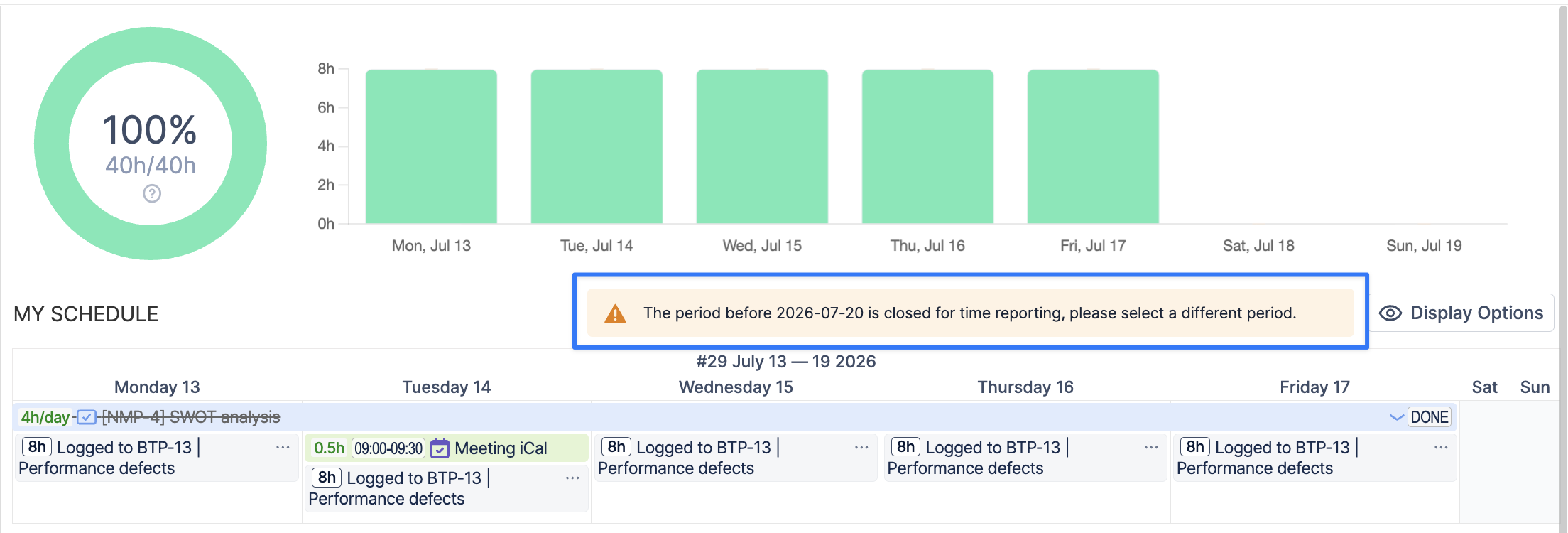
Users can then no longer:
-
Add new worklogs for the closed period.
-
Edit existing worklogs from the closed period.
-
Delete worklogs from the closed period.
When the period closes, worklogs keep the status reached during the approval process. For example:
-
Closed Approved
-
Closed Rejected
Pending worklogs are not automatically approved when the period closes.
For this reason, users should complete any required corrections, and managers should review outstanding worklogs, before the reporting period closes.
The exact behavior may depend on your organization’s ActivityTimeline configuration.
Example Approval Workflow
A typical timesheet review process may look like this:
-
Team members log their working hours throughout the reporting period.
-
Before the reporting deadline, users review their worklogs and make any necessary corrections.
-
Managers or Team Leads reviews the submitted worklogs and approves.
-
The reporting period is closed.
-
Worklogs from the closed period are protected from further changes according to the configured rules.
Your organization’s workflow may differ depending on how approval and period closure are configured.
Approval vs. Period Closure
Timesheet approval and period closure serve different purposes.
Approval confirms that a worklog has been reviewed and accepted.
Period Closure controls whether worklogs for a particular time period can still be added, edited, or deleted.
For example, a worklog may belong to an open reporting period but already be approved.
Similarly, closing a period can restrict changes to worklogs from that period regardless of their individual approval status.
Using both features together provides additional control over the complete time reporting and review process.
Important Notes
-
Timesheet approval and period closure must be enabled and configured by an ActivityTimeline administrator.
-
The worklogs you can view and approve depend on your ActivityTimeline role and permissions.
-
Approved worklogs may become unavailable for editing until they are unapproved.
-
Closed reporting periods prevent users from adding, editing, or deleting worklogs for those dates.
-
For full control over approved and closed worklogs, ActivityTimeline should be configured as the time tracking provider. If time is logged or edited directly through Jira time tracking or another third-party app, ActivityTimeline cannot prevent those worklogs from being modified outside ActivityTimeline.
-
The exact behavior may vary depending on your organization’s ActivityTimeline configuration.
For configuration details, refer to the corresponding ActivityTimeline Admin Guide.
FAQ
Why can’t I edit or delete a worklog?
The worklog may already be approved, or the reporting period may be closed.
If the period is still open, a user with approval permissions may be able to unapprove the worklog first. If that is not the case, please verify if user has Jira permission to delete worklogs.
How do I reject a worklog?
There is no separate Reject action in the approval workflow.
If a worklog should not be approved, leave it in Pending Approval and ask the user to correct it if needed.
When Period Closure is enabled, any worklog that is still pending when the period closes becomes Closed Rejected and can no longer be changed.
If Period Closure is not enabled, the worklog remains Pending Approval until it is approved.
Can I change an approved worklog?
An approved worklog is locked. If the reporting period is still open, a user with approval permissions can unapprove it so that changes can be made.
What happens to pending worklogs when the period closes?
Pending worklogs are not automatically approved. They become Closed Rejected and can no longer be changed.
Who can approve worklogs?
Users with the required ActivityTimeline role and permissions, such as managers, administrators, and team leads, can approve worklogs. The worklogs available for approval depend on the user’s permissions and team access.
Why don’t I see approval options?
The approval workflow may not be enabled, or your ActivityTimeline role may not include approval permissions. If approval is disabled, approval-related functionality is not available.