
The Situation
A consulting firm manages client engagements in Jira. Consultants log time against tasks, and the engagement manager reviews their hours before sending the billing information to finance.
For its Northstar engagement, the firm charges for agreed workshops and deliverables. Internal coordination and corrections made at the firm’s expense are non-billable.
The manager needs to answer:
-
How many hours are chargeable this month?
-
What work accounts for the non-billable hours?
-
Are the entries clear enough for finance to use?
The organization, billing rules and figures below are illustrative. Apply your own client agreements.
The Primary Goal
Produce a clear breakdown of billable and non-billable client work, with enough context to review entries and investigate unexpected effort.
What You’ll Use
|
Feature |
Purpose |
|---|---|
|
Classify individual time entries as Billable or Non-Billable. |
|
|
Capture extra details, such as activity type or service location. |
|
|
Record hours, descriptions, categories and attributes together. |
|
|
Inspect the entries behind each client’s recorded hours. |
|
|
Separate chargeable hours and analyze the work performed. |
|
|
Excel export |
Share reviewed time records with finance. |
Before You Begin
For this walkthrough, Northstar’s tasks belong to a dedicated Jira Epic. Other client engagements have their own Epics.
Ensure that:
-
Relevant projects are enabled in ActivityTimeline.
-
Employees can log time against their tasks.
-
The engagement manager can view the team’s worklogs.
-
The team understands which activities its client agreement allows it to charge.
Use ActivityTimeline’s Log Work dialog for this workflow.
Step 1: Set Up the Billing Categories
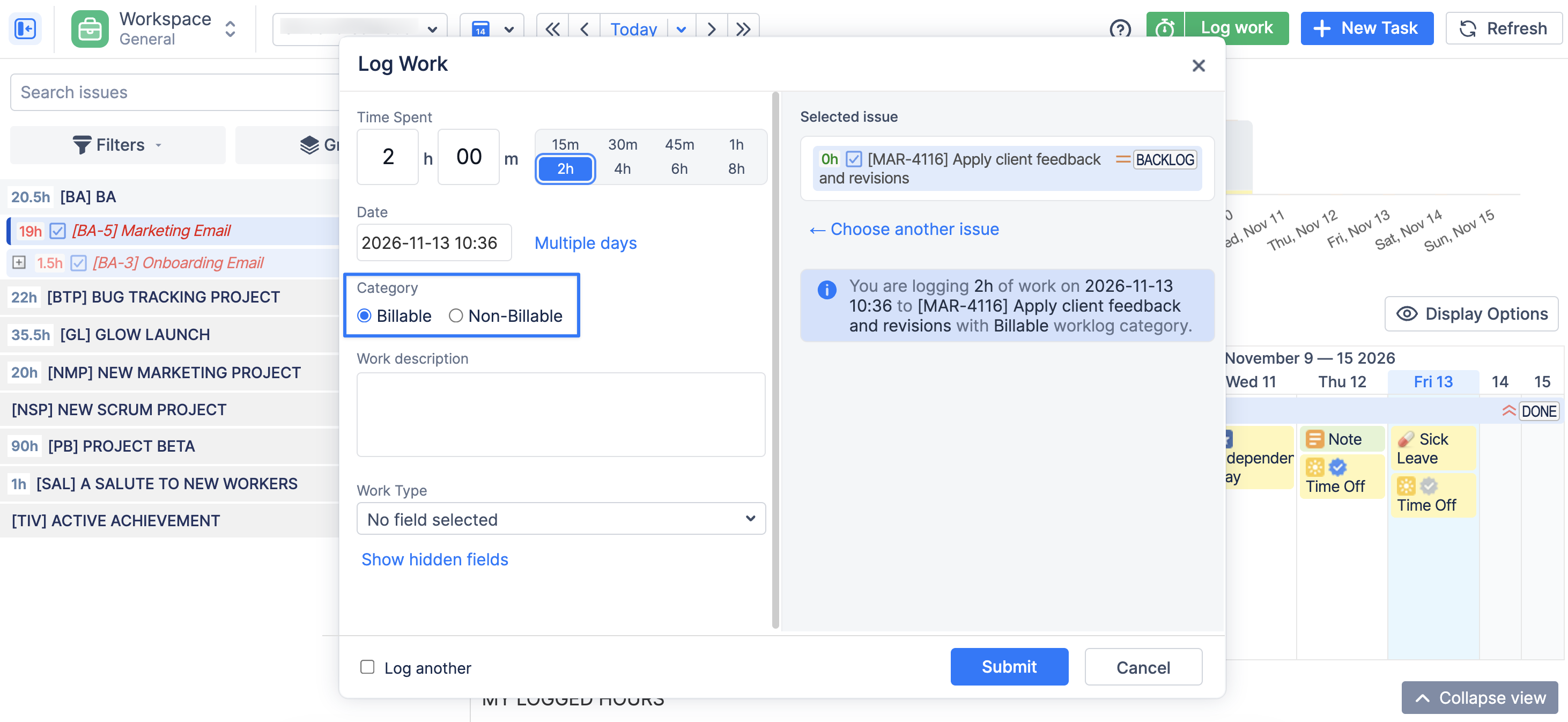
By default ActivityTimeline includes Billable and Non-Billable categories.
-
Open Configuration → Timesheets Configuration → Worklog Categories.
-
Check that both categories are available.
-
Agree a short classification guide with the team.
For Northstar, that guide is:
|
Work performed |
Category |
|---|---|
|
Deliver an agreed client workshop |
Billable |
|
Prepare the agreed recommendations |
Billable |
|
Hold an internal staffing discussion |
Non-Billable |
|
Correct an error at the firm’s expense |
Non-Billable |
You can set a project’s default under Configuration → Projects → Manage → Default Worklog Category. Employees should still check the category on each entry.
Step 2: Add Context with a Worklog Attribute
The manager also wants to distinguish workshops, analysis and corrections.
-
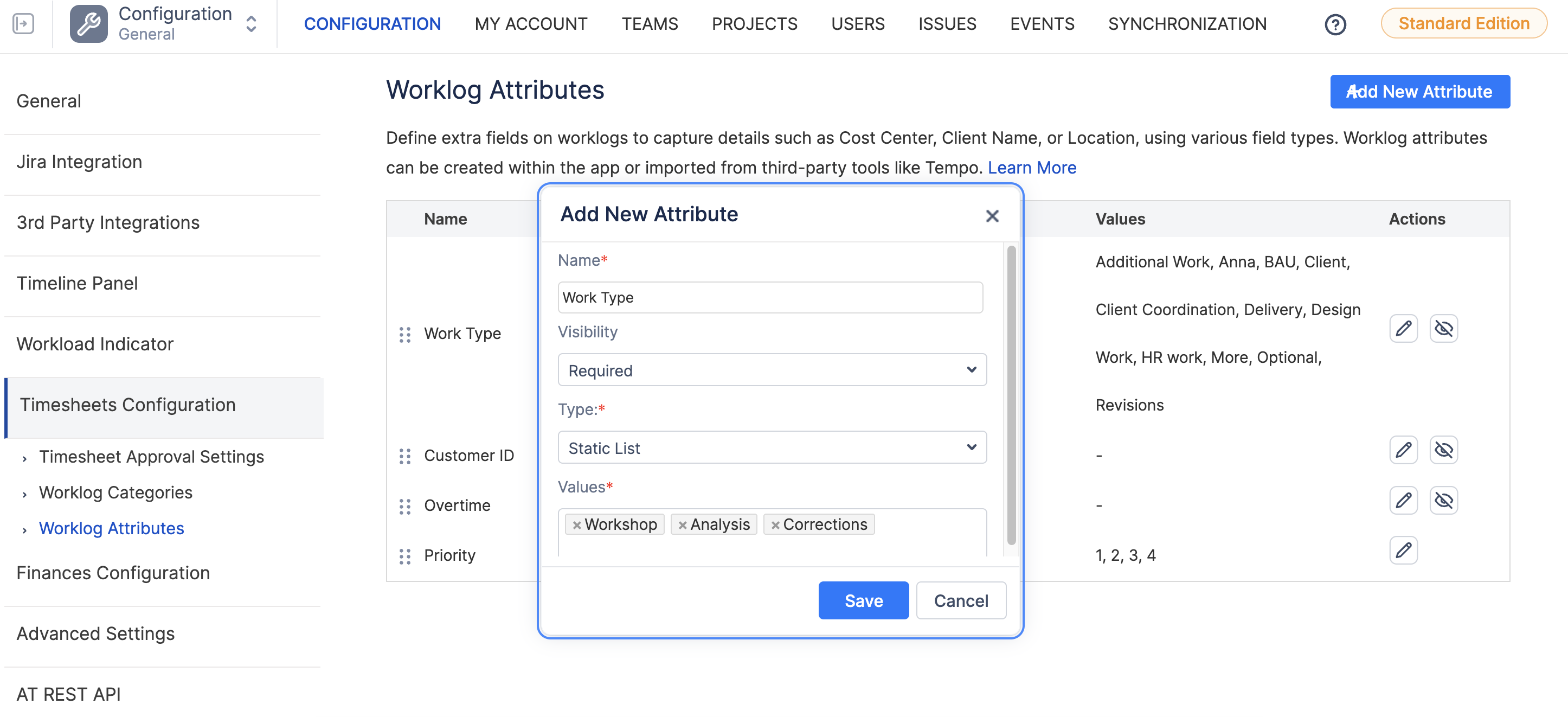
Open Configuration → Timesheets Configuration → Worklog Attributes.
-
Click Add New Attribute.
-
Name it Work Type.
-
Choose Static List, with values such as Workshop, Analysis, Documentation, Coordination and Corrections.
-
Choose Required or Optional, then save.
Attributes apply across all enabled projects, so only make a field required if it is appropriate for everyone. Optional fields are accessed through Show hidden fields when logging time.
Step 3: Record the Hours and What They Represent
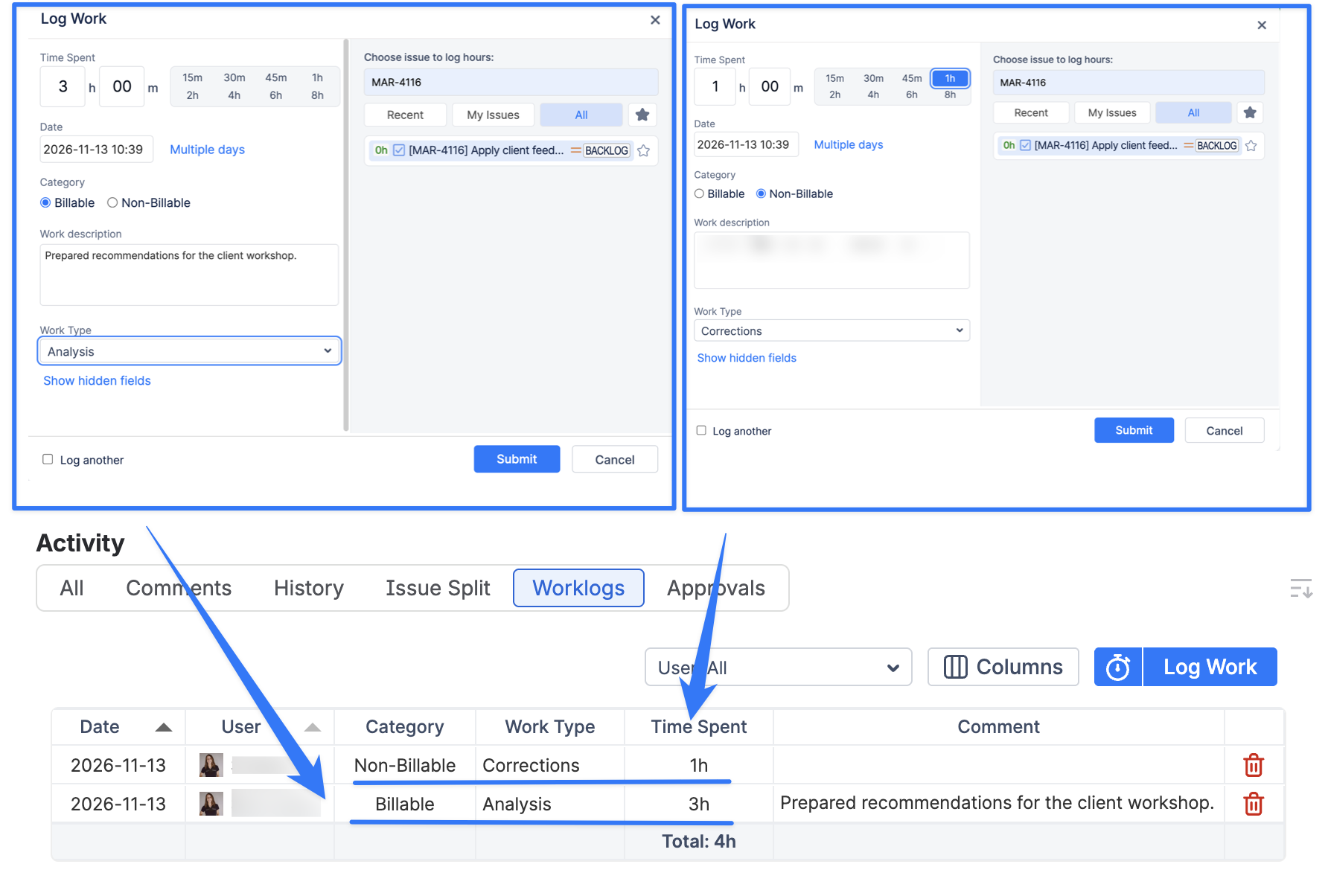
Maya spends three hours preparing client recommendations and another hour correcting an earlier mistake on the same task.
-
Open the task’s Log Work dialog in ActivityTimeline.
-
Enter the date, 3h and a description such as “Prepared recommendations for the client workshop.”
-
Select Billable and Work Type: Analysis, then save.
-
Create a separate 1h entry for the correction.
-
Select Non-Billable, choose Corrections and describe what was corrected.
Separate entries preserve the distinction when the same Jira task contains both kinds of work.
Step 4: Review the Client’s Time Records
-
Open Timesheets → Detailed.
-
Select the period and scope Epic - Northstar.
-
Open Columns and include Category and Work Type, alongside the worklog details.
-
Review descriptions and classifications.
-
Open any questionable entry and correct it if your permissions allow, or ask its author to update it.
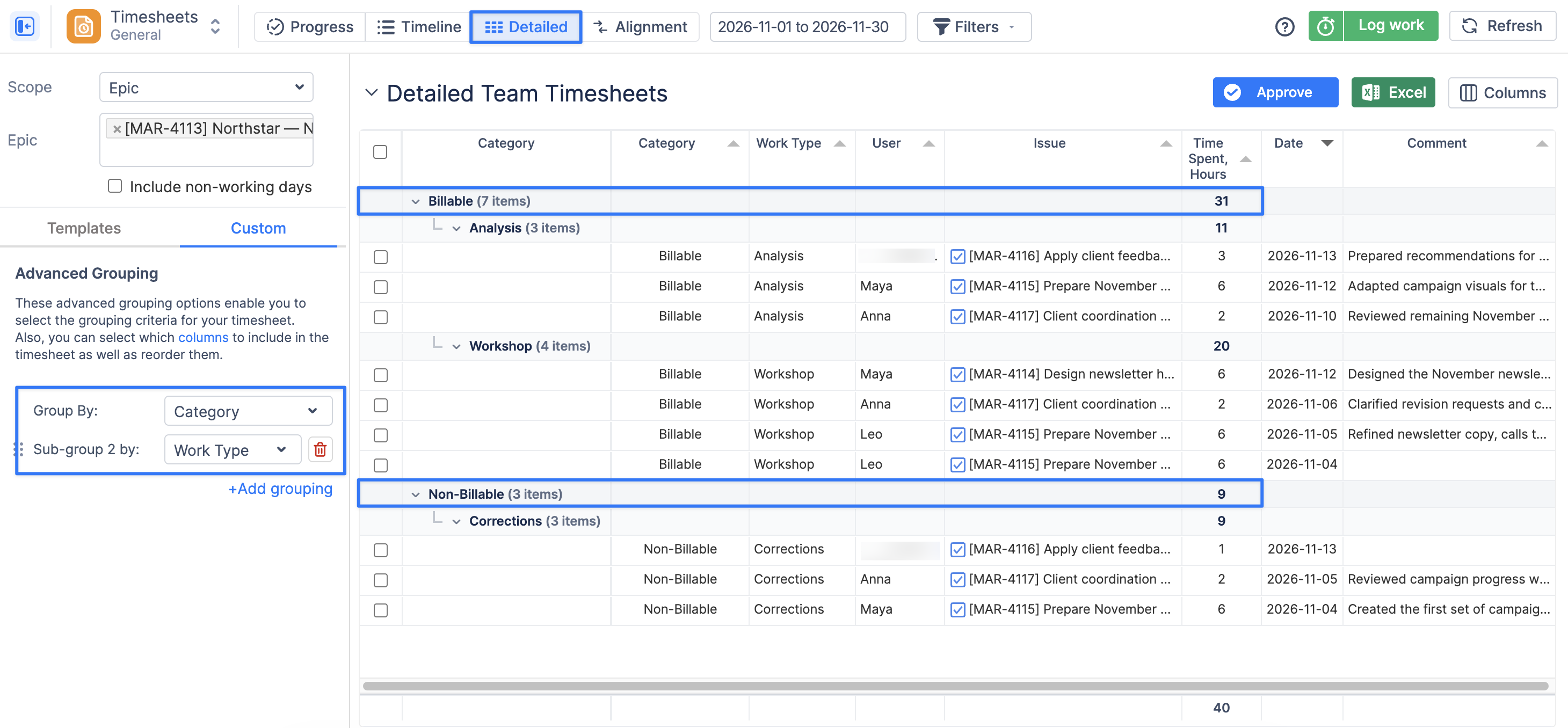
Detailed Timesheets supports worklog attribute columns and entry-level review. If your organization uses timesheet approvals, complete that review before the billing handover.
Step 5: Separate Billing Hours from Effort to Investigate
-
Keep the client and period filters applied.
-
Filter Category to Billable and review the total.
-
Export the reviewed records to Excel for finance.
-
Switch to Non-Billable.
-
Use the Custom grouping options to analyze Activity Type, or filter to a particular attribute value.
Finance receives 31 reviewed billable hours as input to its billing process. The manager investigates the 9 hours of corrections and decides whether an earlier quality review would help.
Billable classification does not mean an invoice has been issued. Finance still applies contractual rates, caps and other billing conditions.
Optional: What Else Could You Track?
Start with one useful attribute. Add others when they answer a specific reporting question.
|
Attribute idea |
Suggested type |
Question it answers |
|---|---|---|
|
Service Location |
Static List: Remote / Client Site |
How much delivery happens on-site? |
|
Cost Center |
Static List |
Which department should receive the internal allocation? |
|
Change Request Reference |
Input Field |
Which requested change does this effort relate to? |
|
Non-Billable Reason |
Static List |
Are absorbed hours caused by corrections, goodwill or internal administration? |
|
Deliverables Completed |
Numeric Input Field |
How many items were completed during this entry? |
ActivityTimeline supports text, numeric, checkbox and static-list attributes. These record information; they do not automatically validate contractual approval or calculate charges.
Avoid asking employees to re-enter information already reliably captured by the Jira project or issue.
Expected Result
The engagement manager can explain which hours are chargeable and what accounts for the remaining effort. Finance receives reviewed time records, while the delivery team gains evidence for improving how it handles corrections, coordination and additional client requests.
Next Step: Connect Logged Hours to Project Costs and Revenue
You can extend this workflow with ActivityTimeline’s Finances module, available in the Advanced Edition, to see the financial impact of the hours your team records.
-
Set up a budget covering the client project and reporting period. Enable labor cost and revenue tracking for an engagement billed by the hour.
-
Configure cost and billing rates. Cost rates represent the internal expense of delivering the work; billing rates determine its calculated revenue.
-
Configure Non-Billable category rates. Set its billing rate to zero while retaining the appropriate cost rate. This captures the expense of absorbed work without adding revenue.
-
Review the financial results. Use Budget vs Spend to monitor budget consumption and the Detailed Financial Report to inspect the hours, rates and amounts behind the totals.
For the Northstar example, assume a uniform $50 hourly cost rate and $100 hourly billing rate:
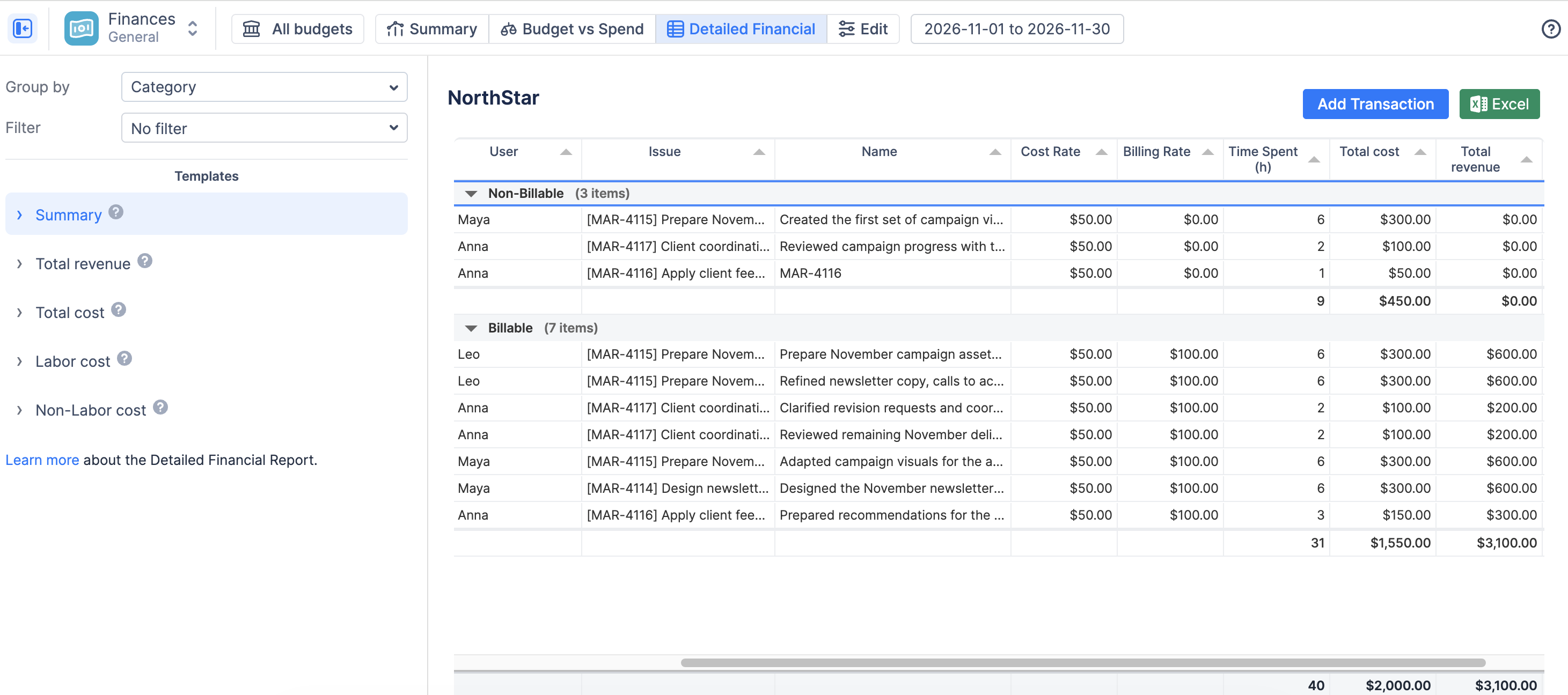
The manager can now see both how much time the firm absorbed and what that effort cost.