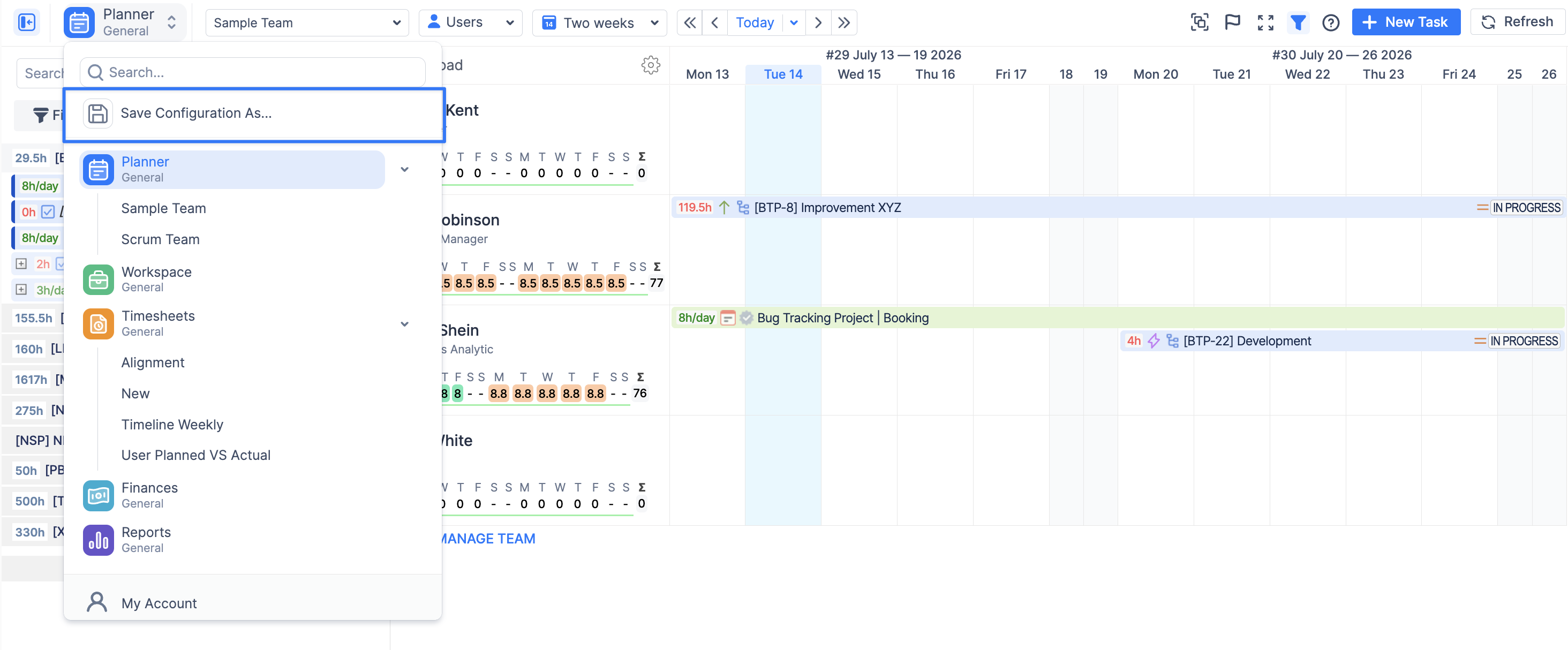
By default, the Planner displays a cross-project view, showing all Jira issues and ActivityTimeline events assigned to the selected users or teams.
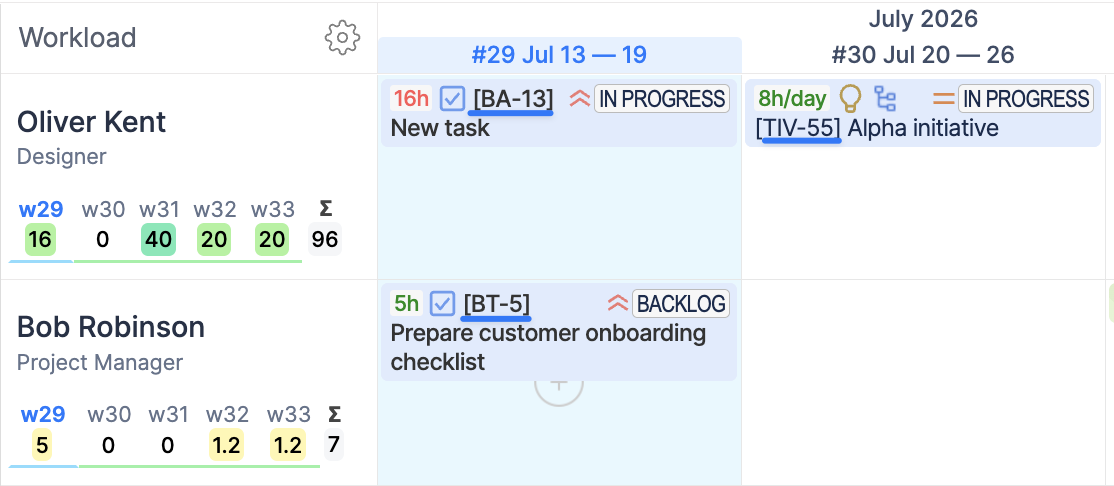
If you want to focus on specific work, you can filter the Timeline using the Timeline Filter for quick filtering or Advanced Filters for more detailed search criteria.
Timeline Filter
The Timeline Filter is located on the top toolbar.
Click the Timeline Filter button to filter the items displayed on the Timeline.
The button changes color to indicate whether filtering is active:
-
White — Timeline Filter is disabled
-
Blue — Timeline Filter is enabled

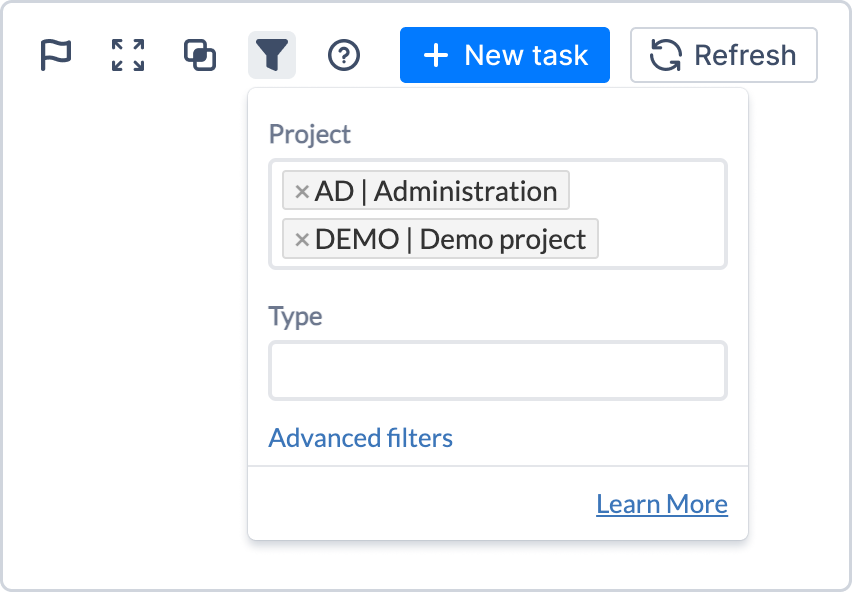
Filter by Project
The Project filter allows you to display items from one or multiple Jira projects.
Only projects that are enabled in ActivityTimeline are available for selection.
You can:
-
Select a single project
-
Select multiple projects
-
Clear the selection to display all projects
Filter by Type
The Type filter allows you to display specific Jira issue types and ActivityTimeline event types.
Available options include:
-
Jira issue types
-
Bookings
-
Placeholders
-
Notes
-
Overtime
-
Custom event types
You can select one or multiple types.
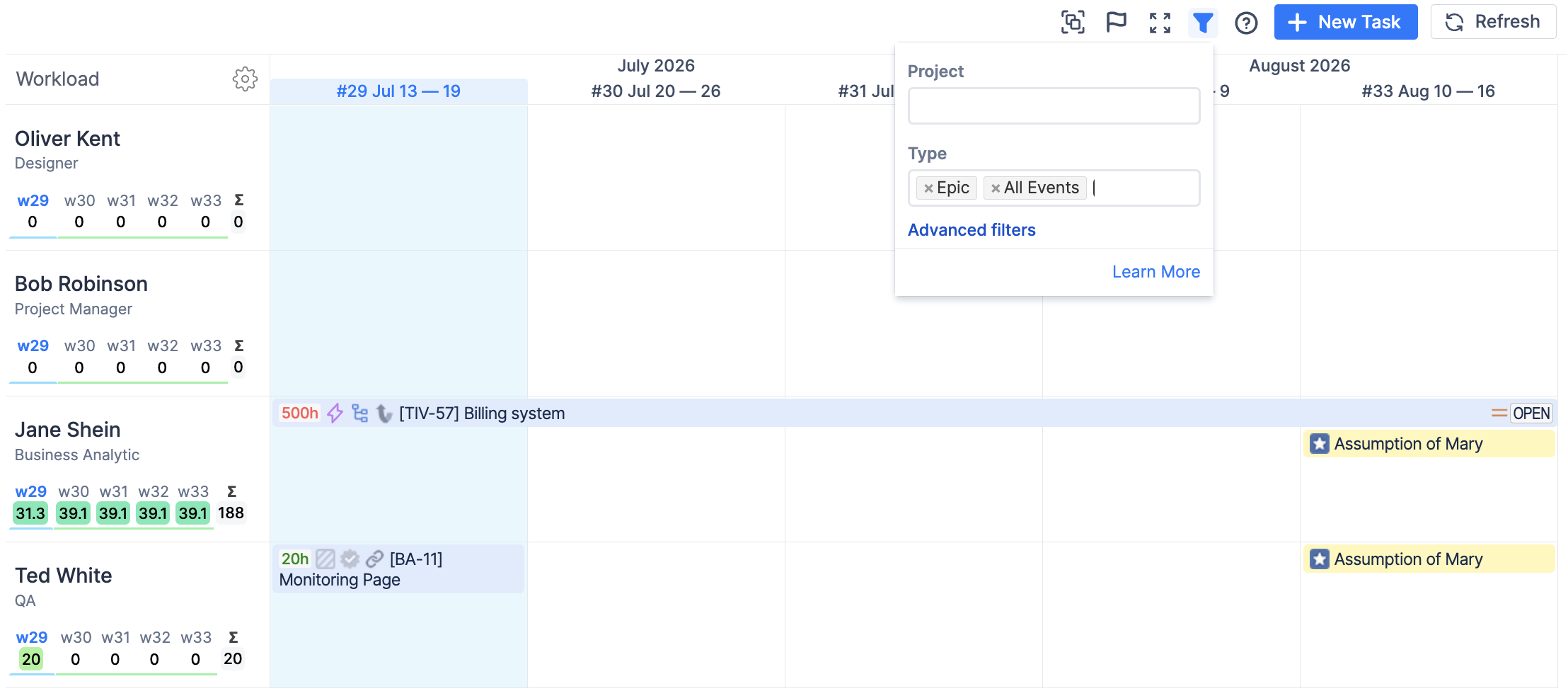
To quickly include all items within a category, use:
-
All Issues
-
All Events
Combine Project and Type Filters
Project and Type filters work together.
Only items matching both conditions are displayed.
Example
If you select:
-
Project: BTP
-
Type: Booking
Only Booking events belonging to the BTP project will remain visible.
All other items—including Jira issues, Placeholders, Notes, Overtime, and Bookings from other projects—will be hidden.
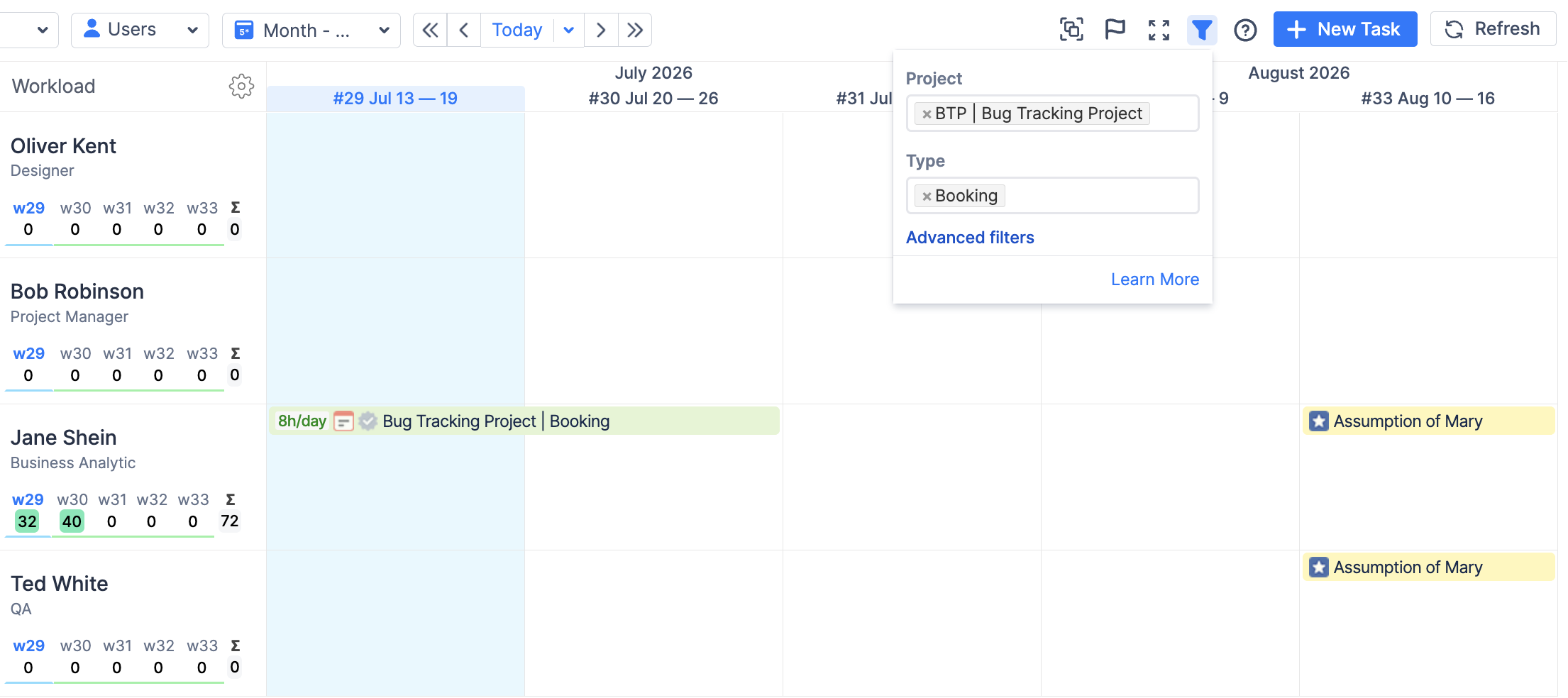
Advanced Filters
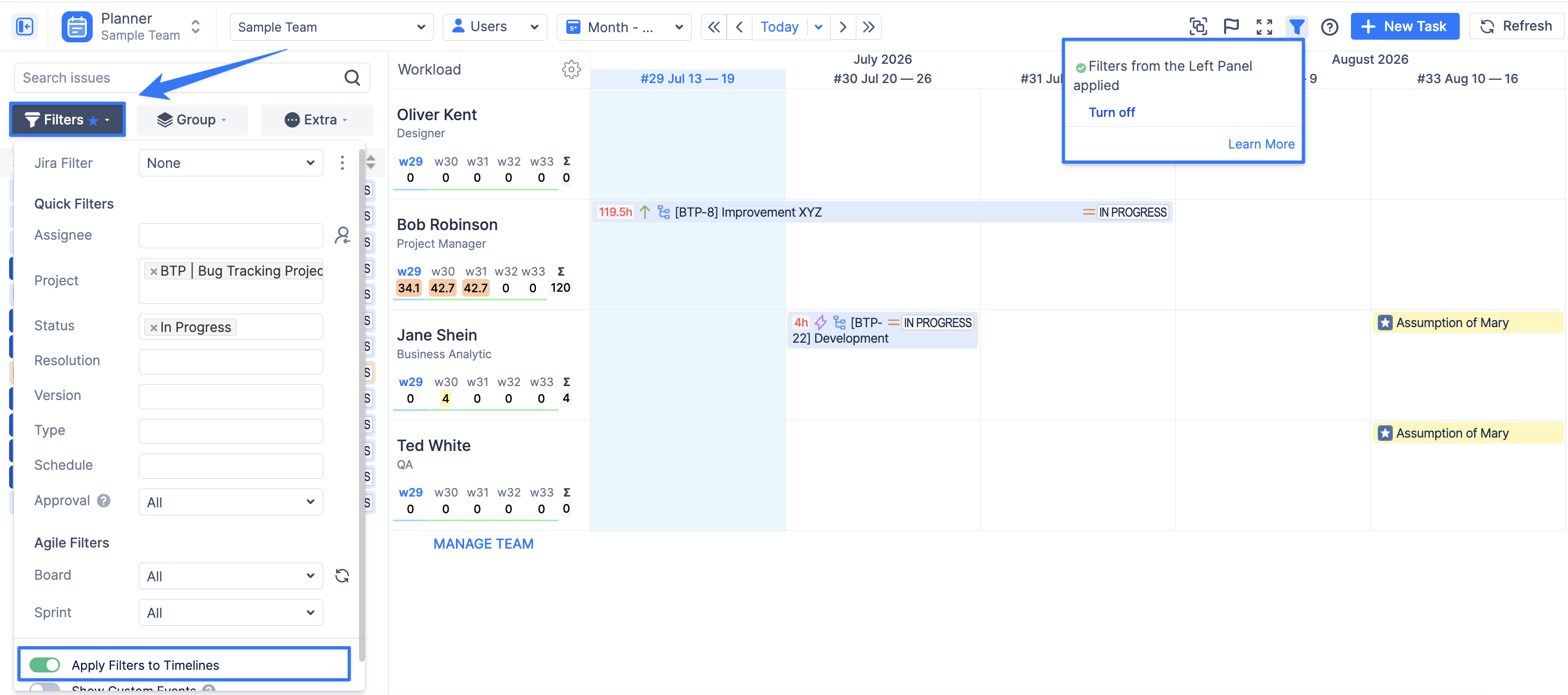
For more granular filtering, click Advanced Filters. This opens the same filtering options available in the Issues Panel, allowing you to filter by additional Jira fields.
Filtering Non-working Events
Non-working event types—including Vacation, Holiday, Sick Leave, Day Off are grouped under a single filter option called Non-working Events.
Unlike other event types, non-working events remain visible by default, even if they are not selected in the Type filter. This ensures managers can always see user availability.
If you want to display only non-working events, simply select Non-working Events in the Type filter.
Saving Timeline Filters
Your selected Project and Type filters can be saved as part of a Saved Dashboard.
This allows you to quickly return to the same filtered view without reconfiguring the filters each time.