
The Overdue Issues Indicator helps managers quickly identify users who have work that is overdue or no longer scheduled appropriately.
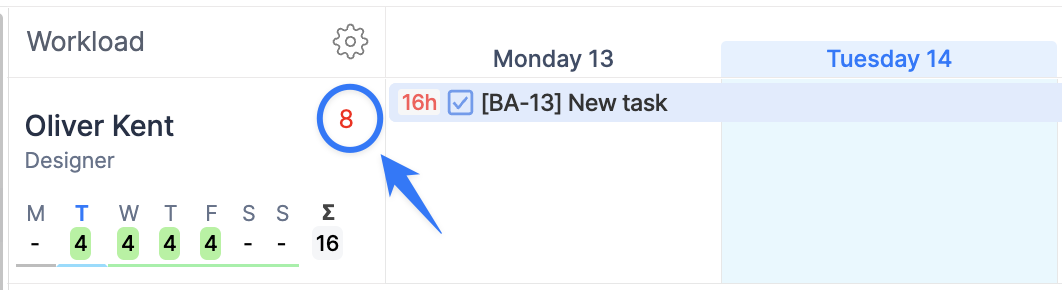
When enabled, ActivityTimeline displays a counter next to each user’s name showing how many overdue issues require attention.
Enable the Overdue Issues Indicator
Only ActivityTimeline administrators can enable this feature.
Navigate to:
Configuration → Timeline Panel → Show Overdue Issues Counter per User
Click Update to save your changes.

Once enabled, a counter appears next to each user’s name on the Timeline.
View Overdue Issues
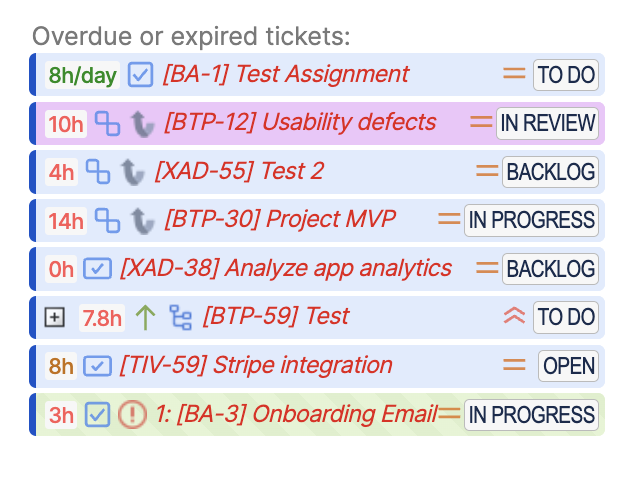
Click the overdue counter to open a pop-up displaying the list of overdue issues for that user.
From there, you can quickly review the affected issues and take corrective action.
What is considered an overdue issue?
An issue is marked as overdue if it meets one of the following conditions:
-
The Due Date has passed and the issue is still unresolved.
-
The issue is scheduled entirely in the past but remains open.
-
The scheduled work occurs after the issue’s Due Date.
Resolve Overdue Issues
You can remove an issue from the overdue list by updating its schedule.
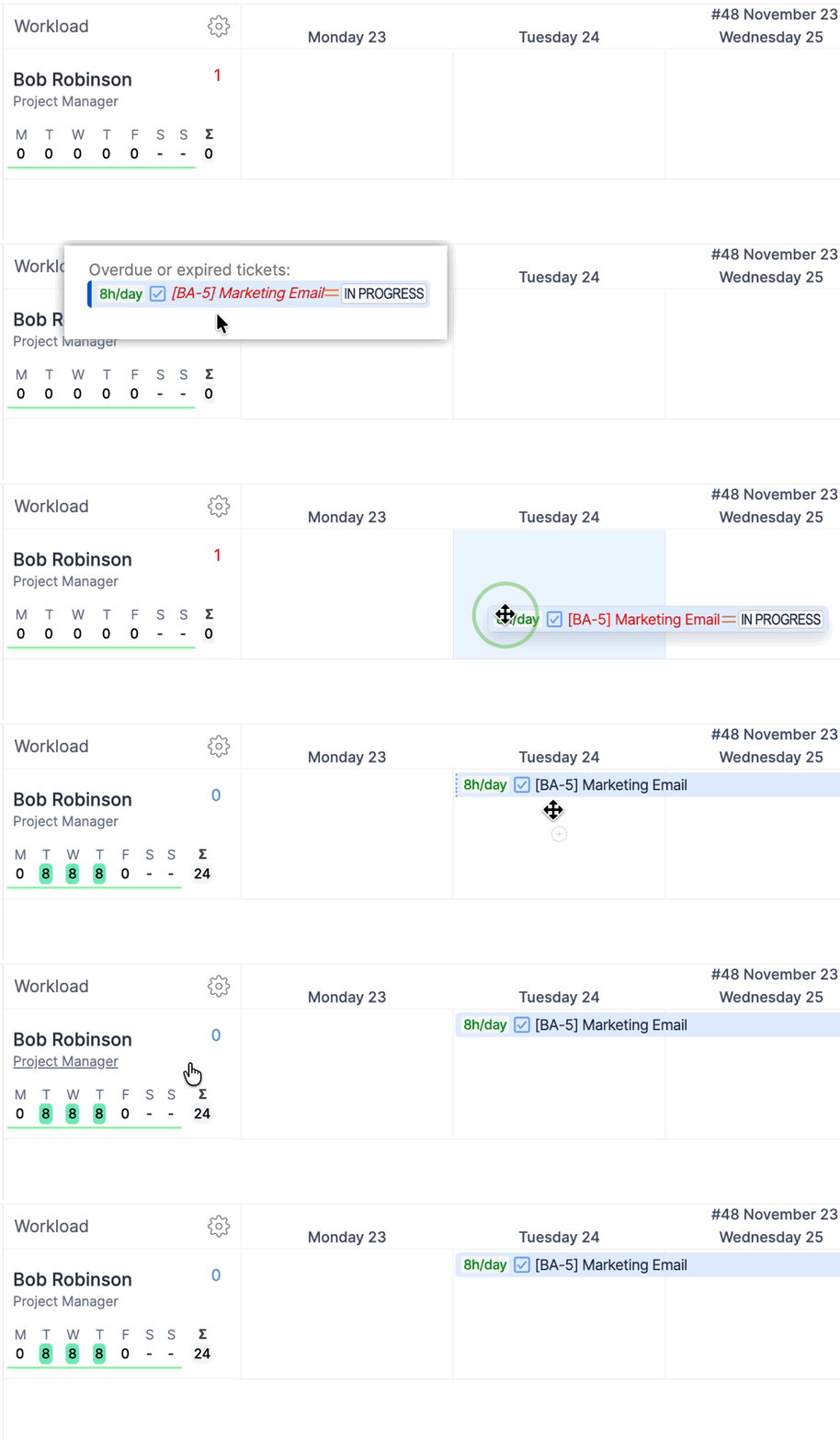
Once an issue is rescheduled appropriately, it is automatically removed from the overdue list and is no longer highlighted as overdue.
Overdue Issues Report
In addition to the overdue indicator on the Planner, ActivityTimeline provides a dedicated Overdue Issues Report that gives managers a complete overview of overdue work across all users.
To open the report, navigate to:
Reports → Other Reports → Overdue Issues Report
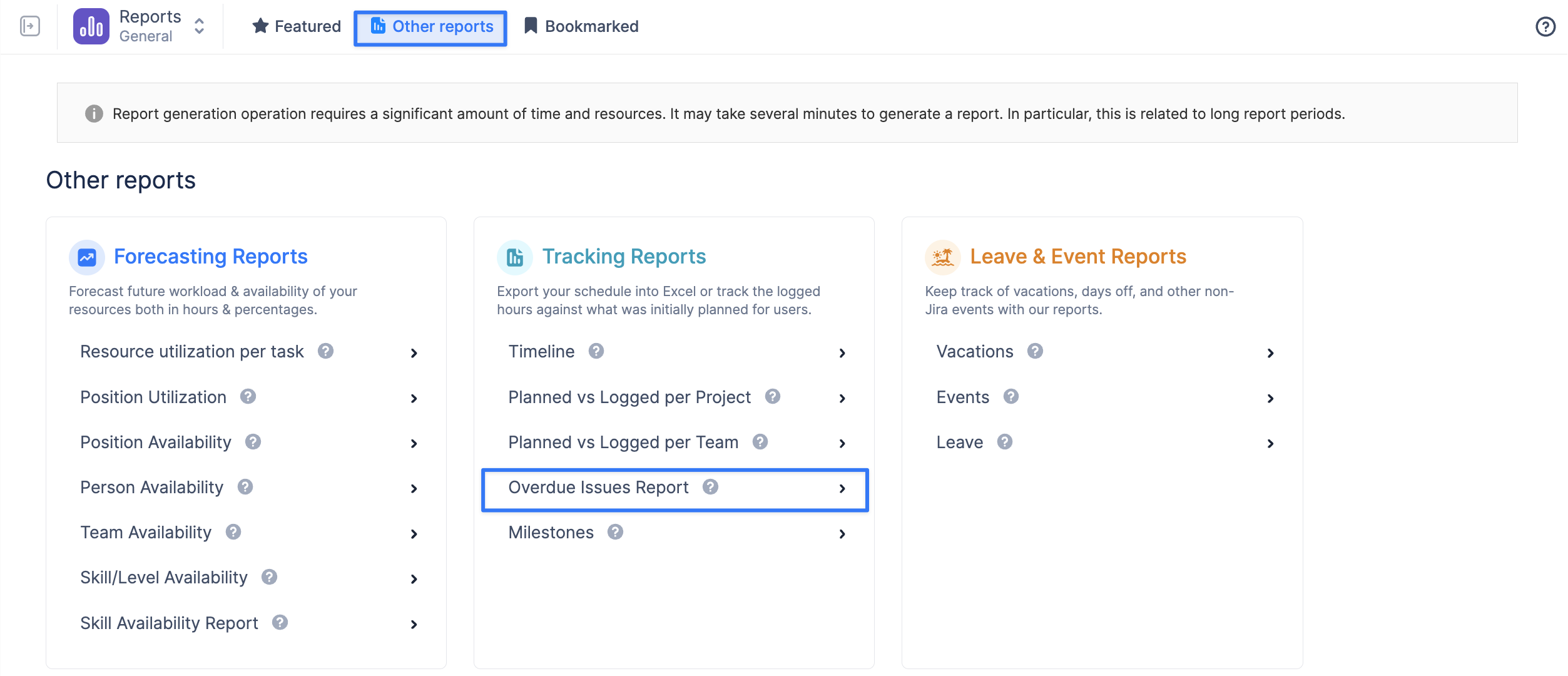
The report displays all overdue issues grouped by user and includes key information such as:
-
User
-
Issue
-
Planned Start Date
-
Planned End Date
-
Due Date
-
Current Status
-
Number of Days Overdue
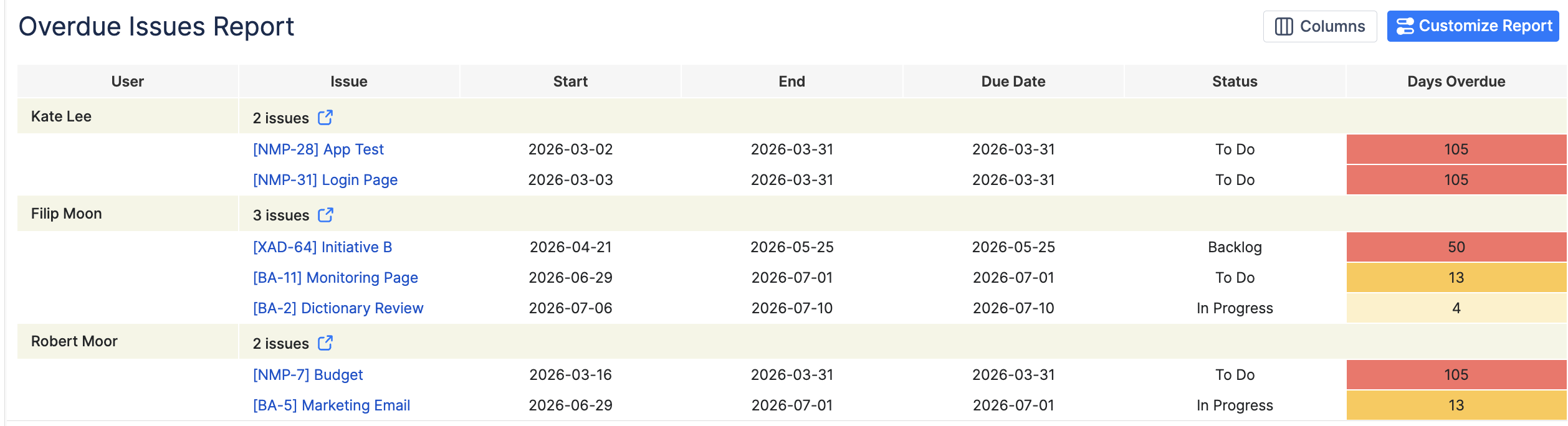
The report can be customized using the Customize Report option to display only the information relevant to your analysis.
It is particularly useful for:
-
Identifying users with the highest number of overdue issues.
-
Prioritizing work that requires immediate attention.
-
Reviewing overdue work across the entire organization.
-
Monitoring planning accuracy and workload distribution over time.
This report complements the Overdue Issues Indicator in the Planner by providing a detailed, organization-wide view of all overdue work in a single place.