
.png)
The Profile: An agency, consultancy, or professional services firm that bills clients primarily based on Time and Materials (T&M), with occasional fixed-fee components (like retainers).
The Goal: Maximizing profitability. Your primary concern isn't staying under a strict internal cost ceiling; it’s ensuring that the revenue you generate from your team’s billable hours consistently exceeds what you are paying them.
Scenario Summary
For a Time & Materials project, your financial health is directly tied to the ratio of your team's Cost Rate to their Billing Rate.
To set this up in ActivityTimeline:
-
Tracking: Enable Labor & Fixed for both Revenue and Expenses so every hour logged counts.
-
Rates (Crucial): You must accurately define both the internal Cost Rate (what you pay the employee) and the external Billing Rate (what you charge the client) for every team member.
-
Forecasting: For a service agency, future revenue isn't guaranteed by estimates—it's driven by scheduled work and recurring retainers.
Step-by-Step Configuration
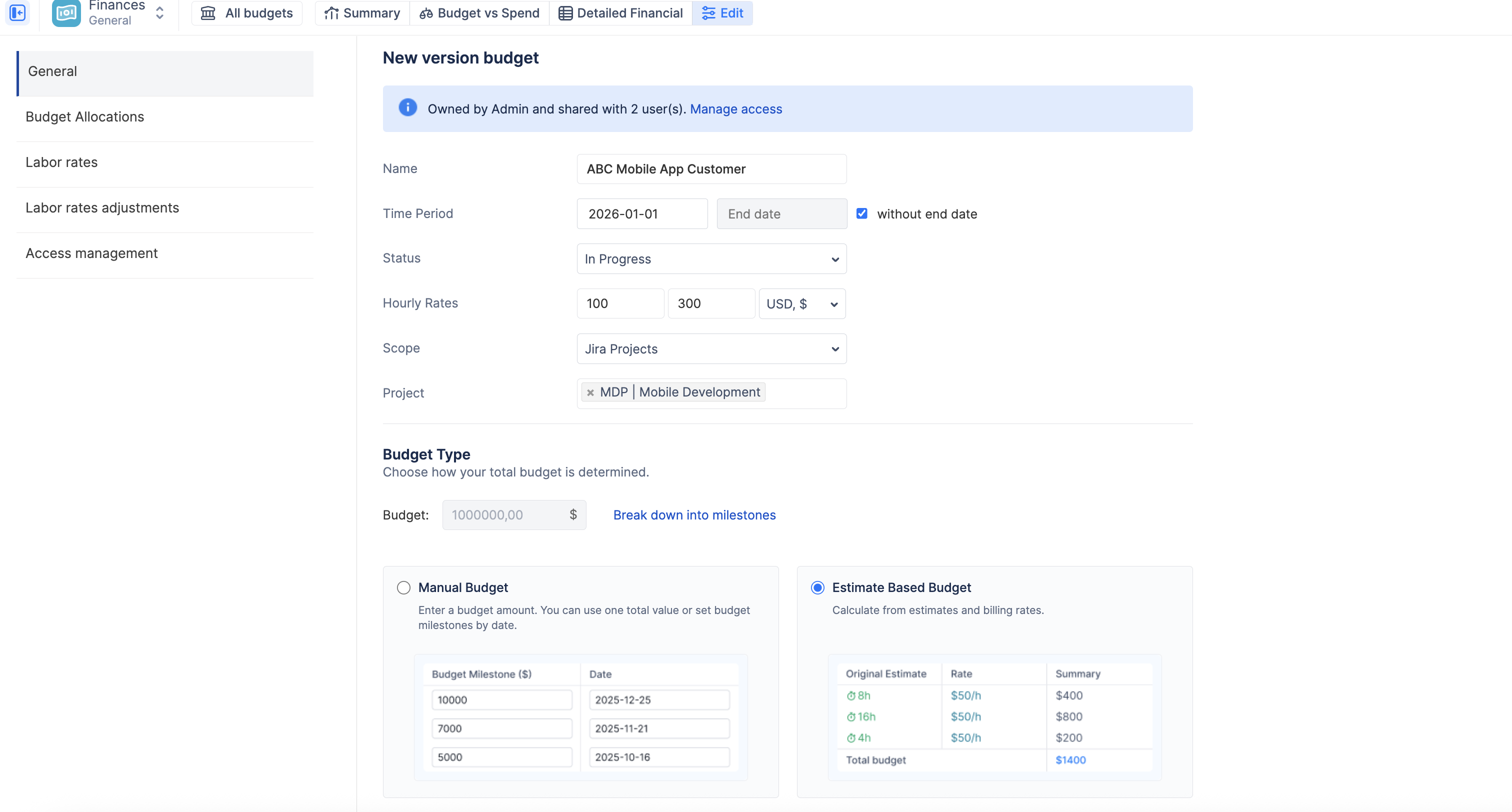
Step 1: Set the Budget Container
-
Create a new budget and select the Jira Projects or Epics associated with the client engagement.
-
In the Budget Type section, select “Estimate Based Budget”, as T&M projects usually don’t have a hard cap on budgets.
Step 2: Configure the Tracking Rules
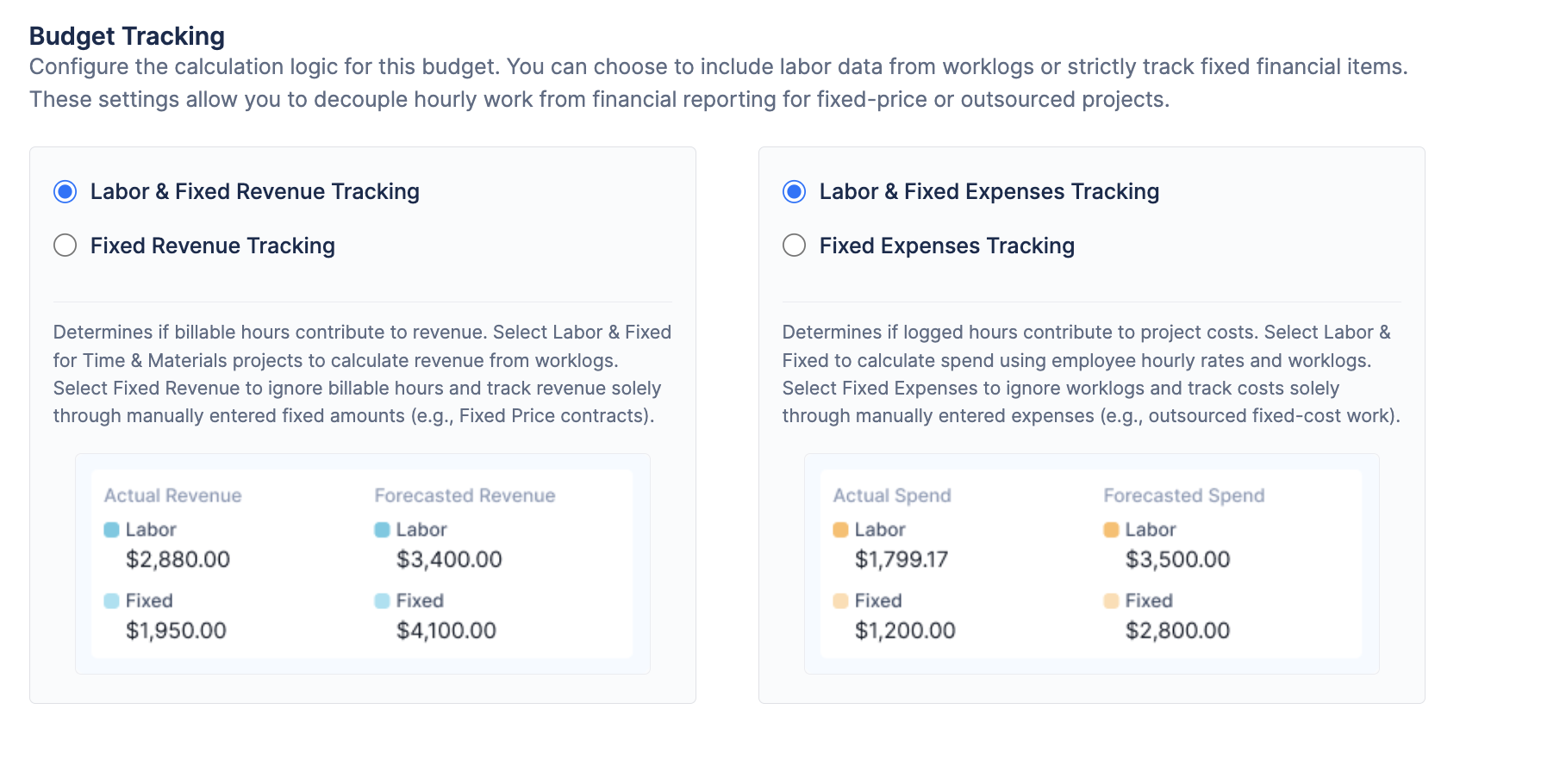
You need the system to track every hour worked as both a cost to you and revenue from the client.
-
Navigate to the Configuration → General tab.
-
Under both Cost Tracking and Revenue Tracking, ensure that Labor & Fixed is selected.
Step 3: Define Margins via Rates crucial
This is where you define your profitability. You must accurately reflect the spread between your internal costs and your client pricing.
-
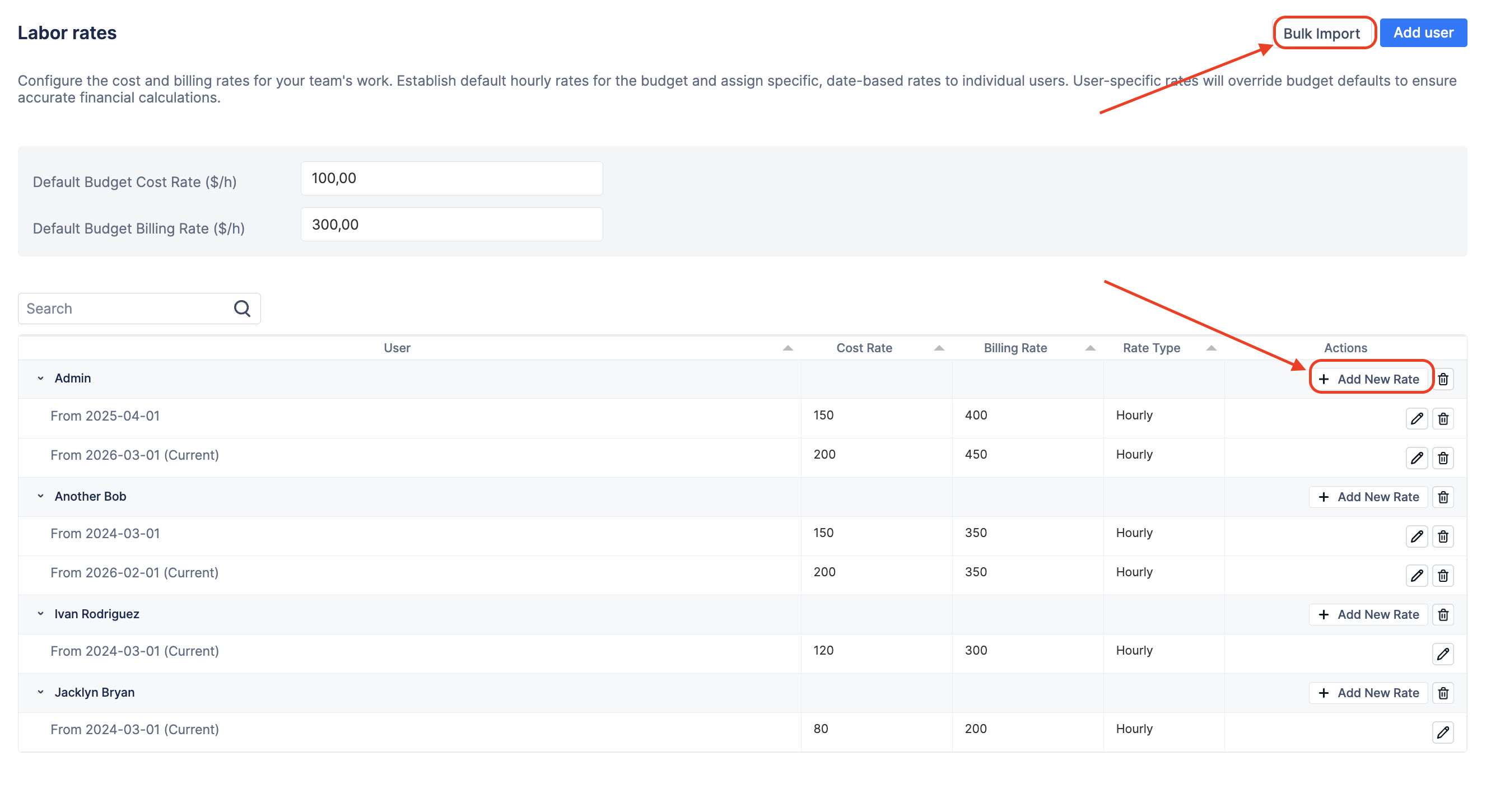
Navigate to the Labor rates tab.
-
Define the Default Budget Cost Rate (e.g., $50/hr) and the Default Budget Billing Rate (e.g., $150/hr).
-
Use the Bulk Import or + Add User buttons to add specific team members with distinct rates (e.g., a Senior Consultant costs $80/hr but bills at $250/hr).
Step 4: Manage Non-Billable Time
Not all hours worked on a client project are billable (e.g., internal syncs, fixing mistakes). You need to separate these to protect your margin.
-
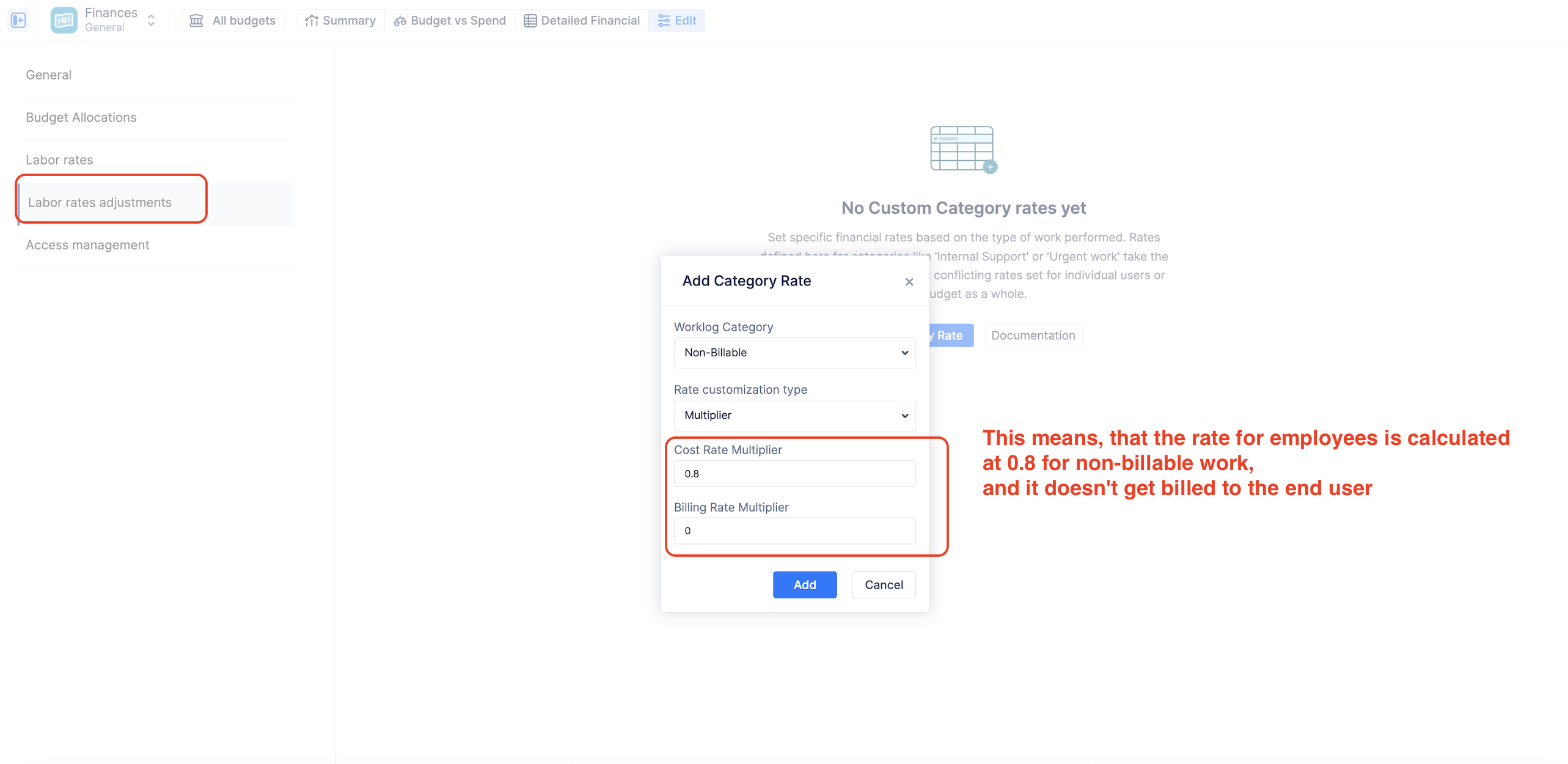
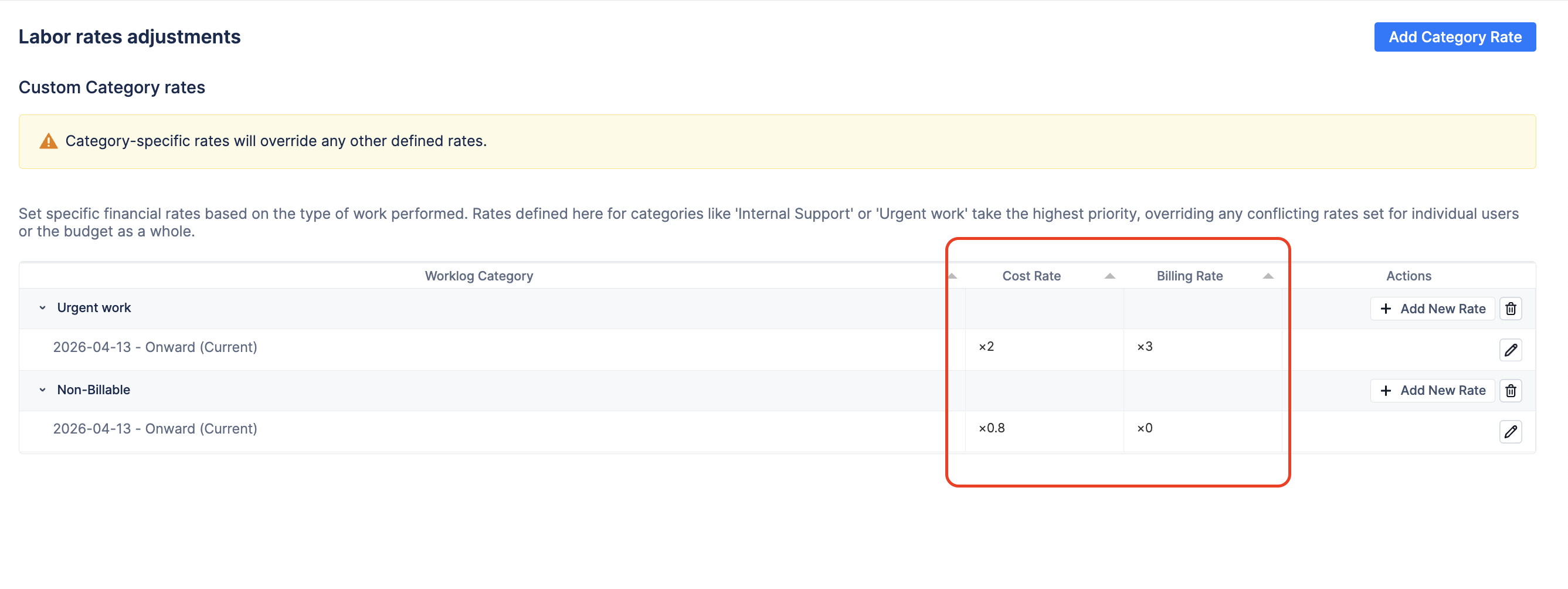
Navigate to the Labor rate adjustments tab.
-
Click + Add and select a non-billable category (e.g., "Internal QA").
-
Set the Cost Rate (e.g., 0.8 multiplier, and for external users is 0 as doesn’t get billed).
The Payoff: Real-Time Profitability & Forecasting
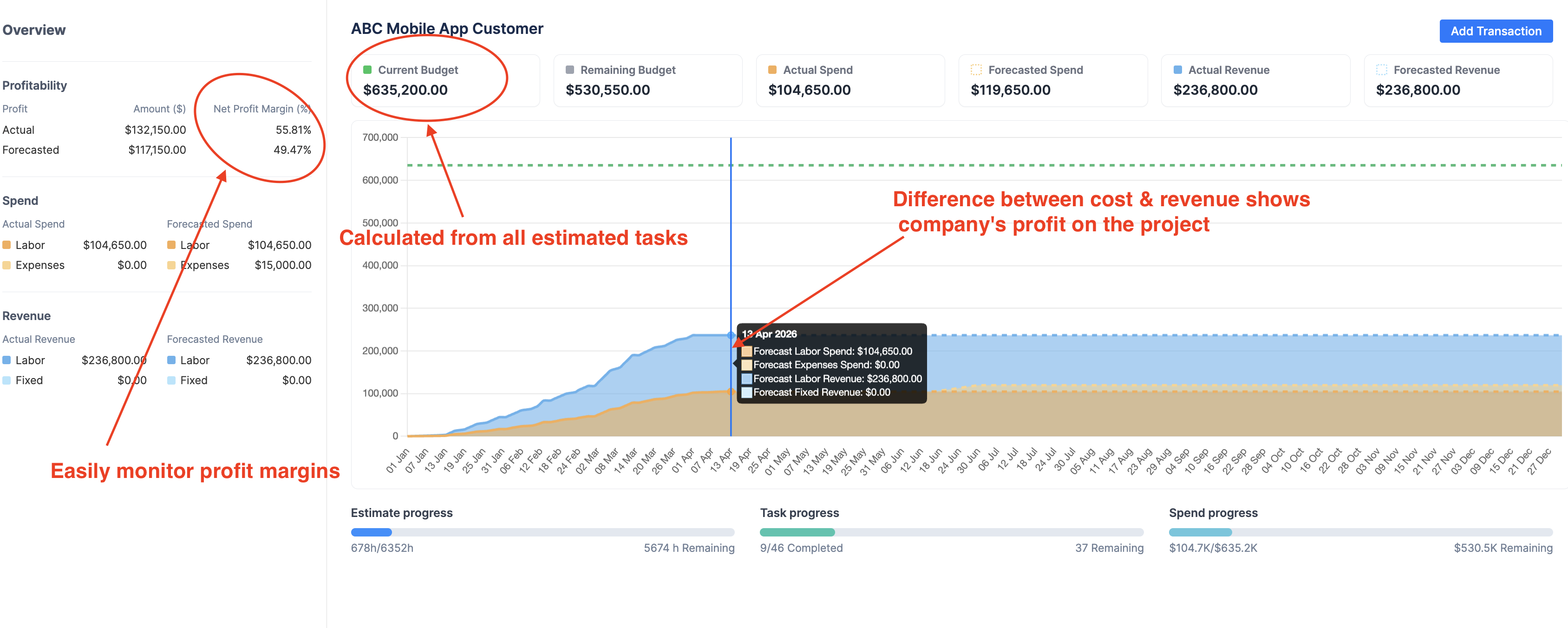
With this configuration, your Summary Dashboard becomes a real-time profitability monitor.
-
The Rising Lines (Actuals): As your team logs hours in Jira, both your Actual Spend (Orange line) and Actual Revenue (Blue line) will steadily rise based on the rates you configured.
-
The Margin: The gap between the Green line and the Orange line is your gross profit. The Profitability sidebar calculates the exact percentage (e.g., a 55.81% Net Profit Margin).
-
The Forecast (Dashed Lines): The dashed lines projecting into the future are built on concrete data, not estimates.
-
If you have users assigned a Monthly Rate (e.g., a salaried employee), the system automatically projects their prorated daily cost/revenue through the end of the budget period.
-
If you schedule a future Fixed Revenue transaction (e.g., a $10,000 milestone payment due next month), the dashed Green line will step up on that specific date.
-
💡 Scenario Recap: The Service Agency
By configuring your budget for Time & Materials, ActivityTimeline provides a transparent, real-time view of your agency's profitability on any client engagement.
The Key Takeaways:
-
The Setup: Ensure Labor & Fixed tracking is enabled for both Cost and Revenue.
-
The Action: You must meticulously define both the internal Cost Rate and the external Billing Rate to establish your margin. Use Category Rates to handle $0 billing for internal work.
-
The Value: The Summary Dashboard clearly displays your Net Profit Margin based on actual logged time. The forecast lines project your future financial state based strictly on scheduled transactions and recurring monthly rates, providing a highly reliable outlook.
Related Features for Service Agencies:
-
Detailed Financial Templates: Use the "Total revenue" template in the Detailed Financials report to generate a clean, auditable list of all billable worklogs at the end of the month, perfect for exporting to Excel to accompany a client invoice.
-
Budget vs Spend by Category: Use the "Budget vs Spend" pie charts (grouped by Category) to instantly see the ratio of Billable vs. Non-Billable work. If the "Non-Billable" actual spend grows larger than your planned allocation, your profitability is at risk.