
Notification Schemes send automated email reminders and updates about ActivityTimeline events. Use them to remind employees to log work, prompt managers to review timesheets, or keep colleagues informed when bookings and time off change.
Each scheme defines when an email is sent, who receives it, and what the message contains.
Before you begin
-
You must have the ActivityTimeline Administrator role to create and manage Notification Schemes.
-
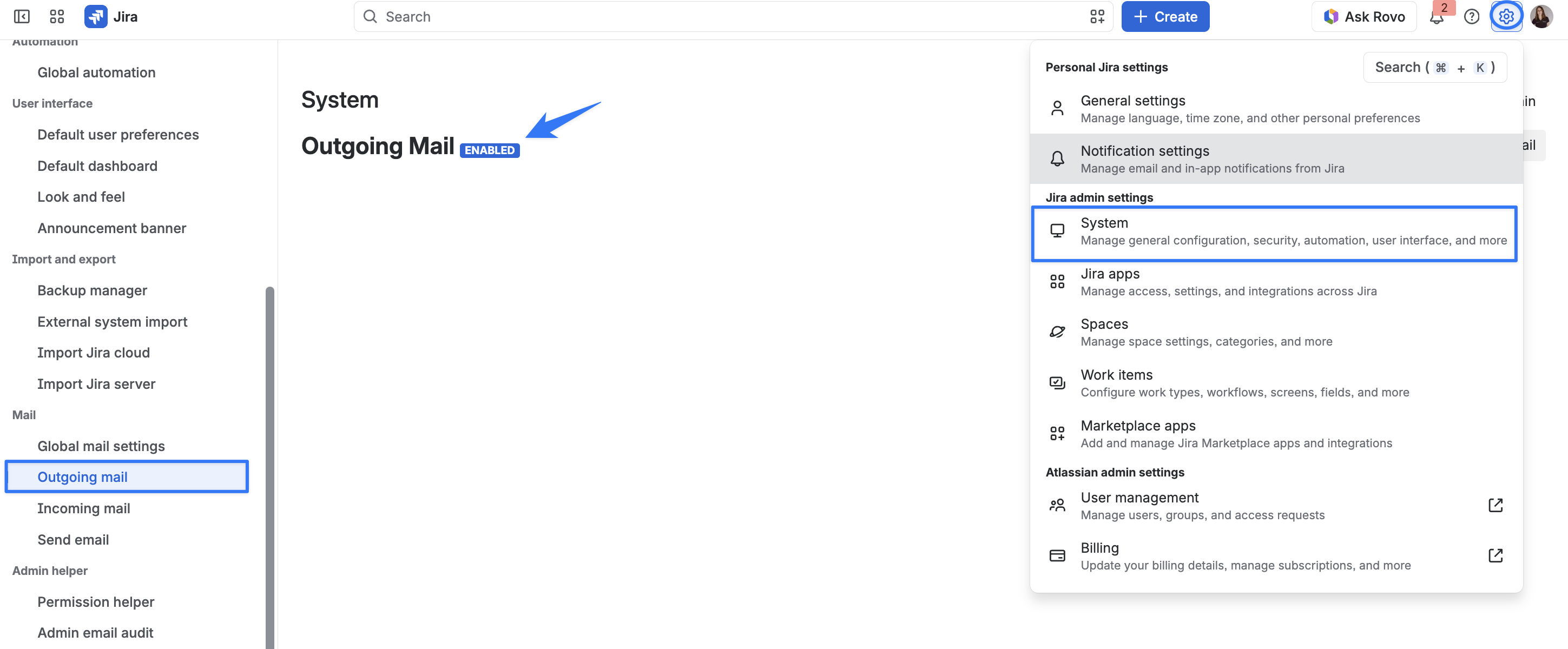
Jira outbound email must be enabled for Notification Schemes to send emails. If it is disabled, ask your Jira administrator to enable it.
Create a notification scheme
Go to ActivityTimeline → Configuration → Users → Notification Schemes. This is where you can view existing schemes and create new ones.
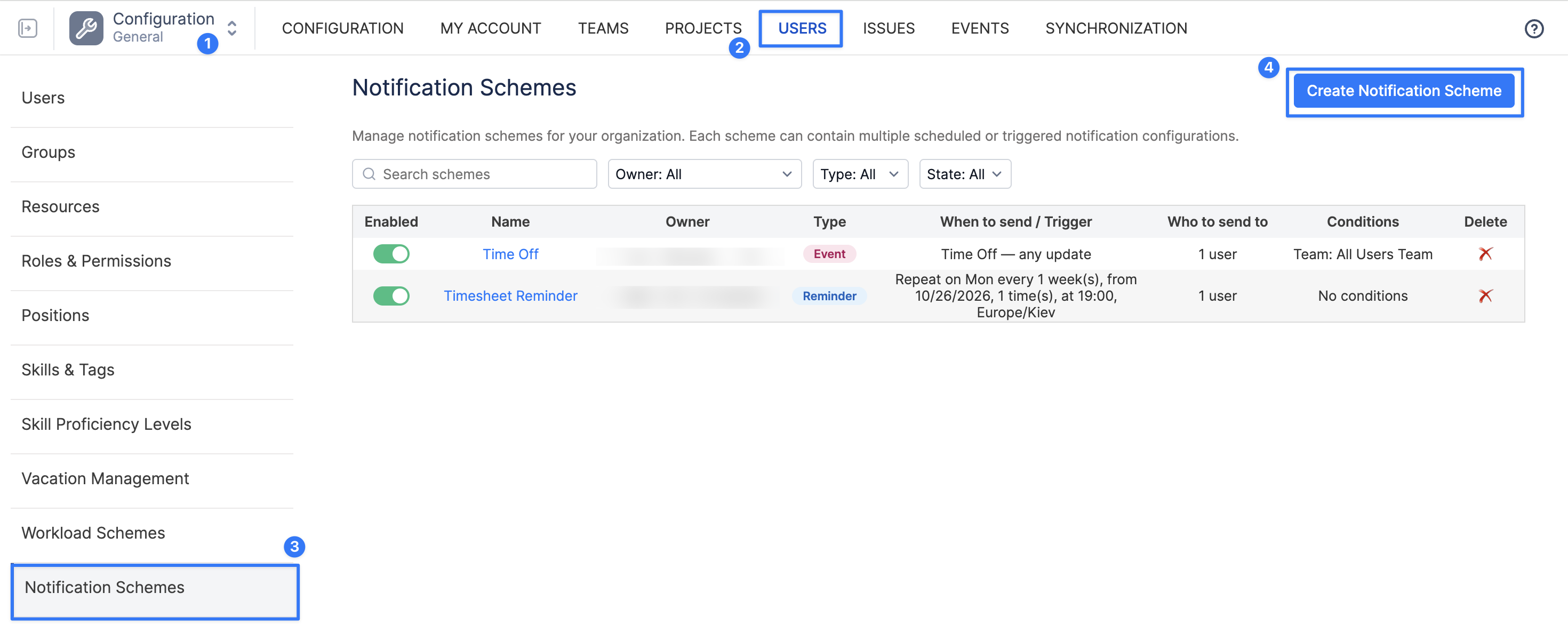
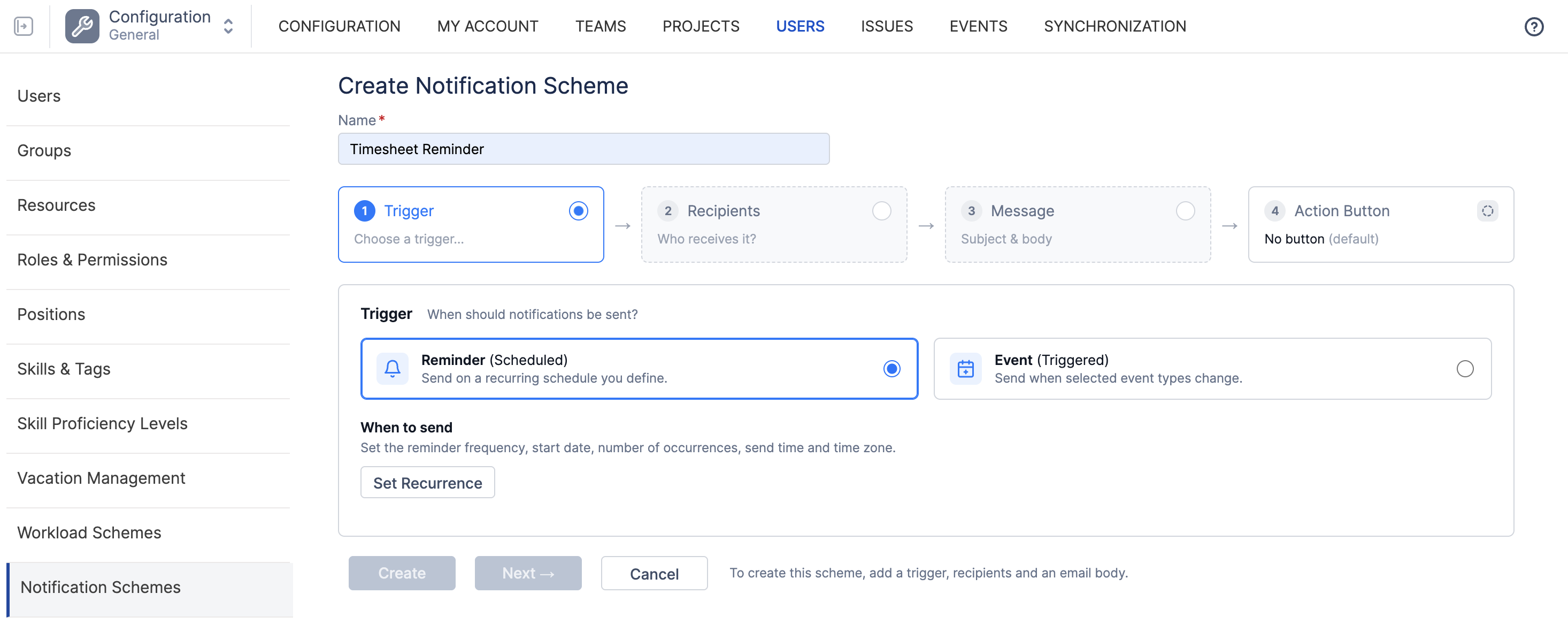
Click Create Notification Scheme and enter a name that makes its purpose clear, such as Weekly timesheet reminder or Support team vacation updates.
Start by choosing when the email should be sent. The editor then guides you through the remaining settings. Event notifications include an additional, optional Conditions step.
1. Choose when to send the notification
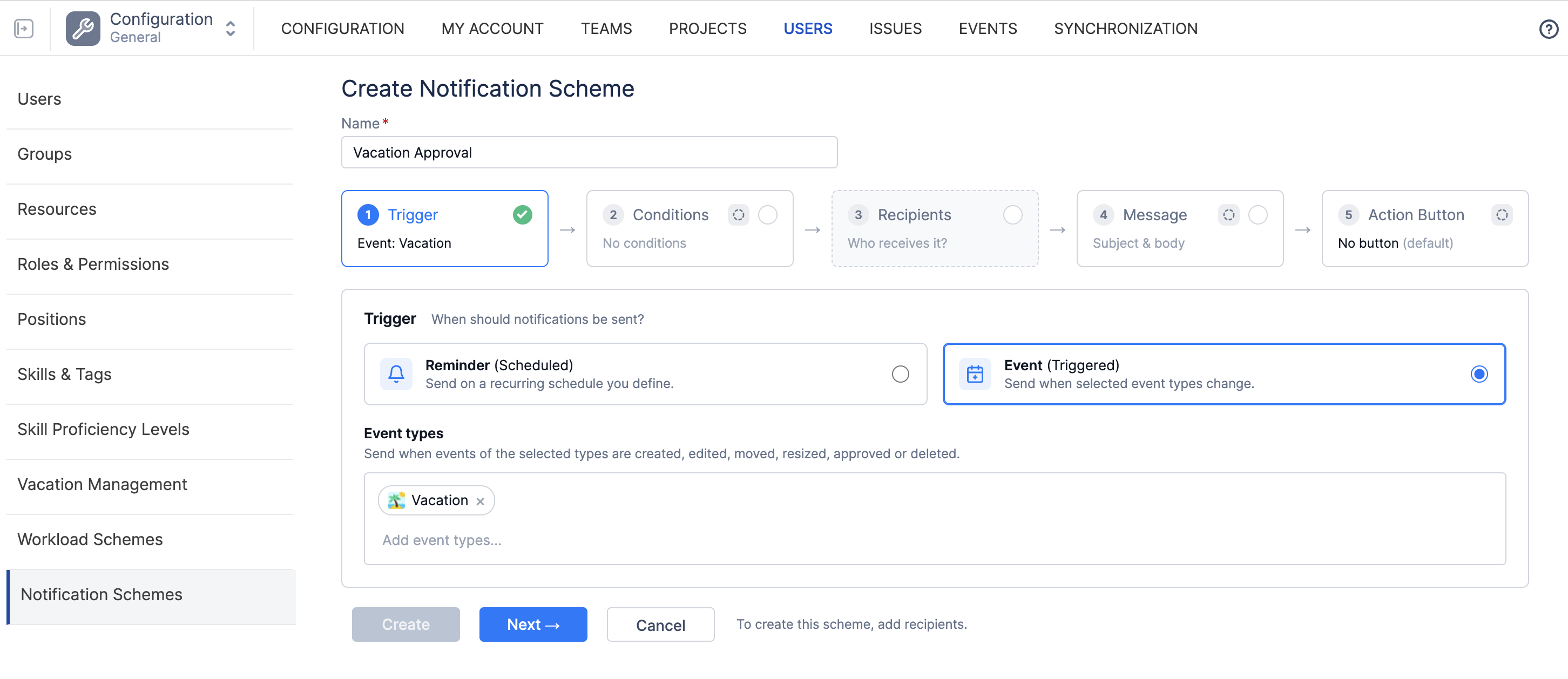
In Trigger, choose Reminder (Scheduled) for recurring emails or Event (Triggered) for updates about Planner events. Follow the instructions for the type you selected below.
Send a scheduled reminder
-
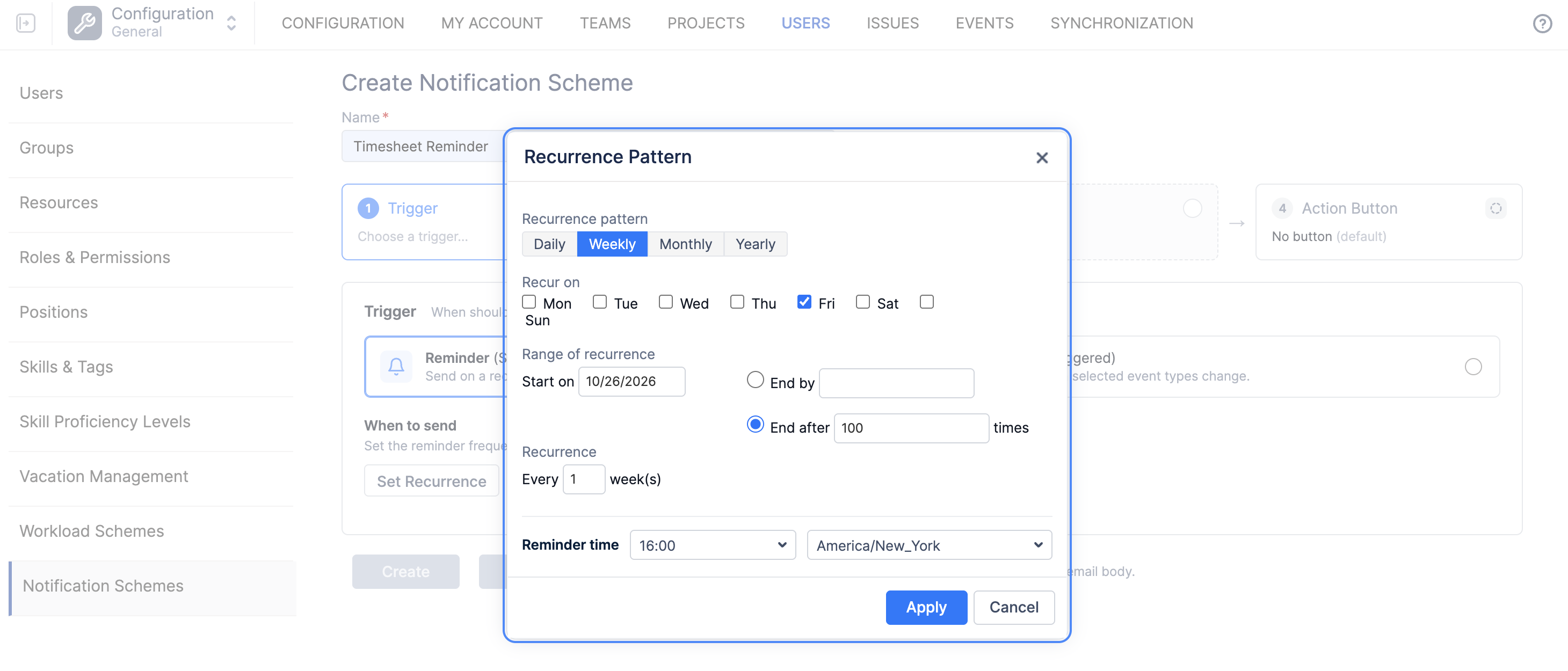
Select Reminder (Scheduled), then click Set Recurrence.
-
Choose how often the reminder runs and when it should stop.
-
Choose Daily, Weekly, Monthly, or Yearly, and set the repeat interval.
-
Choose a Start on date, then use End by for an end date or End after for a number of occurrences.
-
Set the Reminder time and time zone, then click Apply.
-
For example, a weekly worklog reminder could run every Friday at 16:00 in your team’s time zone.
Scheduled reminders are sent to all selected recipients. They do not check whether someone has already logged their time or reviewed a timesheet.
Review the schedule and click Next to choose the recipients.
Send a notification when an event changes
Select Event (Triggered), then choose one or more Event types. These include Booking, Holiday, Note, Overtime, Placeholder, Sick Leave, Time Off, and Vacation. Custom event types are also supported.
ActivityTimeline sends notifications when an event of a selected type is created, edited, moved, resized, approved, or deleted, where that action applies. For example, select Vacation to keep a manager informed about vacation changes.
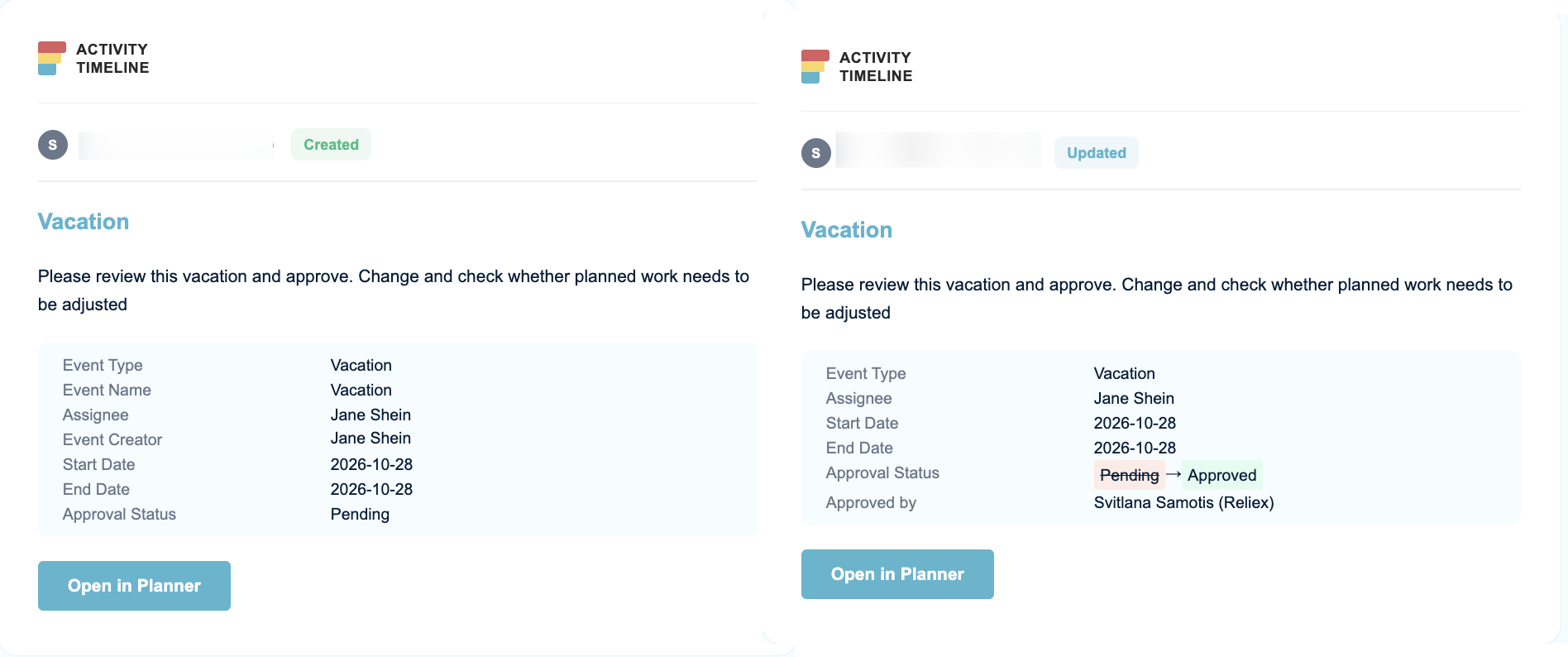
For updated events, emails can show what changed using an old → new format. For deleted events, emails can show the last known event details.
Click Next to add conditions or continue to the recipient settings.
2. Add conditions for event notifications
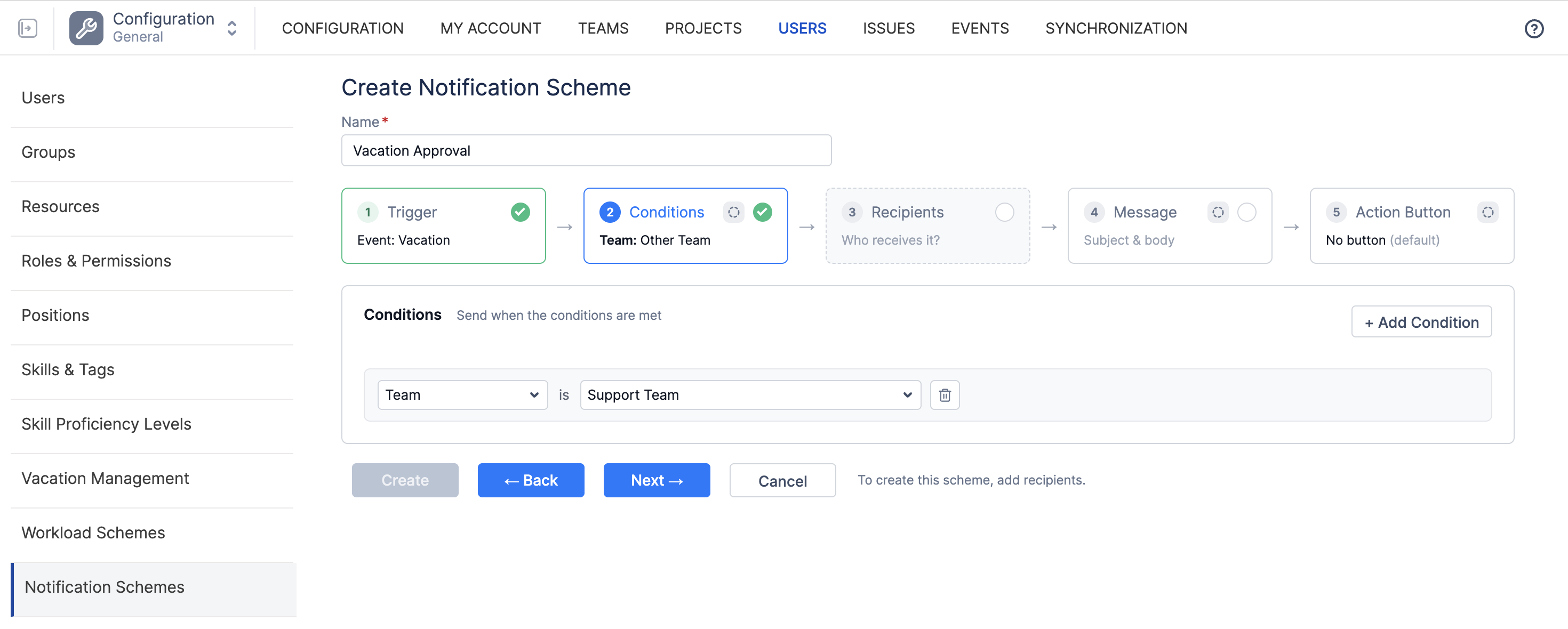
Conditions let you narrow the scheme to events associated with a particular Project, Team, or Assignee. This step is optional and appears only for Event schemes.
Click + Add Condition, choose the field, and select the value to match. Leave this step empty if you want notifications for all events of the selected types.
Use conditions to limit which events trigger a notification.
For example, to follow vacation changes for your Support team, choose Vacation as the event type and add the condition Team is Support.
Click Next when you are ready to choose who receives the updates.
3. Choose who receives the email
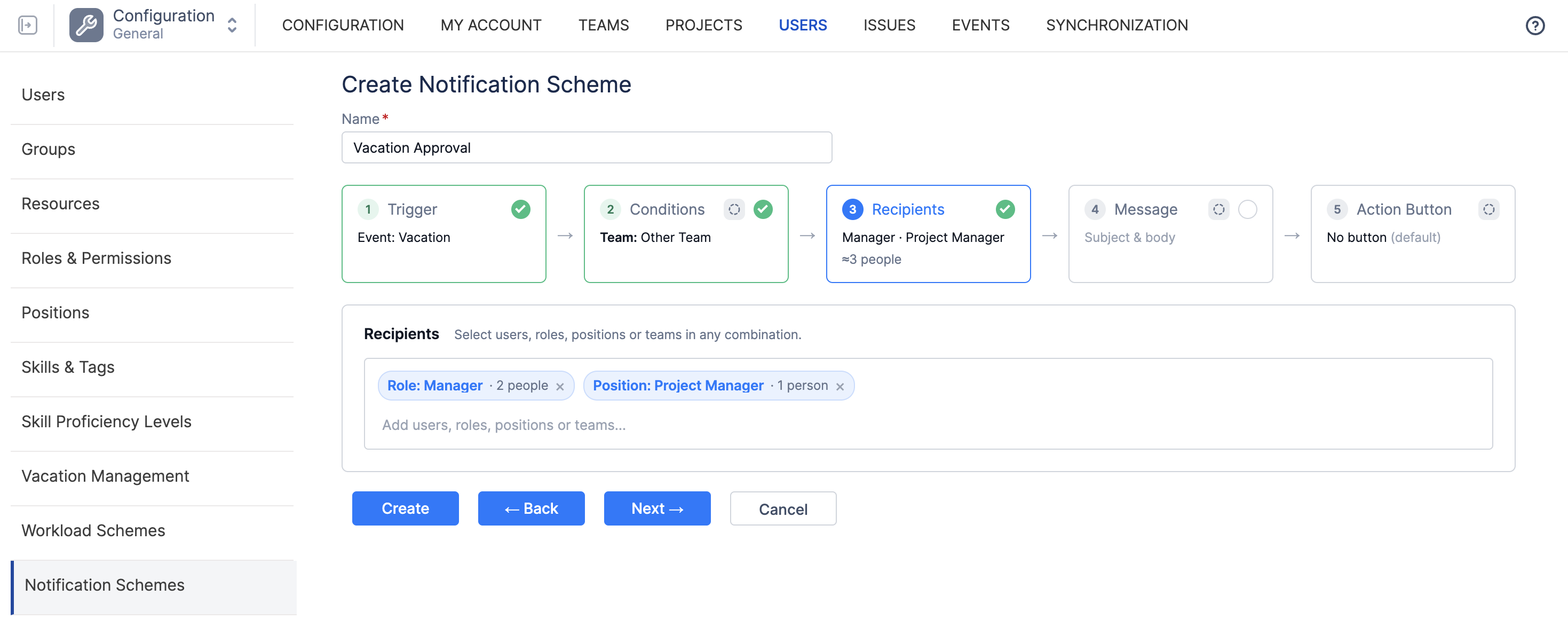
In Recipients, select individual users, ActivityTimeline roles, positions, or teams. You can combine these selections, such as a whole team and an individual manager.
For teams, roles, and positions, ActivityTimeline uses the current membership when sending the email. If someone matches more than one selection, they receive one copy of that notification. The editor shows an approximate recipient count to help you review the audience.
A condition does not select recipients. In the vacation example, the Team condition limits which events trigger the scheme. You still need to select the manager who should receive the emails. Choose that person individually if you only want to notify them; selecting a role includes the users with that role.
For event notifications, ActivityTimeline also checks recipients’ access to the related data before sending. Click Next to write the message.
4. Write the email
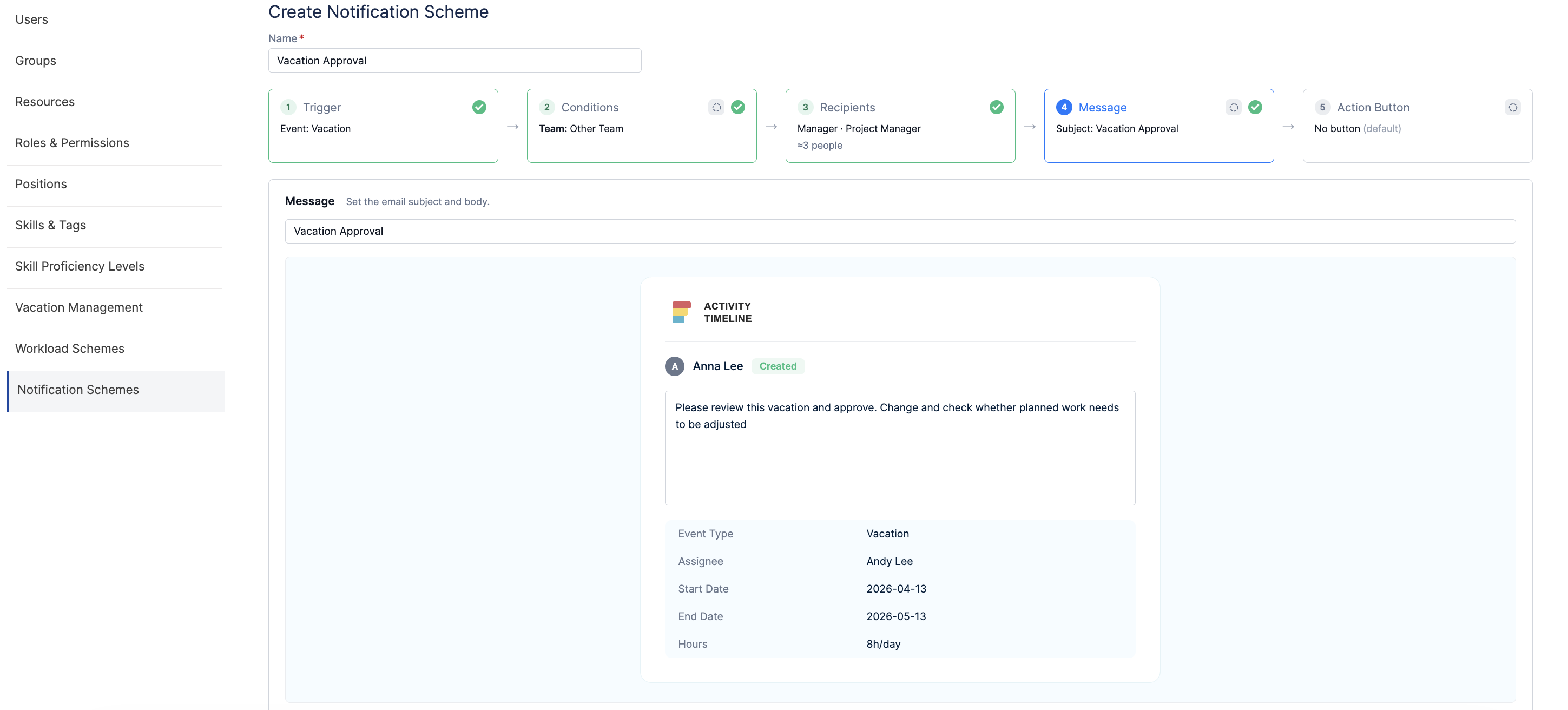
In Message, enter the subject and body, then review the email preview. Keep the message focused on what the recipient needs to know or do.
For reminders
Add a message explaining the action you want recipients to take. An email body is required for Reminder schemes.
Subject: Please complete your worklogs for this week
Message: Please review your worklogs and add any remaining time for this week before Friday’s team review.
Scheduled reminders are sent to all selected recipients. They do not check whether someone has already logged their time or reviewed a timesheet.
For event notifications
A custom subject and message are optional. The email includes details of the event, such as its type, assignee, dates, and hours. Depending on the event, it can also include the name, project, estimate, description, external link, or approval status.
Updated events can show the previous and new values. Deleted events can show the last known details.
You can add a short message for context, such as: “Please review this vacation change and check whether planned work needs to be adjusted.”
5. Add an action button
In Action Button, you can add one button that takes recipients back to ActivityTimeline. Choose the destination that fits the message, or leave No button selected.
|
Option |
Where it takes the recipient |
|
Open in Planner |
The Planner board |
|
Open in Workspace |
The Workspace view |
|
Open in Timesheets |
The Timesheets view |
|
No button |
The email has no action button |
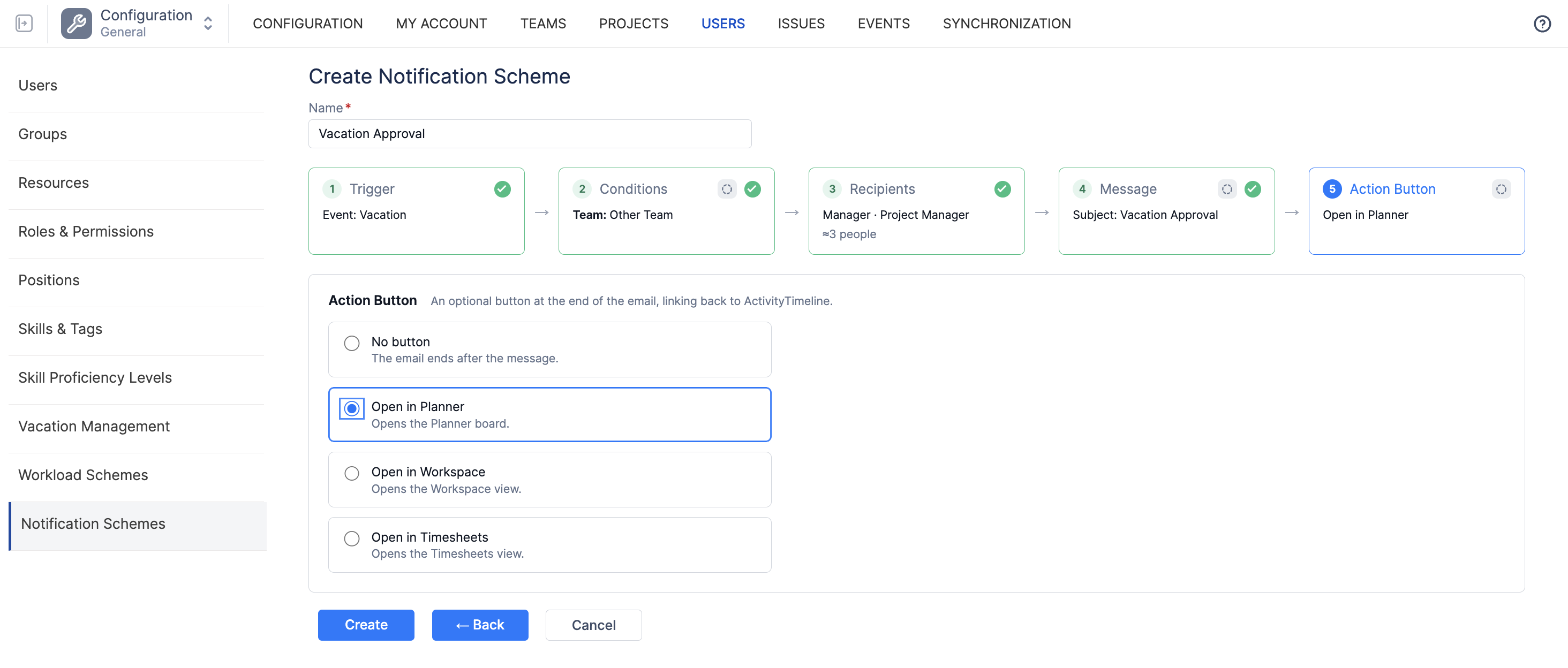
For example, use Open in Workspace for a worklog reminder or Open in Planner for an update about a booking or vacation.
6. Save and enable the scheme
Click Create, then check that the scheme’s Enabled toggle is on in the list. Reminders follow the configured schedule. Event notifications are sent when a selected event changes and matches any conditions you added.
Managing existing schemes
From the Notification Schemes list, admins can:
-
Enable or disable a scheme
-
Search for schemes
-
Filter by owner, type, or state
-
Edit an existing scheme
-
Delete a scheme
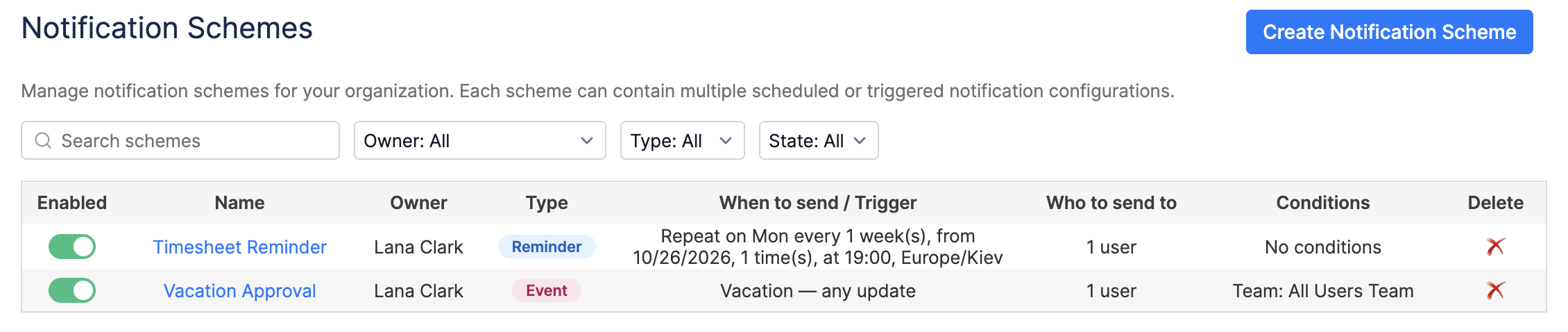
Disabling a scheme stops future notifications without deleting its configuration.
Troubleshoot missing notifications
If an expected email does not arrive, start with the scheme settings and then check the recipient.
-
Confirm that Jira outbound email is enabled and the scheme’s Enabled toggle is on.
-
Check the trigger settings:
-
-
Reminder: Review the start date, repeat interval, send time, and time zone. Make sure the end date or occurrence limit has not been reached.
-
Event: Check that the event type is selected and the event matches the configured conditions.
-
-
Confirm that the intended recipient is selected directly or belongs to a selected team, role, or position. For event notifications, also check their access to the related data.
-
Check the spam folder and whether the email client has grouped the notification into an existing conversation.
If you still need help, contact ActivityTimeline support with the scheme name, the expected send time and time zone, the affected recipient, and screenshots of the settings.