

The Situation
Several projects, releases, or initiatives are expected during the next quarter.
Some of the work is already confirmed in Jira, while other demand is still tentative. Managers need to understand whether the organization has enough available capacity before committing to deadlines or accepting additional work.
Without a consolidated forecast, teams may discover overload, missing skills, or insufficient staffing only after delivery commitments have already been made.
The Primary Goal
Compare expected demand with available capacity across the next quarter, identify future overload or staffing gaps, and adjust the plan before making delivery commitments.
What You’ll Use
|
Feature |
Purpose |
|---|---|
|
Quarter and long-term Planner views |
Review workload across upcoming weeks or months |
|
Jira issues |
Include confirmed work in the forecast |
|
Represent tentative demand without changing Jira |
|
|
Reserve a specific number of hours per day |
|
|
Forecast workload and availability per person |
|
|
Compare total, utilized, and remaining team capacity |
|
|
Availability Reports |
Identify available teams, positions, and skills |
|
Custom Resources |
Represent future hires or additional capacity needs |
Before You Begin
Make sure that:
-
relevant Jira projects are enabled in ActivityTimeline;
-
users have accurate capacity and workload schemes;
-
holiday schemes and known time off are included;
-
confirmed Jira work has estimates and planning dates;
Capacity forecasts are only as accurate as the underlying planning data. Missing estimates, incorrect user capacity, or work without scheduled dates may make future demand appear lower than it really is.
Step 1: Define the Planning Horizon
Start by defining what you want to evaluate.
For example:
-
one upcoming quarter;
-
the next three months;
-
a release expected within the quarter;
-
several projects competing for the same capacity;
-
a new initiative that has not yet been approved.
Open ActivityTimeline → Planner and select the relevant teams or users.
Choose one of the following scopes:
-
Quarter to see the full quarter with weekly columns;
-
Quarter – Weekly Scroll for a more detailed, scrollable view;
-
Half a Year if the planned work may extend beyond the quarter.
Use Compact View when you need to display more teams or users on the screen.
Learn more: Planning Period, Units and Compact Mode
Step 2: Review the Existing Capacity Baseline
Before adding future demand, review what is already planned.
Check the timelines for:
-
confirmed Jira issues;
-
existing Bookings and Placeholders;
-
work assigned from other projects;
-
recurring operational responsibilities;
-
imported calendar events;
-
vacations, holidays, and other non-working activities.
Switch the workload indicator to Availability to see how much capacity remains.
Review the forecast at both levels:
-
Team level: Can the team accept additional work?
-
Individual level: Are specific people already overloaded or unavailable?
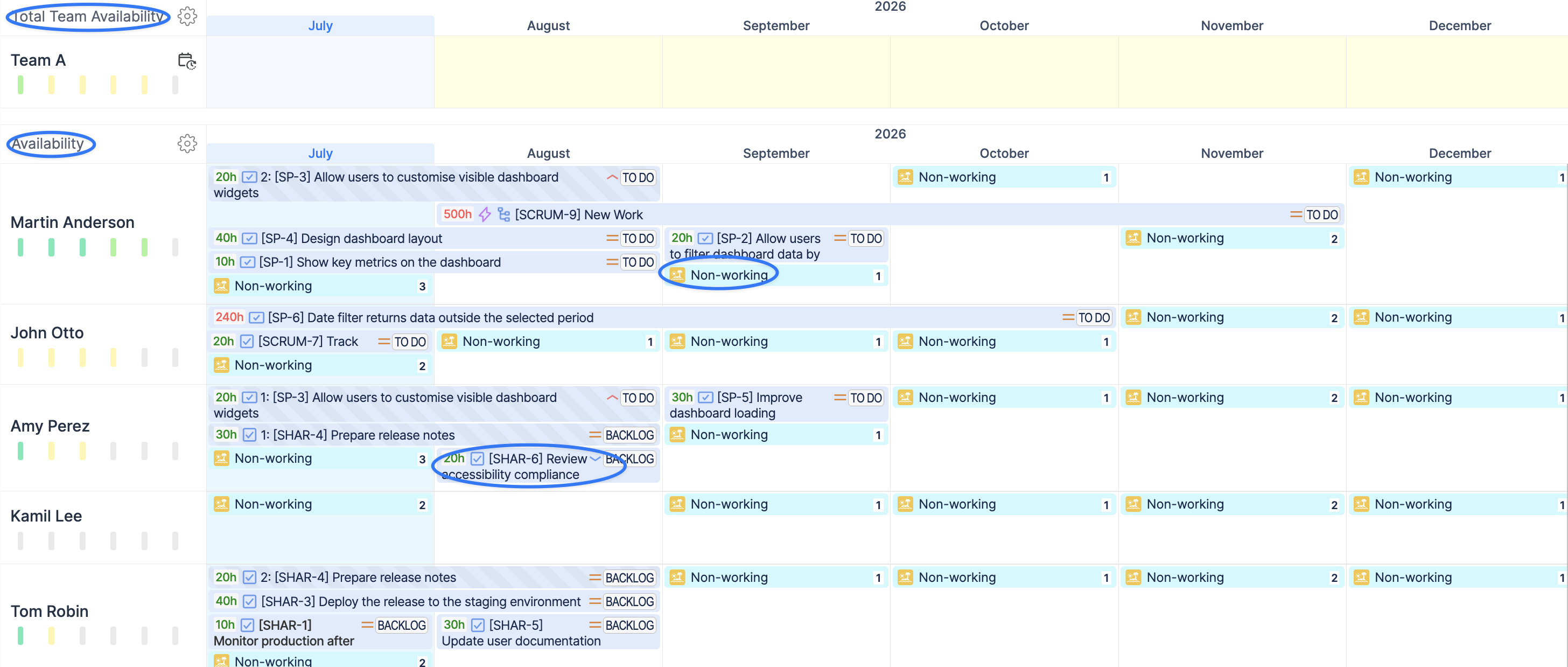
This creates a baseline showing how much capacity is still available before new quarterly demand is added.
Step 3: Add Expected Demand
Use different planning items depending on how certain the future work is.
Use Jira Issues for Confirmed Work
Schedule existing Jira issues when:
-
the work has been approved;
-
the required issues already exist;
-
estimates and ownership are sufficiently clear;
-
planning changes should be synchronized with Jira.
The issue estimate contributes to the planned workload across its scheduled dates.
Use Placeholders for Tentative Demand
Create Placeholders when:
-
the initiative is still being evaluated;
-
the exact assignment is not confirmed;
-
Jira issues are not ready to be scheduled;
-
you want to test several planning options without changing Jira.
A Placeholder uses one total estimate for its full duration. This makes it suitable for broader demand such as:
-
a future project phase;
-
expected release work;
-
an unconfirmed customer project;
-
additional design, QA, or architecture effort.
A Placeholder can be created as a standalone planning item or linked to an existing Jira issue.
If it is linked to a Jira issue, approving the Placeholder replaces it with the Jira issue and updates the assignment in Jira.
Learn more: Placeholder Custom Event
Use Bookings for Specific Allocations
Create a Booking when you need to reserve a defined number of hours per day.
For example:
-
reserve a developer for four hours per day;
-
allocate 50% of a specialist’s time to a future project;
-
block recurring capacity for support or maintenance;
-
protect time for work before Jira issues are created.
To create a Booking:
-
Click an empty period on the user’s timeline.
-
Select Booking.
-
Enter the title.
-
Select the related project, if needed.
-
Define the number of hours per day.
-
Set the required dates.
-
Click Create.
Bookings are included in workload calculations and forecasting reports.
Learn more: Booking Custom Event
Step 4: Generate the Capacity Forecast
Open Reports → Resource Utilization Forecast.
Configure the report using:
-
Period: the upcoming quarter or a custom three-month period;
-
Teams / People: the teams or users included in the forecast;
-
Report By: all scheduled work;
-
Group By: None or Project, Epic, or another relevant Jira field;
-
Units: Week or Month.
Include the planning data required for the scenario (default):
-
Jira Issues;
-
Placeholders;
-
Bookings.
The report shows:
-
each person’s available capacity;
-
scheduled workload;
-
utilization percentage;
-
periods of over- or underutilization;
-
how future workload is distributed across projects or other selected dimensions.
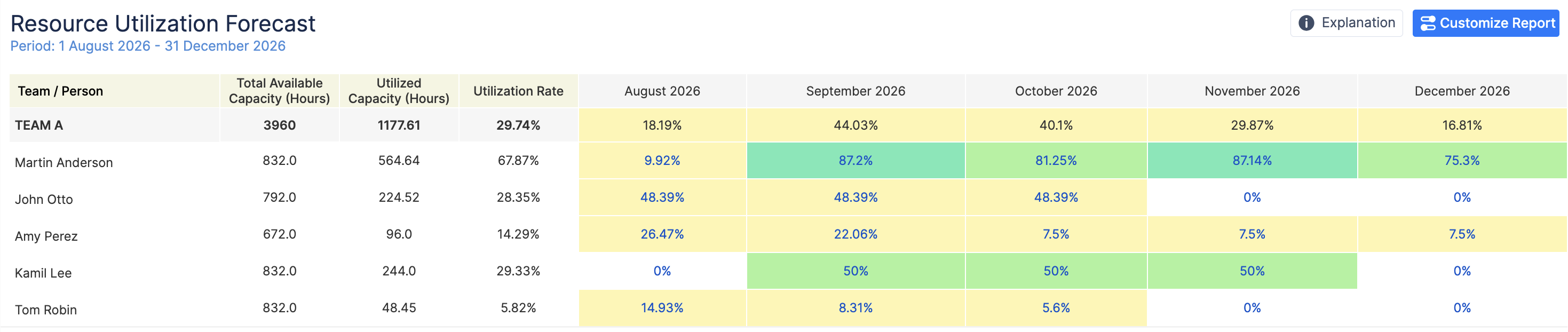
Use monthly units for a high-level quarterly overview. Switch to weekly units when you need to identify the exact period in which an overload begins.
Learn more: Resource Utilization Forecast
Step 5: Review Capacity at the Team Level
Use the Team Capacity Chart when you need a higher-level view of the forecast.
Configure the chart for the same quarter and select the relevant team.
The chart compares:
-
Total Available Capacity: the team’s combined capacity after non-working time;
-
Utilized Capacity: work already assigned through Jira issues, Bookings, Placeholders, and calendar events;
-
Remaining Capacity: capacity that has not yet been allocated;
-
Utilization Rate: the percentage of team capacity already planned.
This helps answer:
-
In which month can the team accept more work?
-
When will the team become overloaded?
-
How much capacity remains for unplanned requests?
-
Does the planned workload leave a realistic delivery buffer?
-
Should work be moved to another team or period?
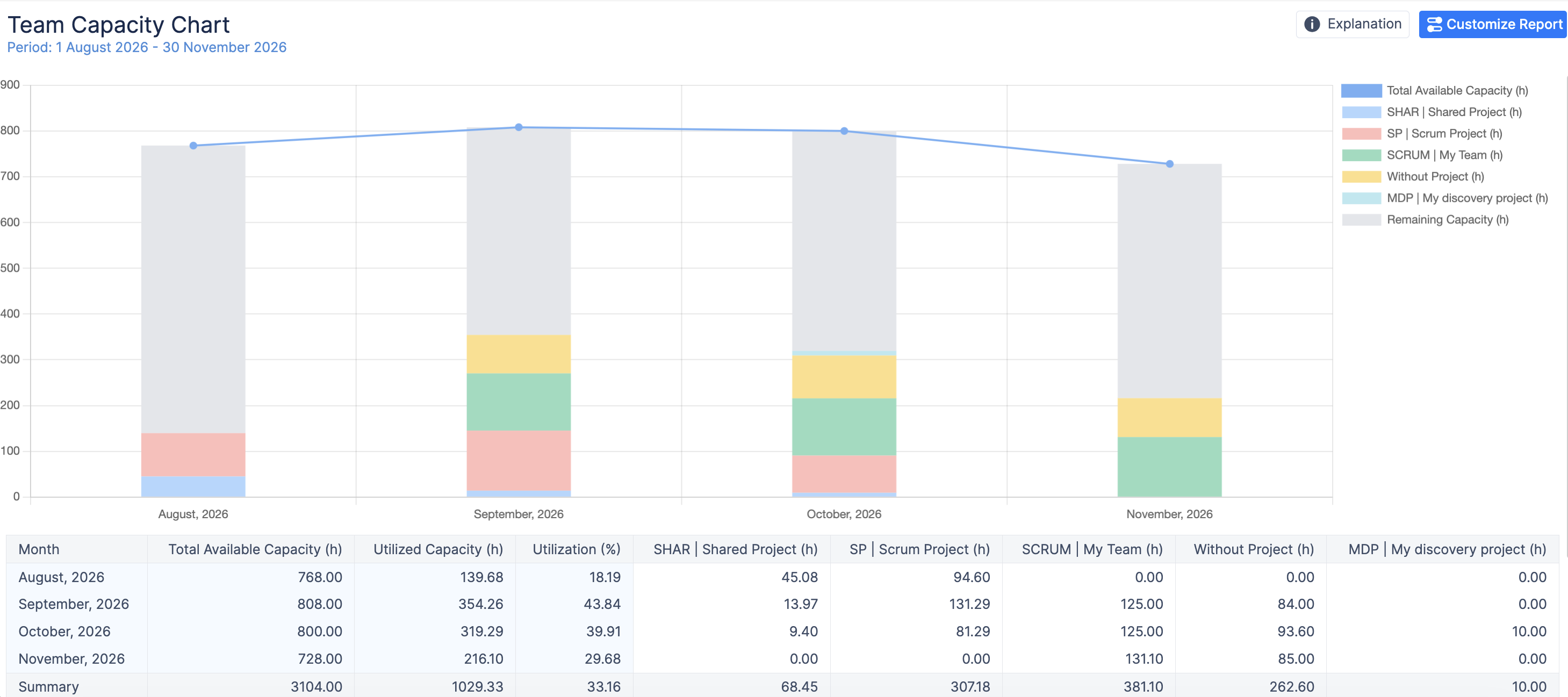
Learn more: Team Capacity Chart
Step 6: Identify Team, Position, or Skill Gaps
Total available hours do not always mean that the right expertise is available.
Use the Availability Reports under Reports → Other Reports to investigate the forecast further.
Position Availability Report
Use this report when the work requires a particular role, such as:
-
QA Engineer;
-
UX Designer;
-
Solution Architect;
-
DevOps Engineer;
-
Business Analyst.
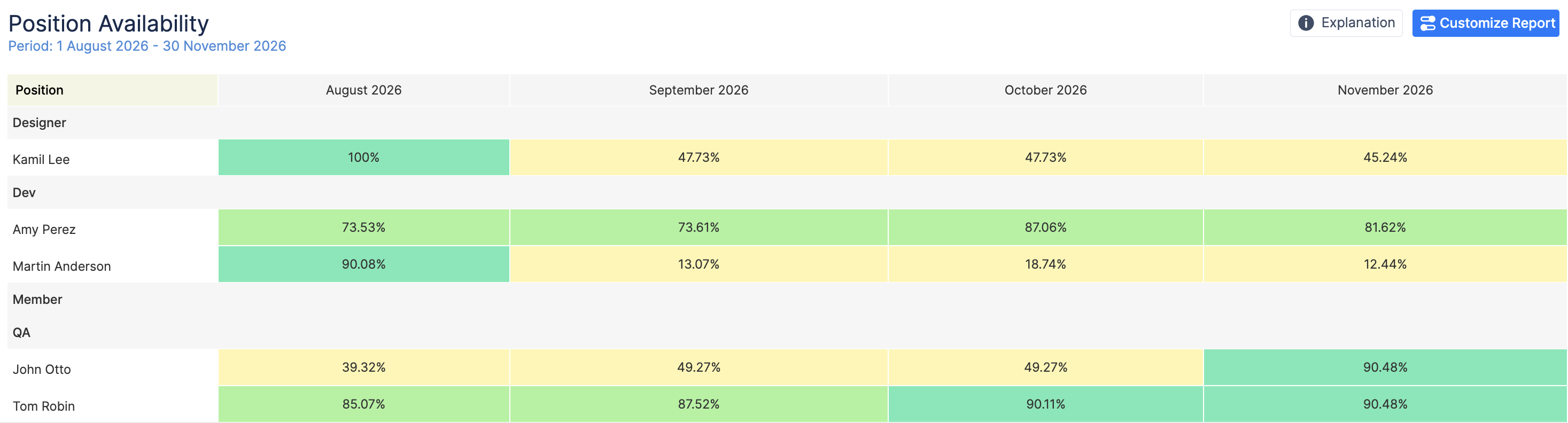
The report shows employees in the selected positions and how much availability they have during the selected period.
Learn more: Position Availability Report
Skill Availability Report
Use this report when the initiative requires a specific technical or business skill.
Select the required skills, teams, and period to see:
-
which employees have the selected skills;
-
how much capacity they still have;
-
whether the organization may face a future skill shortage.
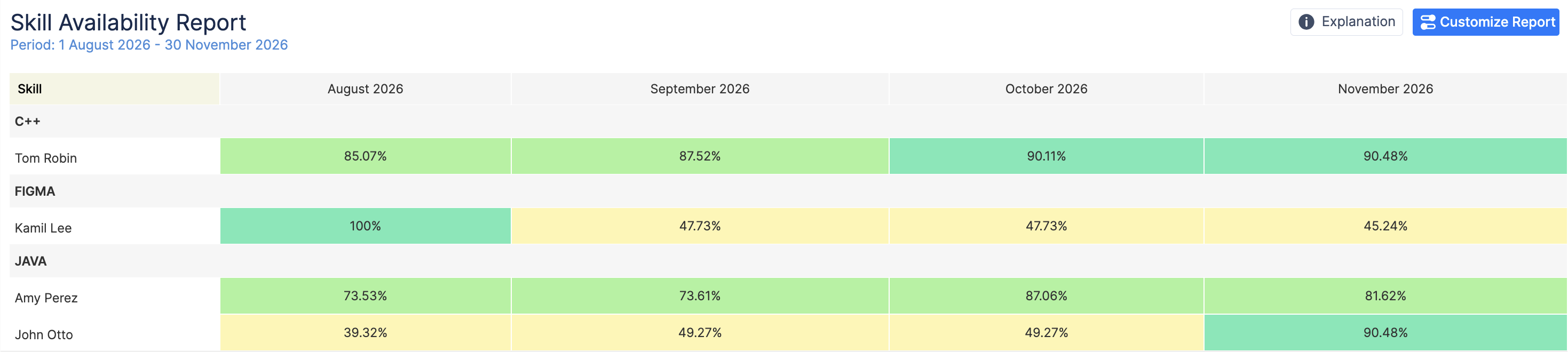
If proficiency levels are important, use the Skill / Level Availability Report to narrow the results further.
Learn more: Skill Availability Report
Step 7: Resolve Future Capacity Gaps
If expected demand exceeds available capacity, adjust the plan before committing to delivery.
Depending on the situation, you can:
-
move flexible work to another week or month;
-
reduce or postpone lower-priority scope;
-
distribute work across other teams;
-
reassign work to another qualified specialist;
-
reduce tentative demand;
-
reserve external contractor capacity;
-
plan for an additional hire.
Represent a Future Hire
ActivityTimeline Resources can represent potential employees, open positions, contractors, or other additional capacity needs.
Create a Resource with the expected:
-
position;
-
skills;
-
capacity;
-
team membership.
Because a Resource is not a Jira user, Jira issues cannot be assigned to it directly. Use a Placeholder to reserve the Resource’s capacity for Jira-related work.
Once the actual person joins the organization, planned work can be reassigned from the Resource to the new user.
Learn more: Resources: Non-Jira Users
After making changes, regenerate the Resource Utilization Forecast and Team Capacity Chart to confirm that:
-
critical overload has been resolved;
-
the required roles and skills are available;
-
planned allocations match business priorities;
-
the remaining capacity is sufficient for expected unplanned work.
Expected Result
After completing this workflow, you will have:
-
a consolidated view of confirmed and tentative quarterly demand;
-
a forecast based on real capacity, existing assignments, and time off;
-
visibility into future overload and underutilization;
-
identified team, position, or skill shortages;
-
alternative staffing or scheduling options evaluated before commitment;
-
a more realistic basis for accepting projects and setting delivery expectations.