
Use Migrate from Tempo to import historical worklogs and supporting configuration from Tempo into ActivityTimeline.
The migration page lets an administrator choose which data to import. It supports importing up to 10,000,000 worklogs. Depending on the amount of data, importing worklogs can take several minutes to several hours.
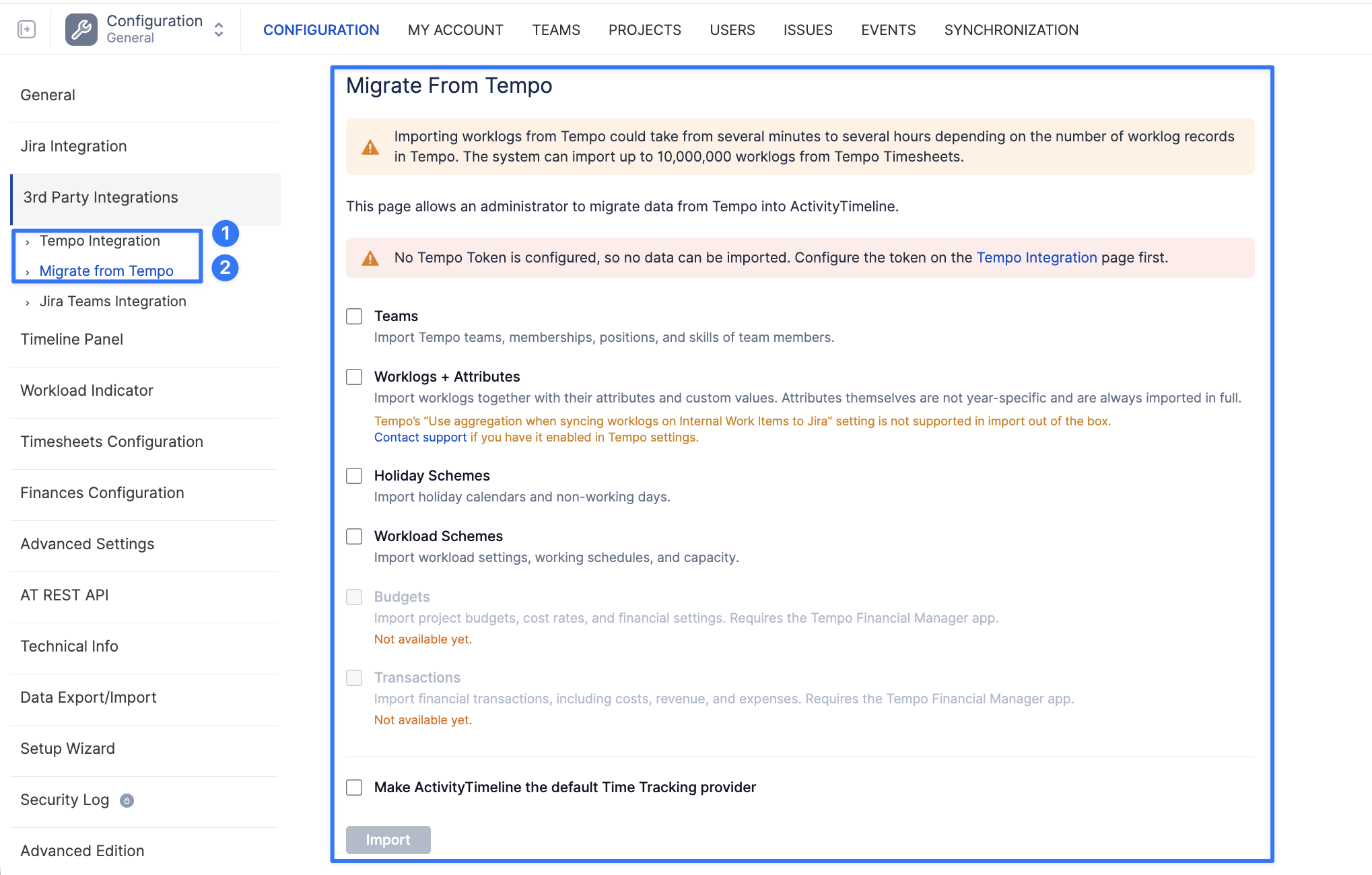
If you want to continue using Tempo alongside ActivityTimeline, see Integration with Tempo Timesheets (Cloud).
Before you begin
-
Open ActivityTimeline with an administrator account.
-
Configure a Tempo API token under Configuration → 3rd Party Integrations → Tempo Integration. Follow the token setup instructions. The token’s account must have access to the data you want to import.
-
Check that the required Jira projects are enabled under Configuration → Projects.
Using Tempo’s internal work item aggregation? Contact support before importing if “Use aggregation when syncing worklogs on Internal Work Items to Jira” is enabled in Tempo. This setting is not supported by the standard import flow.
Choose the data to import
Go to Configuration → 3rd Party Integrations → Migrate from Tempo.
Select the data you want to bring into ActivityTimeline:
|
Option |
Data imported |
|---|---|
|
Teams |
Tempo teams, memberships, positions, and team members’ skills. |
|
Worklogs + Attributes |
Worklogs together with their attributes and custom values. Attribute definitions are always imported in full and are not restricted to a particular year. |
|
Holiday Schemes |
Holiday calendars |
|
Workload Schemes |
Workload settings |
Budgets and Transactions are not available for import yet.
If a message says that no Tempo token is configured, return to Tempo Integration, save the token, and then reopen the migration page.
Select the worklog years
When you select Worklogs + Attributes, the Years field appears. Select the years whose worklogs you want to import. For example, select 2026 to import worklogs from that year. Include earlier years if you need historical data from those periods.

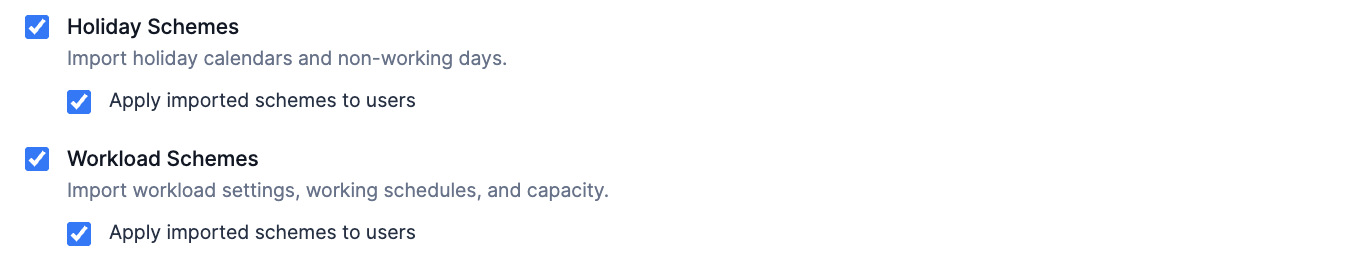
Apply imported schemes to users
Both Holiday Schemes and Workload Schemes have an Apply imported schemes to users option.
Select this option for each scheme type you want applied to users during the import. Leave it unselected if you want to import the schemes and review their assignments separately.
Choose your time tracking provider
Select Make ActivityTimeline the default Time Tracking provider if you want to use ActivityTimeline as Jira’s default time tracking provider.
Leave this option unselected if you do not want to request that change as part of the migration.

Review the imported data
After the import finishes:
-
Worklogs: Open Timesheets for an imported period. Compare logged hours with Tempo for a few users and projects, and check worklog authors and attribute values.
-
Teams: Review imported teams and their memberships, positions, and skills.
-
Holiday schemes: Check the imported calendars and whether the intended users, teams, or groups have the correct schemes applied.
-
Workload schemes: Check working days and daily capacity for a few representative users, including anyone working part-time.
-
Time tracking: If you selected the provider option, check the Log Work dialog in Jira.
If data is missing, check the selected import options, the Tempo token’s access, and the enabled Jira projects. Contact support with the affected users, projects, and dates if the issue remains.